
Inventory mismatch between admin and frontend in WooCommerce can confuse customers, disrupt fulfillment, and increase the risk of overselling. In most cases, the problem is not that stock is missing, but that your backend and frontend are reading inventory through different logic, cache layers, or plugin rules.
The issue becomes even harder to manage in stores using multiple warehouses or location-based stock. In this guide, you will learn why WooCommerce shows different inventory in the admin and frontend, what usually causes it, and how to fix it with a more consistent inventory setup.
Quick Fixes
When admin stock and storefront stock do not match, a few early checks can help narrow down the issue before you get into the full diagnosis. In many cases, the mismatch becomes easier to trace once you refresh live stock output, confirm the product setup, and rule out delayed inventory updates.
- Refresh Frontend Stock Data
- Confirm Product Inventory Setup
- Check Stock Status Accuracy
- Review Recent Order Impact
- Inspect Queued Inventory Actions
- Test Storefront Inventory As A Guest User
- Compare Variable Product Stock Output
- Retest After Each Change
Why WooCommerce Shows Different Inventory In Admin And Frontend
WooCommerce can show different inventory in the admin and frontend when the backend and storefront do not rely on the same stock display logic at the same time. In many stores, the admin reflects saved inventory values more directly, while the frontend depends on cache, theme output, variation handling, or plugin rules that can change how stock appears to customers.
To see why this mismatch happens so often, look at the common factors below.
- Cached stock can stay outdated
- Themes may rewrite stock messages
- Availability rules can override quantity
- Variation logic may differ from parent products
- Stock updates may not appear instantly
- Plugins can read inventory from different sources
- Frontend output may not match backend data
The Real Reasons Inventory Mismatch Happens In WooCommerce
Inventory mismatch between the WooCommerce admin panel and storefront usually happens when stock data is updated, stored, or displayed through different parts of the store at different times. In many cases, the inventory itself is not wrong, but the frontend and backend are not reflecting that inventory through the same logic, timing, or source.
To understand where the mismatch usually begins, look at the common causes below.
Cached Stock Data Is Serving Outdated Availability
Caching is one of the most common reasons the storefront shows different stock from the admin panel. The backend may reflect the latest saved quantity, while the frontend continues showing an older cached version of the same product.
Product Inventory Settings Are Incorrect
If stock management is not configured properly, WooCommerce may store or display inventory in a misleading way. Incorrect stock quantity, stock status, or disabled stock management settings can all create a visible mismatch.
Your Theme Or Plugins Are Altering Stock Output
Some themes and plugins change how stock appears on the frontend. Instead of showing raw WooCommerce inventory data, they may rewrite stock messages, apply custom availability logic, or pull inventory from a different source.
Failed Or Pending Orders Are Leaving Stock Out Of Sync
Orders that remain in failed, pending, or cancelled states can sometimes leave stock in an inconsistent state. This can make admin inventory and storefront availability drift apart until the order-related stock changes are fully resolved.
Database Sync Delays Are Slowing Inventory Updates
In busy stores, stock updates may not appear everywhere at the same moment. A short delay in database updates can create temporary mismatches between what the admin shows and what the frontend is able to display.
Scheduled Actions Are Delaying Stock Changes
WooCommerce may rely on queued actions to process some stock-related updates. If those actions are delayed or fail, inventory changes may not fully reach the storefront when expected.
Variable Product Logic Is Creating Inconsistent Availability
Variable products often check stock at more than one level. The backend may reflect variation-level inventory, while the frontend may depend on parent-level logic or incomplete variation refresh behavior.
Multiple Inventory Sources Are Causing Conflicts
Stores using several inventory-related plugins or multi-location stock systems can end up with more than one source of truth. When different tools read stock from different places, mismatched inventory display becomes much more likely.
How To Fix Inventory Mismatch Between Admin And Frontend In WooCommerce
Fixing inventory mismatch works best when each step follows the most likely cause in the same order it appears. In many WooCommerce stores, the problem comes from outdated cache, incorrect stock settings, theme or plugin interference, unresolved order-related stock changes, delayed database updates, or mismatched inventory logic across products and locations.
To fully troubleshoot the issue, work through the fixes below in sequence so the most common problems are ruled out first.
Clear Cached Inventory Data First
Caching is one of the most common reasons the storefront shows older stock than the admin panel. The backend may already reflect the latest saved quantity, while the frontend is still loading a cached version of that product or stock message.

- Clear your WordPress cache plugin
- Purge server-level cache if your host uses one
- Purge CDN cache such as Cloudflare
- Go to WooCommerce > Status > Tools
- Run Clear transients
- Run Regenerate product lookup tables
- Retest the product page as a guest user
This step helps make sure the storefront is no longer serving outdated stock data.
Verify Product Inventory Settings
If stock management is not configured correctly, WooCommerce can display inventory in a way that looks inconsistent between admin and frontend. This usually happens when stock quantity, stock status, or stock management settings do not fully match the intended product setup.
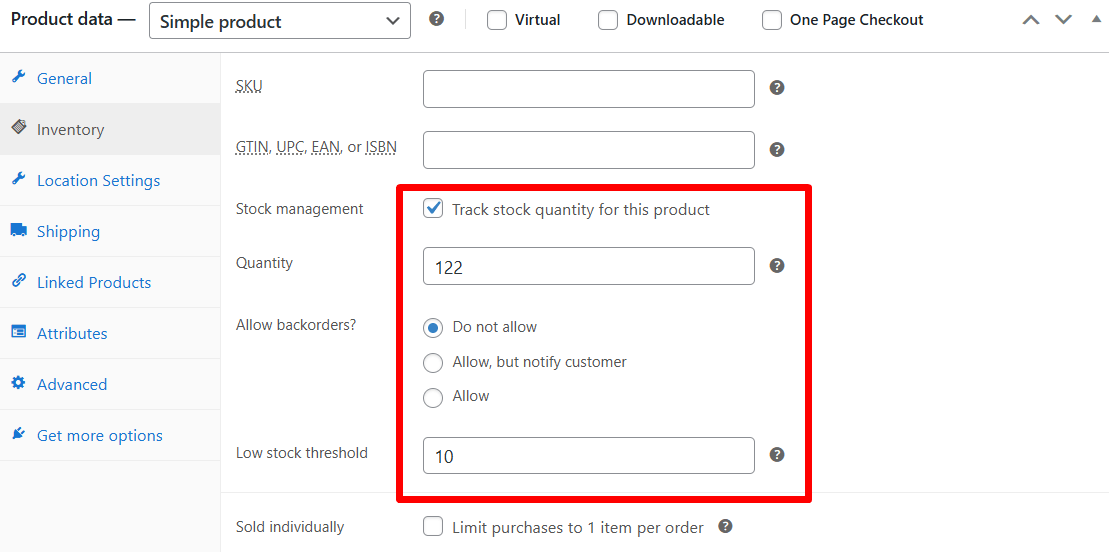
- Go to Products > All Products
- Edit the affected product
- Open the Inventory tab
- Confirm Manage stock? is enabled if needed
- Check that Stock quantity is correct
- Review whether Stock status is set correctly
- Repeat the same check for each variation if the product is variable
This helps confirm that WooCommerce is working from the right inventory values before deeper troubleshooting begins.
Test For Theme And Plugin Conflicts
Themes and third-party plugins can change how stock is displayed or interpreted on the storefront. Some rewrite stock text, while others affect availability logic, cart behavior, variation handling, or location-based inventory output.
- Switch temporarily to a default theme such as Storefront or Twenty Twenty-Four
- Deactivate all plugins except WooCommerce
- Check whether the stock mismatch still appears
- Reactivate plugins one at a time
- Watch for the point where the issue returns
- Review any custom code related to stock, cart, or availability
This process helps isolate whether the mismatch is coming from WooCommerce itself or from another layer added to the store.
Review Failed, Pending, And Cancelled Orders
Order status issues can leave inventory in an inconsistent state if stock was reduced, held, or not released properly. In that situation, the admin and storefront may not reflect the same stock reality until the order-related inventory changes are resolved.
- Go to WooCommerce > Orders
- Check orders marked Failed
- Check orders marked Pending payment
- Check orders marked Cancelled
- Review whether these orders affected the product’s stock
- Complete, cancel, or clean up outdated orders where appropriate
- Retest the affected product after the stock state is corrected
This is especially important for low-stock products or stores with frequent abandoned orders.
Check For Database Sync Delays
In active stores, stock updates may not appear everywhere at the same moment. Database latency or incomplete updates can create a short gap between what the admin saves and what the storefront is able to display.
- Go to WooCommerce > Status > Tools
- Check whether any database update actions are required
- Run available WooCommerce database updates if needed
- If you use HPOS, confirm related tables are fully synced
- Recheck the affected product after updates complete
This helps remove temporary mismatches caused by delayed or incomplete inventory synchronization.
Review Scheduled Actions
Some stock-related updates depend on queued WooCommerce actions. If those actions are delayed or fail, the storefront may not reflect recent inventory changes even though the admin panel already has the updated value.
- Go to WooCommerce > Status > Scheduled Actions
- Look for failed actions related to products, orders, or stock
- Review delayed or pending tasks
- Retry or resolve failed actions where appropriate
- Retest inventory display after the action queue is cleared
This step is useful when stock changes seem slow, inconsistent, or stuck after normal updates.
Review Variable Product Stock Logic Carefully
Variable products often create mismatch issues because stock can be handled at both the parent and variation levels. The admin may reflect one stock view, while the frontend may rely on another part of the variation logic.
- Open the variable product in admin
- Check stock settings for each variation
- Confirm the parent product is not overriding child variation availability
- Test whether frontend variation selectors update stock messages correctly
- Retest product pages after selecting each variation
This helps make sure customers see the same variation-level availability that the admin is managing.
Audit Every Inventory Source In The Store
Stores using multiple stock-related plugins, custom code, or warehouse-based inventory tools can end up with more than one inventory source. That creates conflicting stock values between admin, frontend, cart, and checkout.
- Review plugins that modify stock display
- Review plugins that manage inventory by warehouse or location
- Check tools that affect backorders, low-stock behavior, or purchasability
- Compare where each tool reads and writes stock values
- Remove overlapping logic where possible
- Keep inventory display and stock deduction tied to one reliable source
This step is especially important in more advanced multi-location inventory management for WooCommerce setups, where stock accuracy depends on keeping every inventory touchpoint aligned.
Run A WooCommerce System Status Check If The Issue Continues
If the mismatch still remains after the main fixes, the next step is to review system-level warnings. WooCommerce status reports can reveal template overrides, database issues, compatibility problems, or red errors that affect stock behavior.
- Go to WooCommerce > Status
- Review any red warnings or failed checks
- Click Get system report
- Copy the report for support review if needed
- Look for outdated templates, database issues, or stock-related errors
This final check helps surface deeper problems that may not be obvious from product-level testing alone.

Final Checklist and Diagnosis After Fixes
After applying the main fixes, it helps to run a final check across the full purchase flow instead of relying on one screen alone. This makes it easier to confirm that inventory now stays consistent from admin updates to the live customer experience.
- Admin And Storefront Comparison: Compare the product stock shown in WooCommerce admin with the product page output to confirm that both sides now reflect the same inventory state.
- Guest User Product Check: Open the product page in a private window or logged-out session to make sure cached admin access is not hiding a frontend mismatch.
- Simple And Variable Product Review: Test both simple products and variable products so you can confirm stock behavior stays consistent across different product structures.
- Cart And Checkout Validation: Add the product to the cart and move through checkout to verify that stock visibility and actual purchasability still match correctly.
- Recent Order Impact Review: Check whether any recent pending, failed, or cancelled orders have affected inventory in a way that could recreate the mismatch.
- Scheduled Action Follow-Up: Review WooCommerce scheduled actions again to confirm there are no delayed or failed stock-related tasks still affecting frontend updates.
- Post-Update Cache Check: Make another stock change and retest the product page to confirm cache layers are no longer holding outdated inventory output.
- Stock Message Accuracy: Review whether the storefront stock message matches the real product condition instead of showing misleading availability or outdated quantity wording.
- Multi-Location Stock Confirmation: If your store uses multiple warehouses or locations, confirm the displayed inventory matches the correct source for that product and context.
- Repeat Issue Monitoring: Keep watching inventory behavior after new stock updates and new orders, so you can catch any mismatch returning under live store activity.
The Best Long-Term Fix: Use a Reliable Multi-Location Inventory Plugin
When stock is managed across multiple products, variations, and fulfillment points, the more reliable approach is to keep admin stock, storefront availability, and stock updates connected through one consistent system. That is where a stronger WooCommerce multi location inventory management setup becomes a practical long-term solution.
For stores that need more stable inventory control across admin and frontend, the following improvements matter most:
- Centralize stock across multiple locations
- Keep admin and frontend inventory aligned
- Reduce stock mismatches across the store
- Improve location-based stock visibility
- Support more accurate variation stock handling
- Lower the risk of overselling
- Make stock updates easier to manage
- Improve fulfillment accuracy across locations
- Create a more consistent customer experience
Frequently Asked Questions
Stock mismatches between admin and frontend often create follow-up questions that go beyond the direct repair steps. Once the immediate issue is under control, it becomes more useful to look at how this kind of inconsistency can affect store reliability, inventory planning, and long-term operations.
Can This Mismatch Affect Customer Trust Even If Checkout Still Works?
Yes. When customers see stock information that does not match what the store actually has available, it can make the storefront feel unreliable, even before it causes a failed purchase.
Does This Problem Matter More In High-Volume WooCommerce Stores?
Yes. Stores with frequent sales, faster stock movement, and more product updates are more likely to notice these mismatches because inventory changes happen more often throughout the day.
Can Inventory Mismatch Affect Fulfillment Decisions?
Yes. If the stock shown on the storefront does not reflect the same logic used in the backend, it can lead to confusion around which items should be packed, shipped, or assigned to a location.
Is This More Difficult To Manage In Multi-Warehouse Stores?
Yes. Once stock is split across warehouses, pickup points, or branch locations, keeping admin totals and storefront availability aligned becomes more complex and usually needs tighter inventory control.
Should Store Owners Monitor Inventory Display Regularly?
Yes. Regular checks help catch stock inconsistencies earlier, especially after plugin updates, theme changes, store growth, or changes in how products are managed across locations.
Final Thoughts
Inventory Mismatch Between Admin and Frontend in WooCommerce usually points to a gap in how stock is being updated, stored, and displayed across the store. In many cases, the quantity itself is not the real problem. The mismatch appears because the backend and storefront are no longer reflecting the same inventory state through one consistent logic path.
Once your store uses a more reliable inventory flow across admin, storefront, and fulfillment, stock becomes easier to manage and more accurate for customers. That consistency helps reduce confusion, supports smoother operations, and makes the same issue less likely to return.