
Stock not deducting from the correct location in WooCommerce is a common issue for stores managing inventory across multiple warehouses, branches, or pickup points. Instead of reducing stock from the selected or nearest location, WooCommerce may deduct it from the wrong warehouse or fail to update inventory properly.
This problem often occurs due to incorrect order routing, misconfigured product location settings, or conflicts between inventory plugins. As a result, many store owners face WooCommerce stock not deducting correctly or experience inventory mismatches between locations.
If not fixed, this can lead to overselling, incorrect order fulfillment, and confusion in warehouse management. For stores relying on multi-location inventory systems, ensuring accurate stock deduction is essential for maintaining smooth operations and customer trust.
Quick Answer
Stock not deducting from the correct location in WooCommerce usually happens due to incorrect order routing, product location assignment, or misconfigured multi-location inventory settings. This can cause WooCommerce stock not deducting correctly or being deducted from the wrong warehouse instead of the selected location.
In WooCommerce multi-location setups, stock deduction depends on how the system determines which location should fulfill the order. If the routing logic or location mapping is incorrect, inventory may be reduced from the wrong location or not deducted at all.
This typically happens when:
- Products are not assigned to the correct locations
- Order routing rules are missing or misconfigured
- Checkout does not capture or pass the selected location
- Inventory sync between locations is inconsistent
- Plugins override or conflict with stock deduction logic
What You’ll Notice
When this issue occurs, you may see:
- Stock deducted from the wrong warehouse
- WooCommerce inventory mismatch between locations
- Orders fulfilled from incorrect stock source
- Stock not updating correctly after checkout
Incorrect stock deduction in WooCommerce multi-location setups is usually caused by routing or configuration issues that prevent accurate inventory updates.
Signs Stock Is Deducting From Wrong Location in WooCommerce
Before fixing the issue, it’s important to confirm whether your store is actually facing a wrong location stock deduction problem. These signs clearly indicate that WooCommerce is not deducting inventory from the correct warehouse or store location.

Stock Deducted From the Wrong Warehouse
Orders reduce stock from a different location than expected.
- Selected warehouse is ignored
- Stock deducted from default or random location
- Common stock deducted from wrong warehouse WooCommerce issue
Inventory Mismatch Between Locations
Stock levels do not match across locations.
- One location shows reduced stock while others remain unchanged
- Backend and frontend show different values
- Clear sign of WooCommerce inventory mismatch
Correct Location Selected, But Stock Not Reduced
User selects a location, but inventory does not update properly.
- Stock remains unchanged after order
- Order does not link to selected location
- Indicates routing or mapping issue
Orders Fulfilled From Incorrect Location
Fulfillment happens from the wrong warehouse.
- Shipping location differs from selected location
- Wrong inventory source used
- Shows WooCommerce order routing issue
Cart and Checkout Use Different Stock Logic
Product behaves differently across pages.
- Product shows available in cart but fails later
- Checkout uses a different location logic
- Leads to stock inconsistency
Stock Updates Work Only for One Location
Only one warehouse updates correctly.
- Primary location updates, others do not
- Multi location stock deduction problem
- Sync not working across all locations
Admin Panel Shows Different Stock Than Frontend
Backend and frontend data are not aligned.
- Admin sees correct stock
- Customers see outdated or incorrect values
- Often caused by caching or sync delay
Quick Summary Table
| Symptom | What It Indicates |
| Wrong warehouse deduction | Location routing issue |
| Inventory mismatch | Sync problem |
| Stock not reducing | Deduction failure |
| Wrong fulfillment location | Order routing issue |
| Frontend vs backend mismatch | Cache or sync issue |
Why Identifying These Signs Matters
These symptoms help you quickly confirm if your issue is related to WooCommerce stock not deducting correctly or a deeper multi-location configuration problem.
Once identified, you can apply the exact fix instead of guessing.
Recognizing the correct symptoms helps diagnose stock deduction issues faster and ensures accurate inventory management across WooCommerce locations.
Why Stock Is Not Deducting From Correct Location in WooCommerce?
If stock is not deducting from the correct location in WooCommerce, the issue usually comes from how your store handles location assignment, order routing, and inventory logic. In multi-location setups, even small misconfigurations can cause stock to be deducted from the wrong warehouse or not deducted at all.
Below are the most common root causes:
Incorrect Order Routing Logic
WooCommerce does not automatically know which location should fulfill an order.
- No defined rules for selecting warehouse
- System defaults to primary location
- Checkout does not pass selected location
Result: Stock deducted from wrong warehouse
Product Not Assigned to Correct Locations
Products must be linked to specific inventory locations.
- Product assigned to only one location
- Missing location mapping
- Incorrect location configuration
Result: WooCommerce cannot deduct stock from the intended location
Checkout Does Not Capture Location Properly
Location selection is not passed during checkout.
- No location selector used
- Shipping method not linked to location
- Session does not store selected location
Result: System falls back to default location
Inventory Sync Issues Between Locations
Multi-location stock is not properly synchronized.
- Changes in one location not reflected in others
- Central inventory not updating correctly
- Delayed or broken sync
Result: Inventory mismatch and incorrect deduction
Plugin Conflicts or Overlapping Logic
Multiple plugins interfere with stock deduction.
- Inventory plugin conflicts with checkout/cart plugins
- Duplicate stock management systems active
- Theme overrides WooCommerce logic
Result: WooCommerce stock not deducting correctly
Stock Deduction Hook Not Triggering Properly
WooCommerce reduces stock during order processing.
- Hooks interrupted by custom code
- Payment method delays stock update
- AJAX or background process fails
Result: Stock not deducted or deducted incorrectly
Default WooCommerce Behavior Overriding Location Logic
WooCommerce prioritizes its default stock system.
- Multi-location logic not fully integrated
- System ignores location-specific rules
- Falls back to global inventory
Result: Wrong stock deduction source
Cache or Session Issues Affecting Location Detection
System cannot reliably detect active location.
- Cached pages show outdated data
- Session not storing location correctly
- Different behavior for guest vs logged-in users
Result: Wrong location used for deduction
Root Cause Summary
| Cause | Impact |
| Routing issue | Wrong warehouse deduction |
| Product mapping error | No deduction from correct location |
| Checkout issue | Default location used |
| Sync failure | Inventory mismatch |
| Plugin conflict | Broken stock logic |
| Hook failure | Stock not reduced |
| Cache/session issue | Incorrect location detection |
Why Understanding These Causes Matters
Without identifying the exact cause, fixing WooCommerce stock not deducting from correct location becomes trial and error.
Each issue requires a specific fix, so mapping causes correctly helps resolve the problem faster and more accurately.
Understanding the root causes of incorrect stock deduction helps WooCommerce store owners maintain accurate inventory and avoid fulfillment errors.
Quick Fixes You Can Try First
If stock is not deducting from the correct location in WooCommerce, you can often fix it quickly by checking a few key settings. These fixes solve most common issues without advanced troubleshooting.

Try these first:
Enable Stock Management in WooCommerce
Make sure inventory tracking is active.
- Go to WooCommerce → Settings → Products → Inventory
- Enable stock management
- Set stock quantity properly
Without this, WooCommerce cannot deduct stock at all.
Check Product Location Assignment
Ensure products are linked to correct locations.
- Edit product settings
- Assign product to the right warehouse or location
- Verify location-specific stock is set
This is the most common cause of stock deducted from wrong warehouse WooCommerce.
Place a Test Order
Verify how stock is deducted.
- Select a specific location (if applicable)
- Complete a test purchase
- Check which location stock is reduced from
Helps identify WooCommerce order routing issue quickly.
Disable Other Plugins Temporarily
Check for conflicts.
- Disable all non-essential plugins
- Keep WooCommerce + inventory plugin active
- Test again
Plugin conflicts often break stock deduction logic.
Clear Cache (Very Important)
Remove outdated data.
- Clear cache from plugin, server, and CDN
- Test in incognito mode
Fixes cases where frontend shows incorrect inventory.
Verify Order Routing Settings
Make sure correct location is selected.
- Check routing rules in your inventory system
- Ensure orders are assigned to correct warehouse
- Confirm location logic is enabled
Prevents stock from deducting from default location.
Check Inventory Sync Settings
Ensure locations are connected.
- Enable stock sync across locations
- Save and re-sync inventory
Fixes multi location stock deduction problem.
Switch to Default Theme for Testing
Rule out theme issues.
- Temporarily activate a default theme (like Storefront)
- Test stock deduction again
Some themes override WooCommerce behavior.
Quick Check Table
| Action | What It Fixes |
| Enable stock management | Stock not deducting at all |
| Assign correct location | Wrong warehouse deduction |
| Test order | Routing issue |
| Disable plugins | Conflict issues |
| Clear cache | Outdated stock display |
| Check routing rules | Incorrect location logic |
Why These Fixes Work
Most WooCommerce stock not deducting correctly issues are caused by simple misconfigurations, plugin conflicts, or caching problems. Fixing these quickly can restore proper inventory behavior without deeper changes.
How to Fix Stock Not Deducting From Correct Location in WooCommerce
If stock is not deducting from the correct location in WooCommerce, apply the exact fix based on the root cause instead of guessing. Use this cause-to-fix mapping:
1. Incorrect Order Routing Logic → Fix Routing Rules
Problem: Orders default to the wrong warehouse Fix:
- Open your inventory plugin settings
- Configure order routing rules (by location, shipping zone, or priority)
- Ensure the selected location is passed during checkout
This ensures stock is deducted from the correct warehouse.
2. Product Not Assigned to Correct Locations → Fix Product Mapping
Problem: WooCommerce cannot identify the correct stock source Fix:
- Edit the product
- Assign it to all relevant locations
- Verify stock quantities per location
This fixes stock deducted from wrong warehouse WooCommerce issues.
- Checkout Not Capturing Location → Fix Location Detection
Problem: Location is not saved or used during order Fix:
- Add a location selector (store/warehouse)
- Store selected location in session
- Ensure checkout uses that value
Prevents fallback to default location.
4. Inventory Sync Issues → Enable Real-Time Sync
Problem: Locations are not updating together Fix:
- Enable inventory sync in plugin settings
- Save and re-sync all products
- Test stock update across locations
Fixes multi location stock deduction problem.
5. Plugin Conflicts → Isolate and Fix
Problem: Other plugins override stock logic Fix:
- Disable all plugins except WooCommerce + inventory plugin
- Re-enable one by one
- Identify conflicting plugin
Replace or reconfigure the conflicting plugin.

6. Stock Deduction Hook Not Working → Fix Order Processing
Problem: WooCommerce does not trigger stock reduction Fix:
- Check WooCommerce stock settings
- Ensure stock reduces on processing or completed order
- Test with different payment methods
Ensures stock deduction is triggered correctly.
7. Default WooCommerce Behavior Overriding Logic → Enforce Location Rules
Problem: WooCommerce uses global stock instead of location stock Fix:
- Disable default stock override (if applicable)
- Ensure multi-location logic is prioritized
- Use a system that enforces location-based deduction
Prevents fallback to global inventory.
8. Cache or Session Issues → Fix Data Handling
Problem: Wrong location used due to caching Fix:
- Exclude product/cart/checkout pages from cache
- Clear all caches
- Ensure session stores active location
Fixes incorrect stock deduction behavior.
9. Wrong Location Priority Setup → Adjust Priority Logic
Problem: System picks incorrect warehouse Fix:
- Configure location priority (nearest, stock-based, manual)
- Set fallback rules properly
- Test with different scenarios
Ensures correct location is always selected.
Quick Mapping Table
| Cause | Fix |
| Routing issue | Configure order routing rules |
| Product mapping issue | Assign correct locations |
| Checkout issue | Capture and store location |
| Sync failure | Enable real-time inventory sync |
| Plugin conflict | Disable and isolate plugins |
| Hook issue | Fix stock reduction settings |
| Default override | Enforce location logic |
| Cache/session issue | Clear cache and fix session |
| Priority issue | Adjust location selection rules |
How This Helps
Instead of trying random fixes, this structured approach helps you resolve WooCommerce stock not deducting correctly issues faster and with accuracy. Mapping each cause to a specific fix ensures accurate troubleshooting and stable multi-location inventory management in WooCommerce.
How to Confirm Stock Deduction Is Working Correctly
After applying fixes, you need to verify that WooCommerce stock is deducting from the correct location in all scenarios. Proper validation ensures your multi-location inventory system is working reliably. Follow these checks step by step:
Place a Test Order for a Specific Location
This is the most important test.
- Select a specific warehouse or store location
- Add product to cart
- Complete checkout
Then check:
- Which location stock was reduced
- Whether deduction matches selected location
Verify Location-Wise Stock in Admin Panel
Check backend inventory values.
- Open product inventory settings
- Review stock per location
- Compare before and after order
Correct behavior: Only selected location stock should decrease
Test Multiple Locations
Confirm logic works across all warehouses.
- Place orders using different locations
- Repeat the process for each location
Each location should deduct its own stock correctly
Check Cart and Checkout Consistency
Ensure same logic across pages.
- Add product to cart from one location
- Proceed to checkout
Stock source should remain the same from cart → checkout
Test Logged-In vs Guest Users
Verify session and location handling.
- Test as logged-in user
- Test in incognito mode
Both should deduct stock from the same correct location
Confirm Real-Time Inventory Update
Check if updates are instant.
- Place an order
- Refresh product page
Stock should update immediately
If delayed → sync or cache issue still exists
Validate Order Details
Check backend order information.
- Open WooCommerce order details
- Verify assigned location or warehouse
This confirms correct order routing + stock deduction
Quick Validation Table
| Test | Expected Result |
| Test order | Stock reduced from correct location |
| Admin inventory | Only selected location updated |
| Multiple locations | Each works independently |
| Cart vs checkout | Same location used |
| Guest vs user | No difference |
| Order details | Correct warehouse assigned |
What Correct Behavior Looks Like
When everything is working properly:
- Stock is deducted from the selected location only
- No mismatch between locations
- Inventory updates instantly
- Orders are fulfilled from correct warehouse
- No manual correction needed
Why This Step Matters
Many users assume the fix worked without testing fully.
Proper validation ensures:
- No hidden inventory issues
- No incorrect order fulfillment
- Smooth store operations
Validating stock deduction ensures accurate inventory handling and prevents order fulfillment errors in WooCommerce multi-location setups.
Advanced Issues That Cause Wrong Stock Deduction in WooCommerce
Even after applying all standard fixes, some stores still face issues where stock is not deducting from the correct location in WooCommerce. These edge cases usually depend on specific configurations, integrations, or complex workflows.
Here are advanced scenarios you should check:
Variable Products Deduct Stock From Parent Instead of Location
Variations may not follow location rules correctly.
- Stock deducted from parent product instead of variation
- Location mapping missing for variations
- Variation-level inventory not enabled
Fix:
- Enable stock management for each variation
- Assign locations at variation level
- Test each variation separately
Backorders Override Location-Based Stock Logic
Backorder settings can bypass inventory checks.
- Products show available even when stock is zero
- Orders placed without proper stock deduction
- Location logic ignored
Fix:
- Review backorder settings per product
- Disable backorders if not needed
- Ensure location-based stock is prioritized
Payment Gateways Delay Stock Deduction
Some gateways update stock only after payment confirmation.
- Stock not deducted immediately after order
- Delay between order placement and stock update
Fix:
- Enable stock reduction on order placement
- Test different payment methods
- Check WooCommerce order status settings
Split Orders Across Multiple Locations
Orders with multiple products may involve different locations.
- Stock deducted from only one location
- Incorrect allocation of products
- Partial deduction issues
Fix:
- Enable proper order routing logic
- Verify how system assigns stock per item
- Use a plugin that supports multi-location fulfillment
API or Third-Party Integration Conflicts
External systems can override WooCommerce logic.
- ERP, POS, or API sync overwrites stock
- Multiple systems updating inventory
Fix:
- Ensure only one system controls stock
- Check API sync frequency
- Disable duplicate inventory updates
Bulk Import or CSV Upload Breaks Location Mapping
Imports may reset inventory data.
- Location-based stock removed after import
- Default stock overwrites location stock
Fix:
- Use import tools that support location fields
- Reassign locations after import
- Re-sync inventory
Session or Location Detection Fails on Mobile
Mobile users may get different behavior.
- Wrong location selected automatically
- Session not saved correctly
Fix:
- Test across devices
- Ensure session/cookie is properly stored
- Use manual location selector
Cron Jobs or Delayed Sync Processes
Inventory updates depend on scheduled tasks.
- Stock updates delayed
- Sync runs periodically instead of instantly
Fix:
- Check WooCommerce cron jobs
- Ensure tasks are running properly
- Reduce sync delay settings
How to Handle These Cases
These issues are harder to detect because they depend on specific store setups.
Best approach:
- Test each scenario individually
- Monitor inventory behavior under different conditions
- Keep your inventory system simple and unified
Multi-Location System Issues That Cause Wrong Stock Deduction
Even after fixing individual settings, many WooCommerce stores still face issues where stock is not deducting from the correct location. In most cases, the problem is not a single error but how the entire multi-location system is structured.
These system-level issues often lead to repeated stock deduction problems:
No Centralized Inventory Control
Inventory is managed separately for each location.
- Stock updates handled manually
- No real-time connection between warehouses
- Difficult to track total inventory
Result: Stock deducted from wrong or outdated location
Disconnected Order Routing and Inventory Logic
Orders and inventory are not fully connected.
- Checkout does not pass correct location
- Order routing rules are unclear or missing
- Stock deduction logic differs from fulfillment logic
Result: WooCommerce stock not deducting correctly
Multiple Plugins Handling Different Logic
Different plugins control inventory, checkout, and pricing.
- One plugin manages stock
- Another controls checkout
- Another handles location logic
Result: Conflicts and inconsistent stock deduction
No Real-Time Sync Between Locations
Inventory updates are delayed or inconsistent.
- Stock changes not reflected instantly
- Background sync fails or delays updates
- Locations operate independently
Result: Inventory mismatch across warehouses
Weak Location Detection System
System cannot reliably identify the correct location.
- No location selector
- Session does not store selected location
- Different behavior for users and devices
Result: Default location used instead of selected one
Scaling Problems as Store Grows
System becomes unstable with more products and locations.
- Manual tracking becomes inefficient
- More chances of routing and sync errors
- Increased complexity in inventory logic
Result: Frequent wrong stock deduction issues
What This Reveals
These problems show that:
- The issue is not just configuration
- It is about how your system is designed
A fragmented setup will continue to create stock deduction errors even after fixes.
Why a Structured System Matters
When your system is properly structured:
- Inventory, locations, and orders work together
- Stock is deducted from the correct location automatically
- Real-time updates prevent mismatch
- Conflicts between plugins are minimized
This creates a stable and scalable WooCommerce store.
Transition Insight
If your store repeatedly faces stock deducted from wrong warehouse WooCommerce issues, it usually means your current setup is not built for multi-location operations.Moving to a unified system can eliminate these recurring problems.
Recommended Solution for Wrong Stock Deduction in WooCommerce
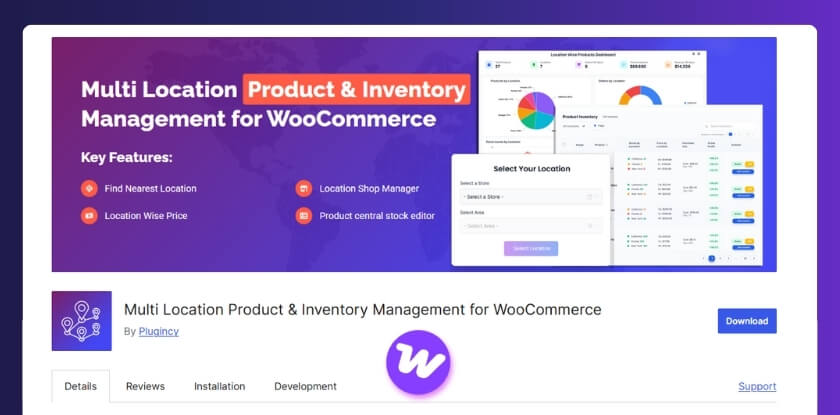
If your store is facing issues where stock is not deducting from the correct location in WooCommerce, it usually means your current setup is not fully designed for multi-location inventory handling. Instead of fixing the issue repeatedly, using a structured system can solve the root problem. One practical solution is: Multi Location Product & Inventory Management for WooCommerce (Plugincy)
Why This Works Better
A dedicated multi-location system ensures that inventory, order routing, and location logic work together instead of relying on separate plugins or manual configuration. With the right setup, you can:
- Automatically deduct stock from the correct warehouse
- Ensure accurate order routing based on location
- Sync inventory across all locations in real time
- Prevent stock mismatches and fulfillment errors
What Problems It Solves
This type of system helps fix:
- Stock deducted from wrong warehouse
- WooCommerce stock not deducting correctly
- Inventory mismatch between locations
- Incorrect order fulfillment
When You Should Consider Using It
You should move to a structured solution if:
- You manage multiple warehouses or stores
- Stock deduction issues keep repeating
- You rely on multiple plugins for inventory
- Your store is growing and becoming complex
How It Improves Your Workflow
Instead of dealing with repeated issues:
- Inventory updates become automatic
- Orders are linked to correct locations
- Stock deduction follows clear logic
- Fewer conflicts and manual fixes
This creates a more stable and scalable WooCommerce setup.
Subtle Next Step
If you are frequently facing stock deducted from wrong location WooCommerce issues, switching to a unified multi-location system can simplify operations and prevent future errors. Using a structured multi-location inventory solution helps WooCommerce stores maintain accurate stock deduction, reduce errors, and improve overall order fulfillment efficiency. We’ll compare:
- Plugincy (All-in-one)
- Multiloca
- Addify
Comparison Table: Default vs Plugin vs Custom (WooCommerce Multi-Location)
| Feature / Capability | Default WooCommerce | Plugincy (All-in-One System) | Multiloca | Addify Multi Inventory |
| Multi-location support | ❌ Not available | ✔ Full multi-location system | ✔ Yes | ✔ Yes |
| Per-location stock management | ❌ Global only | ✔ Advanced control | ✔ Yes | ✔ Yes |
| Location-based stock deduction | ❌ Not supported | ✔ Accurate & automatic | ⚠ Limited logic | ⚠ Depends on setup |
| Order routing by location | ❌ No | ✔ Smart routing system | ⚠ Basic routing | ⚠ Manual selection |
| Real-time inventory sync | ❌ No | ✔ Real-time sync | ✔ Yes | ⚠ Partial |
| Location-based pricing | ❌ No | ✔ Built-in | ❌ Limited | ✔ Supported |
| Product visibility by location | ❌ No | ✔ Fully controlled | ✔ Yes | ⚠ Limited |
| Centralized dashboard | ⚠ Basic | ✔ Advanced centralized system | ✔ Yes | ✔ Yes |
| Plugin conflict risk | ❌ Low | ✔ Low (single system) | ⚠ Medium | ⚠ Medium |
| Scalability | ❌ Limited | ✔ High (built for scaling) | ✔ Medium | ✔ Medium |
| Best for | Small stores | Growing & large stores | Mid-level stores | Custom setups |
Key Differences Explained (Simple View)
Default WooCommerce
- Only supports single-location stock
- Cannot handle warehouse-level deduction
- Not suitable for multi-location businesses
Plugincy (All-in-One System)
- Fully integrated system for inventory + pricing + routing
- Automatically deducts stock from correct location
- Best for stores facing repeated stock issues
Multiloca
- Good for displaying location-wise stock
- Supports multiple locations and real-time availability
- Limited when it comes to advanced routing logic
Addify Multi Inventory
- Allows multiple inventories per product
- Supports location-based pricing and selection
- Requires more manual configuration
What This Comparison Shows
If your issue is:
Stock not deducting from correct location in WooCommerceThen:
- Default WooCommerce → Not enough
- Multiple plugins → Risk of conflicts
- Structured system → Most reliable solution
Choosing the right multi-location solution ensures accurate stock deduction, reduces errors, and supports scalable WooCommerce store operations.
Which Plugin Should You Choose?
Choosing the right plugin depends on how complex your store is and how important accurate stock deduction from the correct location is for your business. Instead of comparing everything again, here’s the simplest way to decide:
Choose Plugincy (All-in-One System) | Best Overall Choice
Go with this if:
- You want inventory + pricing + order routing in one system
- You are managing multiple warehouses or branches
- You want automatic stock deduction from correct location
- You want to avoid plugin conflicts
Why this stands out:
- Centralized control across all locations
- Real-time sync and smart order routing (WordPress.org)
- Built specifically for multi-location WooCommerce setups
Best for:
Growing and large stores that need reliability
Choose Multiloca | Best for Simple Setup

Go with this if:
- You need basic multi-location inventory tracking
- You mainly want to display stock per location
- Your store is small to mid-sized
What it does well:
- Tracks stock per location
- Shows real-time availability on product pages (WordPress.org)
- Easy to set up and manage
Limitation:
- Limited automation for routing and stock deduction logic
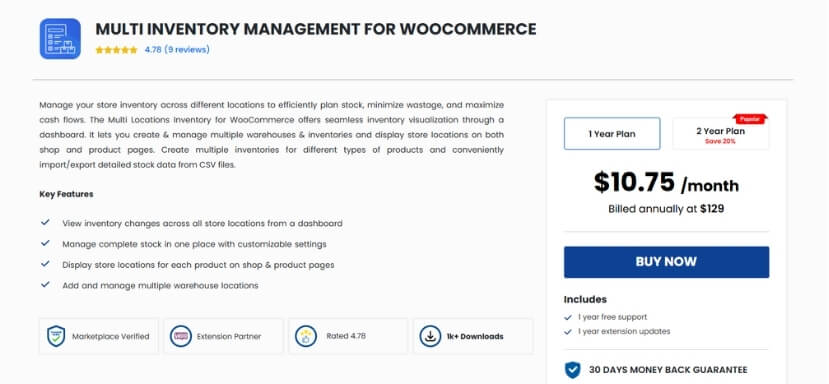
Choose Addify Multi Inventory | Best for Flexible Control
Go with this if:
- You want multiple inventories per product
- You need location-based pricing + manual control
- You are comfortable configuring workflows
What it offers:
- Multiple inventories per product/location
- Custom pricing per location (WooCommerce)
- Import/export and structured inventory control
Limitation:
- Requires more manual setup for routing logic
Decision Comparison Table
| Your Situation | Best Choice |
| Need full automation (inventory + routing + sync) | Plugincy |
| Need simple multi-location stock display | Multiloca |
| Need flexible but manual control | Addify |
Final Recommendation
If your main issue is:
- Stock deducted from wrong warehouse
- Inventory mismatch between locations
- Repeated stock deduction problems
Then: A unified system is better than combining multiple partial tools Because:
- WooCommerce does not support multi-location natively
- Fragmented setups often cause sync and routing issues
What This Means for Your Store
If you want:
- Accurate stock deduction
- Fewer errors
- Scalable system
Then choosing the right plugin is not optional, it is essential. Selecting the right multi-location inventory plugin ensures accurate stock deduction, reduces operational errors, and supports scalable WooCommerce store growth.
Frequently Asked Questions (FAQ)
Why is WooCommerce deducting stock from the wrong location?
This usually happens due to incorrect order routing, missing product location assignment, or weak location detection. When the system cannot identify the correct warehouse, it defaults to another location.
How do I fix stock not deducting from the correct location in WooCommerce?
Start by checking product location mapping, order routing rules, and inventory sync settings. Then test stock deduction with a sample order to confirm the correct location is used.
Does WooCommerce support location-based stock deduction by default?
No, WooCommerce only supports global inventory by default. You need a multi-location plugin or custom setup to deduct stock from specific warehouses or locations.
Why is stock deducted from the default warehouse instead of the selected one?
This usually happens when checkout does not pass the selected location or routing rules are not properly configured, causing WooCommerce to fall back to the default inventory source.
Can plugin conflicts cause wrong stock deduction?
Yes, conflicts between inventory, checkout, or optimization plugins can override stock logic and lead to incorrect stock deduction or failed updates.
How do I prevent wrong stock deduction in the future?
Use a structured multi-location system, avoid using multiple conflicting plugins, and regularly test order routing and inventory behavior across different locations.
Does caching affect stock deduction in WooCommerce?
Caching mainly affects stock display, but it can also interfere with location detection and session handling, which may indirectly impact stock deduction.
Final Thoughts
Handling inventory across multiple locations in WooCommerce requires more than just basic configuration. When stock is not deducting from the correct location, it often points to deeper issues in how your store manages inventory, order routing, and location logic. Fixing individual settings can solve the issue temporarily, but long-term stability comes from having a system where all components work together. To ensure consistent and accurate stock deduction, your setup should:
- Deduct stock from the correct warehouse automatically
- Maintain real-time sync across all locations
- Align order routing with inventory logic
- Avoid conflicts between multiple plugins
As your store grows, these factors become critical for maintaining operational efficiency and customer trust. Choosing the right approach early helps prevent repeated issues and simplifies inventory management in the long run. A reliable multi-location inventory setup ensures accurate stock deduction, reduces errors, and supports smooth scaling of WooCommerce stores.