
WooCommerce stock goes negative when inventory is reduced incorrectly, updated late, or not synced properly across your store. This issue often leads to overselling, inaccurate stock levels, and order fulfillment problems if not handled quickly.
In most cases, the root cause is not a simple error but a deeper WooCommerce stock management issue. Stores that manage multiple warehouses or rely on manual updates are more likely to face this problem. Without proper control, WooCommerce may continue accepting orders even when products are no longer available.
Negative stock is not just a bug, it signals a deeper inventory control issue that needs a structured fix. This guide explains why the WooCommerce negative stock issue happens, how to fix it step by step, and how to prevent negative stock in WooCommerce using the right setup and workflow.

What Does Negative Stock Mean in WooCommerce?
Negative stock in WooCommerce means your product quantity has dropped below zero due to incorrect inventory updates, delayed syncing, or improper stock handling. In simple terms, your store is selling more items than your system can accurately track.This usually happens when WooCommerce continues processing orders even after stock reaches zero. It is a clear sign of a WooCommerce stock management problem that needs immediate attention.
Common signs of WooCommerce negative stock include:
- Product quantities showing negative values instead of stopping at zero
- Orders being accepted after stock is already finished
- Stock updates happening in the wrong sequence
- Inventory data not matching across systems or locations
- Overselling due to incorrect stock availability
Why Negative Stock in WooCommerce Causes Overselling and Inventory Issues?
Negative stock in WooCommerce is not just a display issue. It signals a deeper problem in how inventory is tracked, updated, and controlled across your store. Once stock goes below zero, it directly impacts order accuracy, fulfillment, and customer trust.This issue becomes more critical in stores with multiple stock sources, manual updates, or delayed synchronization. WooCommerce may continue accepting orders even when real inventory is no longer available, creating serious operational problems. If negative stock appears, it is a system-level issue that must be fixed before scaling your store.
Key warning signs include:
- Inventory Falling Below Zero: Product quantity shows a negative value instead of stopping at zero, which indicates stock validation is failing during checkout or updates.
- Orders Exceeding Available Stock : Customers can still place orders even when products are out of stock, leading to overselling and refund complications.
- Stock Updates Happening Out of Order: Inventory deductions and restorations occur in the wrong sequence, causing incorrect stock calculations.
- Disconnected Inventory Records: Frontend stock, backend data, and warehouse quantities do not match, especially in multi-location setups.
- Overselling Risk Increasing: Customers purchase unavailable items, leading to delays, cancellations, and poor user experience.
Why WooCommerce Stock Goes Negative (Common Causes Explained)
WooCommerce stock goes negative when inventory actions happen at the wrong time, in the wrong order, or without proper synchronization. This is usually not caused by a single mistake but by multiple workflow gaps in stock management. Understanding these causes helps you fix the WooCommerce negative stock issue faster and prevent it from happening again, especially in stores with complex inventory setups.
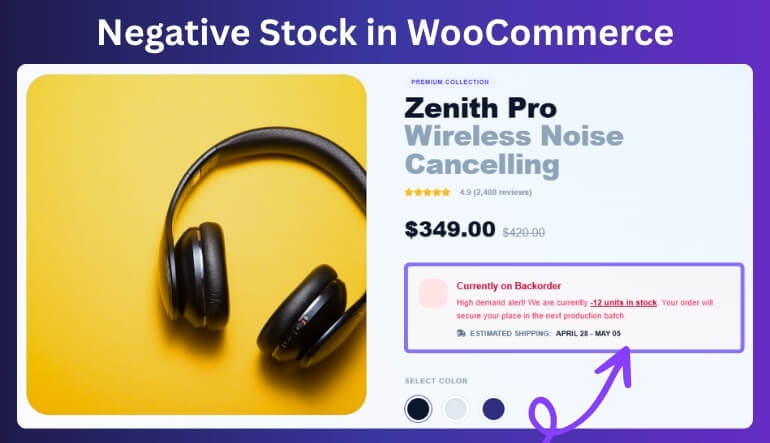
Cause 1: Backorders Enabled Without Proper Limits
Backorders allow customers to place orders even when stock is unavailable. If not controlled with limits or rules, WooCommerce continues accepting orders, pushing stock into negative values without restriction.
Cause 2: Stock Deducted at the Wrong Order Stage
WooCommerce relies on proper timing to reduce stock. If stock deduction happens too late, happens multiple times, or is linked to inconsistent order statuses, inventory numbers quickly become inaccurate.
Cause 3: Multi-Location Inventory Not Synced Properly
Stores managing multiple warehouses or locations often face syncing issues. When stock is not tracked per location correctly, WooCommerce may deduct inventory from the wrong source, causing negative stock.
Cause 4: Incorrect Stock Restoration After Updates
Refunds, cancellations, or failed payments can trigger stock restoration. If this process runs incorrectly or overlaps with other updates, it creates mismatched inventory levels and pushes stock below zero.
Cause 5: Plugin or System Conflicts Affect Stock Data
Third-party plugins, custom code, ERP systems, or POS integrations can interfere with WooCommerce stock updates. When multiple systems modify inventory differently, it leads to inconsistent and unreliable stock data.
Cause 6: Cached or Delayed Inventory Updates
Caching layers or delayed syncing can show outdated stock values on the frontend. Customers may purchase items that are already sold out, causing overselling and negative stock.
Cause 7: Race Conditions During High-Traffic Checkout
When multiple customers try to buy the last item at the same time, WooCommerce may process both orders before updating stock. This creates overselling and pushes inventory into negative values.
Quick Fix for WooCommerce Negative Stock (Summary)
If your WooCommerce stock is going negative, you can fix it quickly by correcting how inventory is tracked, updated, and controlled across your store. These key steps help restore accuracy and prevent overselling.
- Disable or limit backorders for critical products
- Ensure stock is deducted at the correct order stage
- Fix duplicate or delayed stock updates
- Check plugin or system conflicts affecting inventory
- Sync inventory across all locations in real time
- Use a multi location inventory management for WooCommerce for better control
How to Fix WooCommerce Negative Stock and Prevent Overselling Issues
WooCommerce negative stock can be fixed by correcting how inventory is deducted, restored, and synchronized across your store. Once proper stock rules are applied, your store can prevent overselling and maintain accurate inventory levels. In most cases, solving this issue requires multiple adjustments rather than a single fix. The following methods help you fix WooCommerce negative stock and prevent it from happening again.
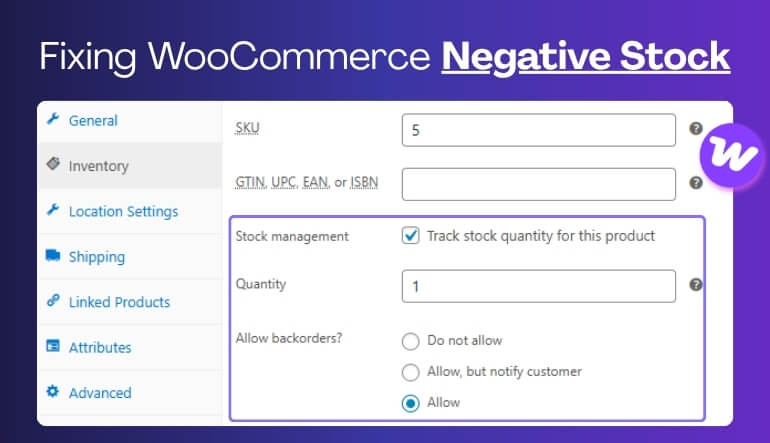
Fixing the issue does not usually require a single change alone. In most stores, a few inventory controls need to work together to keep stock accurate. Focus on the following areas:
Fix 1: Tighten Backorder Settings
Backorders should be controlled carefully. If left active without limits, WooCommerce continues accepting orders even when stock is unavailable, pushing inventory into negative values.
Check and fix:
- Disable backorders for critical products
- Set clear limits for backorder availability
- Avoid allowing backorders across all locations without control
Fix 2: Review When WooCommerce Deducts Stock
Stock must be deducted at the correct stage of the order flow. If deduction happens too early, too late, or more than once, inventory becomes inaccurate.
Check for:
- Stock deducted after wrong order status
- Duplicate deductions due to retries
- Custom order logic affecting stock flow
Fix 3: Separate Inventory by Warehouse or Location
Managing all inventory as a single pool creates confusion. Splitting stock by location ensures accurate tracking and prevents wrong deductions.
Make sure:
- Each warehouse has its own stock
- Orders are fulfilled from the correct location
- Inventory visibility is clear per location
Fix 4: Control Stock Restoration Rules
Stock restoration must happen only when valid events occur, such as confirmed cancellations or refunds. Incorrect restoration leads to mismatched stock levels.
Review settings:
- Cancellation rules restoring stock too early
- Refund processes adding extra stock
- Hold stock timing for unpaid orders
Fix 5: Audit Plugins and Connected Systems
External systems can interfere with WooCommerce inventory updates. Conflicts between plugins, ERP, or POS systems often create stock inconsistencies.
Check integrations:
- Order status handling by plugins
- ERP or POS sync timing
- Marketplace stock updates
- Custom code affecting inventory logic
Fix 6: Clear Stale Inventory Data and Sync Systems
Outdated or cached stock data can show incorrect inventory levels and cause overselling.
Fix by:
- Clearing cache across storefront and checkout
- Refreshing outdated inventory records
- Running WooCommerce system tools (recount terms, regenerate lookup tables)
Fix 7: Prevent Race Conditions in High-Traffic Checkout
When multiple users buy the same product at the same time, WooCommerce may process both orders before updating stock.
Prevent this by:
- Using stock reservation during checkout
- Limiting simultaneous purchases for low-stock items
- Adding real-time inventory validation

WooCommerce Settings to Prevent Negative Stock
Before using advanced solutions, make sure your WooCommerce stock settings are configured correctly. These settings directly impact how inventory is deducted, restored, and controlled.
Essential Settings to Review
- Enable stock management in WooCommerce settings
- Disable unnecessary backorders or set strict limits
- Set “Hold Stock” time for unpaid orders
- Ensure stock is reduced at the correct order status
- Enable low stock notifications for early alerts
- Avoid duplicate stock reduction from custom workflows
How Multi-Location Inventory Management Helps Prevent Negative Stock in WooCommerce?
Using a multi location inventory management system in WooCommerce plugin helps prevent negative stock by tracking inventory separately for each warehouse or store. Instead of managing stock as a single shared number, it ensures accurate stock control, proper order routing, and real-time inventory updates across locations. This approach is especially useful for stores handling multiple warehouses, retail outlets, or fulfillment centers where stock synchronization is critical.
Optimized Benefits
- Clear Location-Based Stock Control: Each warehouse or store maintains its own stock quantity, preventing incorrect deductions from a shared inventory pool.
- More Accurate Order Fulfillment: Orders are automatically matched with the correct location that has available stock, reducing fulfillment errors.
- Lower Risk of Overselling: Location-based stock validation stops WooCommerce from accepting orders when a specific warehouse runs out of inventory.
- Better Inventory Visibility: Store owners can clearly see stock levels across all locations instead of relying on a combined total.
- Reduced Inventory Sync Problems: A structured multi-location system minimizes stock mismatches between warehouses and connected systems.
- Less Manual Correction Work: Teams spend less time fixing stock errors because inventory updates follow a consistent and controlled process.
Recommended Solution for WooCommerce Stores
Managing inventory across multiple locations becomes much easier with a Multi Location Product & Inventory Management for WooCommerce plugin like Plugincy. It helps you track stock per location, sync inventory in real time, and prevent WooCommerce negative stock issues before they impact your store.
With proper multi-location inventory control, you can avoid overselling, improve order accuracy, and maintain consistent stock levels across warehouses and stores. You also get instant alerts when stock runs low or goes negative, allowing you to take action before problems grow.
It allows you to:
- Set stock levels for each location
- Sync inventory across multiple WooCommerce locations
- Get real-time low and negative stock notifications
- Control product availability by warehouse or store
- Route orders based on stock location
Default WooCommerce vs Multi-Location Inventory System
Managing inventory with default WooCommerce settings can work for small stores, but it often fails as complexity grows. A multi-location system provides better control and accuracy.
| Feature | Default WooCommerce | Multi-Location Inventory System |
|---|---|---|
| Stock Tracking | Single shared stock | Separate stock per location |
| Overselling Risk | High | Low |
| Inventory Sync | Limited | Real-time |
| Order Routing | Manual | Automated by location |
| Stock Accuracy | Medium | High |
| Scalability | Limited | Suitable for growing stores |
Signs Your WooCommerce Store Needs Better Inventory Control
Your WooCommerce store likely needs better inventory control if stock keeps going negative, orders exceed available quantities, or inventory requires frequent manual corrections. These issues usually indicate weak stock tracking, delayed updates, or poor synchronization across your system.
Recognizing these signs early helps you fix WooCommerce negative stock issues before they lead to overselling and fulfillment problems.
| Sign | What It Often Indicates |
| Stock Goes Negative Repeatedly | WooCommerce stock deduction or sync rules are failing or misconfigured. |
| Orders Exceed Available Stock | Inventory is not updating in real time, causing overselling issues. |
| Frequent Manual Stock Adjustments | Your WooCommerce stock management process is not reliable or automated. |
| Unexpected Backorders | Backorder settings are allowing orders without proper stock validation. |
| Warehouse Stock Does Not Match | Multi-location inventory is not syncing correctly across warehouses. |
| Storefront and Admin Show Different Stock | Cached or delayed inventory data is creating mismatched stock values. |
| Teams Recheck Quantities Often | Staff do not trust WooCommerce stock records due to inconsistencies. |
| Reports Do Not Match Product Movement | Orders, returns, or transfers are not syncing properly with inventory. |
Frequently Asked Questions About WooCommerce Negative Stock
WooCommerce negative stock raises important questions about inventory accuracy, overselling, and system behavior. These FAQs help store owners understand common issues, fixes, and prevention strategies when stock levels fall below zero.
What Causes Negative Stock in WooCommerce?
Negative stock usually happens due to incorrect stock deduction timing, delayed synchronization, backorder settings, or conflicts between plugins and connected systems. It is often a workflow issue rather than a one-time error.
How Do I Fix Negative Stock in WooCommerce?
To fix WooCommerce negative stock, review stock deduction timing, disable uncontrolled backorders, check plugin conflicts, and ensure inventory is synced properly across all locations.
How Can I Prevent Negative Stock in WooCommerce?
You can prevent negative stock by using proper stock management rules, enabling real-time inventory updates, and implementing a multi-location inventory system for accurate stock tracking.
Does Negative Stock Always Mean Overselling?
No, negative stock does not always mean overselling. It can also happen due to delayed updates, incorrect stock restoration, or sync issues between systems.
Can Negative Stock Affect Reordering Decisions?
Yes, inaccurate stock levels can lead to poor reordering decisions, including over-ordering, under-ordering, or sending stock to the wrong location.
Can Negative Stock Cause Issues Across Sales Channels?
Yes, when inventory is not synced correctly, connected sales channels may show incorrect stock availability, causing wider inventory mismatches.
Is Negative Stock Harder to Manage with Product Variations?
Yes, variation-based products can make stock tracking more complex because each variation has its own inventory behavior and can create tracking inconsistencies.
What WooCommerce Settings Help Prevent Negative Stock?
Key settings include disabling unnecessary backorders, enabling stock management, setting hold stock time, and ensuring stock is deducted at the correct order stage.
When Should I Use a Multi-Location Inventory Plugin?
If your store manages multiple warehouses, experiences stock mismatches, or frequently faces negative stock issues, using a multi-location inventory management plugin becomes essential.
How Do Low and Negative Stock Notifications Help?
Real-time low and negative stock alerts help you act quickly before inventory issues grow, reducing overselling and improving stock accuracy across your store.
Final Thoughts
WooCommerce stock goes negative when inventory processes fail to follow the correct order across deduction, restoration, syncing, or location-based tracking. Even a small mismatch can quickly lead to overselling, inaccurate stock levels, and order fulfillment issues.
Fixing this problem requires identifying where your WooCommerce stock management workflow breaks and ensuring inventory updates happen in a consistent and controlled way. Stores that rely on manual fixes or outdated systems are more likely to face repeated stock issues.
For growing WooCommerce stores, especially those managing multiple warehouses, using a multi location inventory management for WooCommerce ensures accurate stock tracking, real-time updates, and long-term inventory stability.