
WooCommerce warehouse stock mismatch happens when inventory levels do not stay consistent across multiple warehouse locations, your storefront, or backend systems. This issue often leads to inaccurate stock availability, wrong deductions, overselling, and reporting errors.
In most cases, the problem is caused by a WooCommerce inventory sync issue, where stock is not updated correctly across locations or systems. If left unresolved, it can disrupt order fulfillment and reduce customer trust.
In this guide, you will learn what causes WooCommerce stock mismatch, how to fix it step by step, and how to manage inventory across multiple WooCommerce locations to prevent it from happening again.

What Is WooCommerce Warehouse Stock Mismatch and Why It Happens
WooCommerce warehouse stock mismatch happens when inventory data does not stay consistent across warehouse locations, your storefront, and backend systems. In simple terms, the stock shown in your store does not match the actual quantity available in the correct warehouse.
This issue is often caused by a WooCommerce inventory sync issue, where stock updates are delayed, assigned incorrectly, or not properly shared across locations. As a result, stores may show incorrect availability, process orders from the wrong warehouse, or display outdated stock information.
Common signs include:
- One warehouse shows available stock while another shows zero
- Orders reduce stock from the wrong location
- Frontend availability does not match backend inventory
- Reports show numbers that do not reflect actual stock
In most cases, this is not a real shortage but a system issue caused by misaligned stock tracking, warehouse assignment errors, or delayed data synchronization.
Why WooCommerce Warehouse Stock Mismatch Happens (Multi-Warehouse Issues Explained)
WooCommerce warehouse stock mismatch usually happens when inventory rules are not managed consistently across multiple warehouse locations, order flows, and product records. As stores grow, managing stock across locations becomes more complex, increasing the risk of sync errors and incorrect stock updates.
In most cases, the issue is caused by a WooCommerce inventory sync issue, where stock is not updated correctly across systems, leading to mismatched records and inaccurate stock availability.
Common causes include:
To understand WooCommerce warehouse stock mismatch more deeply, it’s important to look at specific technical and workflow-related causes that create inconsistencies across warehouse locations.
- Warehouse Ownership Confusion: Stock exists across multiple locations, but WooCommerce cannot clearly determine which warehouse should fulfill a specific order.
- Order Routing Gaps: Incorrect or delayed warehouse assignment causes stock to be deducted from the wrong location.
- Stock Synchronization Issues: Frontend stock, backend inventory, and reports do not stay aligned due to delayed or inconsistent updates.
- Timing Conflicts: Stock deduction, warehouse selection, and checkout validation happen in the wrong order, creating mismatched inventory records.
- Disconnected Store Logic: Product pages, cart behavior, and inventory updates operate separately instead of following a unified warehouse-based workflow.
Common Signs of WooCommerce Warehouse Stock Mismatch
WooCommerce warehouse stock mismatch becomes visible when inventory data stops matching across warehouses, storefront, and backend systems. These signs usually indicate a WooCommerce inventory sync issue and should be fixed before they lead to overselling or fulfillment problems.
| Common Sign | What It Indicates |
| Incorrect Stock Availability | Products appear available even when the assigned warehouse does not have enough stock. |
| Wrong Warehouse Deduction | Orders reduce stock from the wrong warehouse due to routing issues. |
| Frontend and Backend Mismatch | Storefront stock does not match WooCommerce admin inventory data. |
| Conflicting Inventory Reports | Reports show totals that do not reflect actual warehouse stock levels. |
| Overselling Across Locations | Customers can purchase items even when the correct warehouse is out of stock. |
| Fulfillment Delays | Orders are delayed because warehouse stock does not match actual availability. |
| Variation-Level Stock Errors | Product variations show incorrect inventory across multiple locations. |
| Manual Adjustment Problems | Bulk edits or imports overwrite warehouse stock and create mismatches. |

Common Causes of WooCommerce Warehouse Stock Mismatch
WooCommerce warehouse stock mismatch usually occurs when inventory does not move through each warehouse using consistent and clearly defined rules. Once stock assignment, order handling, and inventory updates fall out of sync, even small gaps can create larger accuracy problems across the store.
Getting to the root cause is essential to fix WooCommerce stock mismatch issues and maintain accurate inventory across multiple locations.
Cause 1: Orders Are Not Reliably Assigned to a Warehouse
Orders are sometimes processed without being tied to a specific warehouse early in the workflow. This can result in stock being deducted from the wrong location, creating mismatched inventory records.
Cause 2: Global Stock and Warehouse Stock Conflict
Using both global stock and warehouse-level stock without proper separation creates confusion. One part of the system may validate total stock, while another deducts stock from specific locations.
Cause 3: Stock Is Deducted at the Wrong Stage
Stock may be reduced before the correct warehouse is selected or after deduction has already occurred. This timing issue breaks inventory accuracy and leads to mismatched records.
Cause 4: Cached Data Ignores Warehouse Context
Cached or delayed product data can show outdated stock availability. This creates a gap between what customers see and the actual warehouse inventory.
Cause 5: Variable Products Break Warehouse Logic
Variation-level stock becomes difficult to manage across multiple warehouses. When parent and variation logic are not aligned, stock mismatches spread quickly.
Cause 6: Manual Stock Updates Bypass Rules
Manual edits, bulk actions, or CSV imports can overwrite structured warehouse rules. Even small manual changes can cause major inventory inconsistencies.
Cause 7: Plugins and Connected Systems Use Different Data
ERP systems, POS tools, or plugins may update inventory differently. If systems are not synced correctly, stock data becomes inconsistent across platforms.
Cause 8: Abandoned Carts and Incomplete Orders Create Phantom Stock
Reserved stock from pending or failed orders may not be released properly. This creates temporary mismatches between actual warehouse inventory and WooCommerce stock.
How to Fix WooCommerce Warehouse Stock Mismatch (Step-by-Step Guide)
Fixing WooCommerce warehouse stock mismatch starts with correcting how inventory is assigned, updated, and synchronized across warehouse locations. When stock follows a clear and consistent workflow, inventory accuracy improves and mismatches are eliminated. In most cases, resolving this issue requires fixing a WooCommerce inventory sync issue and ensuring that stock updates happen in the correct order across all systems and warehouses.
Fix 1: Enforce Mandatory Warehouse Assignment for Orders
Every order must be assigned to a specific warehouse before stock validation and deduction begin. Without early assignment, WooCommerce may reduce stock from the wrong location.
Make sure:
- Every order is assigned to a warehouse
- Assignment happens before checkout completes
- Warehouse selection remains attached to the order
Fix 2: Remove Conflicts Between Global and Warehouse Stock
Using both global stock and warehouse-level stock without clear rules creates mismatches. Inventory logic must follow one consistent system.
Make sure:
- Warehouse stock is the primary inventory source
- Global stock does not override location-based data
- Validation follows a single inventory logic
Fix 3: Correct the Timing of Stock Deduction
Stock deduction should happen only after the correct warehouse is confirmed. When deduction happens too early, or the order is reassigned afterward, the inventory record no longer matches the real fulfillment flow.
Make sure:
- Warehouse selection happens before stock deduction
- Checkout does not reduce stock too early
- Orders are not reassigned after inventory is updated
Fix 4: Exclude Warehouse Inventory from Cache Logic
Cached data can show outdated stock values. Warehouse inventory must always reflect real-time data.
Make sure:
- Warehouse stock is excluded from full-page caching
- Cart and checkout remain dynamic
- AJAX inventory updates are not cached incorrectly
Fix 5: Standardize Variation-Level Warehouse Rules
Variation products must follow the same warehouse logic as parent products. Inconsistent rules create hidden stock mismatches.
Make sure:
- Each variation has warehouse-level stock
- Parent products do not override variation logic
- Deduction happens per variation and per location
Fix 6: Restrict Manual Stock Changes
Manual edits often bypass structured inventory workflows and create mismatches.
Make sure:
- Stock updates follow warehouse-specific controls
- Imports follow proper warehouse formats
- Bulk edits do not overwrite location-based data
- Product lookup data is refreshed after major changes
Fix 7: Keep All Inventory Tools on One Data Source
Multi-warehouse accuracy depends on all systems using the same inventory data source. Using a multi location inventory management for WooCommerce ensures stock remains synchronized across warehouses, storefront, and backend systems.
Make sure:
- All plugins use the same inventory source
- Reports reflect warehouse-level stock
- External systems do not overwrite correct data
- Sync processes run without delays
Fix 8: Handle Abandoned Carts and Incomplete Orders Properly
Abandoned carts and pending orders can reserve stock temporarily, creating a mismatch between actual warehouse inventory and what WooCommerce shows as available. If this stock is not released correctly, it leads to inaccurate inventory levels.
Make sure:
- Hold stock time is configured correctly in WooCommerce settings
- Unpaid orders automatically release reserved stock after a set time
- Failed and cancelled orders restore stock properly
- Checkout does not reserve stock longer than necessary
How to Prevent WooCommerce Warehouse Stock Mismatch in the Future?
Preventing WooCommerce warehouse stock mismatch requires keeping inventory assignment, stock updates, and warehouse logic consistent across your entire store. When all systems follow the same structured process, inventory remains accurate and easier to manage over time. In most cases, prevention comes down to fixing WooCommerce inventory sync issues and maintaining a single, reliable inventory workflow across all warehouse locations.
- Use One Inventory Source Across All Warehouses: Stock remains accurate when your store follows a single inventory source instead of mixing global stock with warehouse-level logic.
- Standardize Warehouse Assignment Rules: Orders should always follow a consistent warehouse assignment process so stock is tied to the correct location from the beginning.
- Limit Manual Stock Overrides: Uncontrolled edits, imports, or bulk updates can bypass structured warehouse rules and create new mismatches.
- Review Inventory Workflows Regularly: Routine checks help detect issues in stock deduction, order routing, and variation-level inventory before they grow.
- Keep Frontend and Backend Inventory in Sync: Product pages, admin stock data, and warehouse records must always reflect the same inventory status.
- Audit Returns and Refund Workflows: Returned or refunded items should be restored to the correct warehouse instead of a shared stock pool.
- Reduce Plugin and Workflow Conflicts: Inventory accuracy improves when all systems follow a unified structure. Using a WooCommerce inventory management plugin helps ensure consistent stock tracking across warehouses and prevents future mismatches.
Why Multi-Location Inventory Management Is the Best Solution for WooCommerce Warehouse Stock Mismatch?
Managing inventory across multiple warehouses without a structured system is one of the main reasons WooCommerce warehouse stock mismatch keeps happening. While fixes and prevention steps help reduce errors, they do not fully solve the problem at scale. The most reliable solution is to use a structured inventory system that tracks stock separately for each location and keeps all inventory updates synchronized in real time.
How Multi-Location Inventory Solves Stock Mismatch?
Multi-location inventory management solves WooCommerce warehouse stock mismatch by ensuring that stock is tracked, updated, and assigned correctly across all warehouse locations. Instead of relying on a shared inventory pool, it creates a structured system where each warehouse follows consistent stock rules and real-time updates. This approach eliminates common WooCommerce inventory sync issues, reduces incorrect stock deductions, and ensures orders are fulfilled from the right location. As a result, inventory becomes more accurate, scalable, and easier to manage across your entire store.
- Accurate Warehouse-Level Stock Tracking: Each warehouse maintains its own inventory instead of relying on a shared stock pool. This prevents incorrect stock deductions and mismatched records.
- Real-Time Inventory Synchronization: Stock updates are instantly reflected across warehouses, storefront, and backend systems, reducing WooCommerce inventory sync issues.
- Correct Order Routing by Location: Orders are automatically assigned to the correct warehouse, ensuring stock is deducted from the right location every time.
- Reduced Overselling Across Warehouses: Stock validation happens at the warehouse level, preventing customers from purchasing unavailable inventory.
- Consistent Inventory Workflow Across Systems: All connected tools, plugins, and reports follow the same inventory logic, eliminating data conflicts.
Recommended Solution for WooCommerce Stores
To manage inventory efficiently across warehouses, using a multi location inventory management for WooCommerce solution helps automate stock tracking, ensure real-time synchronization, and eliminate warehouse stock mismatch issues permanently.
Frequently Asked Questions About WooCommerce Warehouse Stock Mismatch
WooCommerce warehouse stock mismatch often raises questions about inventory accuracy, syncing, and multi-location management. These FAQs help store owners understand the causes, fixes, and best ways to prevent stock mismatches across warehouses.
What Causes WooCommerce Warehouse Stock Mismatch?
Stock mismatch usually happens due to WooCommerce inventory sync issues, incorrect stock deduction timing, warehouse assignment errors, or conflicts between plugins and connected systems.
How Do I Fix WooCommerce Warehouse Stock Mismatch?
To fix stock mismatch, review inventory workflow, ensure correct warehouse assignment, fix stock deduction timing, and sync inventory across all warehouse locations.
How Can I Prevent Warehouse Stock Mismatch in WooCommerce?
You can prevent mismatch by using consistent inventory rules, real-time stock synchronization, and a structured system to manage inventory across multiple WooCommerce locations.
Can WooCommerce Manage Multi-Warehouse Inventory by Default?
WooCommerce supports basic stock management, but it does not fully support multi-warehouse inventory tracking without additional logic or plugins.
Why Does Stock Look Correct in Admin but Wrong on the Frontend?
This usually happens due to cached data, delayed updates, or frontend display logic pulling outdated stock values instead of real-time inventory data.
Do Warehouse Stock Mismatches Affect Customer Experience?
Yes, mismatches can lead to overselling, incorrect product availability, delayed fulfillment, and reduced customer trust.
Can Plugins or Integrations Cause Stock Mismatch Issues?
Yes, ERP systems, POS tools, and third-party plugins can update stock differently, causing inconsistencies if they are not properly synchronized.
When Should You Use a Multi-Location Inventory System?
If your store manages multiple warehouses, has frequent stock mismatches, or struggles with inventory sync issues, a multi-location system becomes essential.
How Do Real-Time Inventory Updates Prevent Stock Mismatch?
Real-time updates ensure that all systems reflect the same stock data instantly, reducing delays and preventing incorrect stock availability.
What WooCommerce Settings Help Reduce Stock Mismatch?
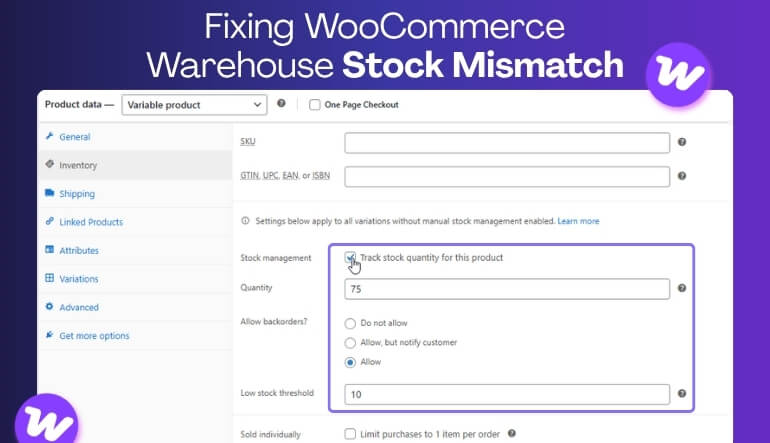
Key settings include proper stock management, controlled backorders, correct stock deduction timing, and hold stock configuration for pending orders.
Final Thoughts
WooCommerce warehouse stock mismatch is usually a sign that inventory assignment, stock deduction, and data synchronization are not working together in a consistent workflow. When these processes fall out of sync, even small errors can lead to overselling, incorrect stock availability, and fulfillment delays.
Fixing this issue starts by identifying where your WooCommerce inventory sync process breaks and ensuring that all stock updates follow a clear and structured workflow across warehouse locations. Stores that rely on manual fixes or disconnected systems are more likely to face repeated stock mismatches.
For growing WooCommerce stores managing multiple warehouses, using a multi location inventory management for WooCommerce solution helps ensure accurate stock tracking, real-time synchronization, and long-term inventory consistency.