
Are you facing location-wise stock showing incorrect quantity in WooCommerce on your store? This is a common issue in multi-location setups where the stock displayed for each location does not match the actual inventory. In many cases, store owners notice that the total stock looks correct, but the per-location quantity is wrong, outdated, or inconsistent.
This problem is different from stock deduction or warehouse routing issues. It usually happens due to WooCommerce stock not syncing between locations, incorrect configuration, or frontend display mismatches. When this happens, it creates confusion for customers, leads to overselling or underselling, and reduces trust in your store.
In this guide, you will learn why multi location stock wrong quantity WooCommerce issues happen, how to identify the exact cause, and how to fix it with a structured approach so your stock stays accurate across all locations.
Quick Answer
Location-wise stock showing incorrect quantity in WooCommerce usually happens when stock data is not properly synchronized between locations or when the system displays outdated values. This often leads to a WooCommerce inventory mismatch by location, where each warehouse shows incorrect or inconsistent stock quantities.
In multi-location WooCommerce setups, stock accuracy depends on how inventory data is stored, synced, and displayed. If any part of this process fails, you may see multi location stock wrong quantity WooCommerce issues even when the actual inventory is correct.
This typically happens when:
- Stock is not syncing between locations in real time
- Cache is showing outdated stock values
- Products are incorrectly assigned to locations
- Frontend display logic does not match backend data
- Multiple plugins override stock handling
As a result, customers may see incorrect stock levels, while the admin panel shows different values, creating confusion and potential order issues.
How to Identify Stock Mismatch Issues?
When this issue occurs:
- Stock quantity differs between locations
- Backend and frontend show different values
- Some locations show zero or incorrect stock
- Stock updates appear delayed or inconsistent
Incorrect stock quantity across locations is usually caused by sync or display issues, making accurate data handling essential in WooCommerce multi-location setups.
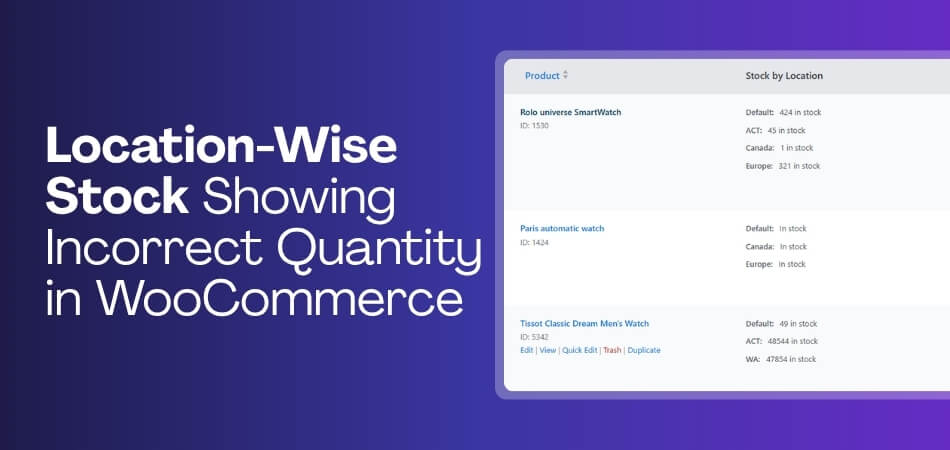
What “Incorrect Location-Wise Stock” Actually Means
When we say location-wise stock showing incorrect quantity in WooCommerce, it does not always mean your inventory is wrong. In many cases, the actual stock is correct, but the system displays incorrect values for individual locations.
This creates a situation where WooCommerce inventory mismatch by location occurs, meaning:
- Total stock may be accurate
- But per-location stock is wrong, outdated, or inconsistent
It’s a Display vs Data Problem
In most cases, this issue is caused by a gap between:
- Backend inventory data (actual stock)
- Frontend display (what users see)
Example:
- Admin shows: Warehouse A = 10, Warehouse B = 5
- Frontend shows: Warehouse A = 3, Warehouse B = 12
This is not a deduction issue — it’s a data sync or display mismatch.
It’s Not the Same as Other Stock Problems
Many store owners confuse this with other issues, but they are different:
- ❌ Stock not deducting → Order processing issue
- ❌ Wrong warehouse → Routing issue
- Incorrect quantity → Stock accuracy / sync issue
It Can Be Partial or Inconsistent
The issue does not always affect all products or locations.
- Some products show correct stock
- Others show incorrect values
- One location works fine, another does not
This inconsistency makes the problem harder to detect.
It Directly Affects Customer Experience
When stock quantity is incorrect:
- Customers see wrong availability
- Orders may fail or be incorrect
- Trust in your store decreases
Even small mismatches can create major operational issues.
Key Insight
The core problem is:
- Not “how much stock you have”
- But “how accurately WooCommerce shows stock per location”
Understanding the difference between stock accuracy issues and other inventory problems helps diagnose WooCommerce multi-location errors more effectively.
Common Scenarios Where Stock Quantity Becomes Wrong
In most cases, location-wise stock showing incorrect quantity in WooCommerce does not happen randomly. It appears in specific situations where data sync, display logic, or configuration breaks.
Here are the most common real-world scenarios:
Frontend Shows Different Stock Than Backend
This is one of the most common situations where store owners notice a mismatch.
- Admin panel shows correct stock per location
- Frontend displays outdated or incorrect values
- Often caused by cache or display layer issues
Result: Customers see wrong availability
Total Stock Is Correct, But Location Stock Is Wrong
The overall inventory looks accurate, but location-wise data is incorrect.
- Total stock count matches
- Individual location quantities do not
- Indicates WooCommerce stock not syncing between locations
Result: Confusion in fulfillment decisions
One Location Shows Zero or Incorrect Stock
Some locations behave normally, while others show incorrect values.
- One warehouse shows zero stock despite availability
- Another shows higher or random quantity
- Usually caused by mapping or sync issues
Result: Customers cannot select correct location
Stock Updates Delayed Across Locations
Changes in stock do not reflect immediately.
- Stock updated in backend
- Frontend shows old values
- Sync delay between locations
Result: Temporary multi location stock wrong quantity WooCommerce issue
Variable Products Show Incorrect Stock Per Location
Variation-based products often behave differently.
- Parent product shows correct stock
- Variations show wrong quantities
- Location mapping missing for variations
Result: Inconsistent stock display for options
Bulk Import or Manual Update Breaks Stock Accuracy
Large updates can overwrite location-based data.
- CSV import resets stock values
- Location-specific data lost
- Default stock overwrites location stock
Result: Sudden mismatch across all locations
Different Users See Different Stock Values
Stock display changes depending on session or device.
- Logged-in users see one value
- Guest users see another
- Mobile vs desktop differences
Result: Inconsistent user experience
Key Insight
These scenarios show that:
- The problem is not always inventory itself
- It is how WooCommerce syncs, stores, and displays location-wise stock data
Understanding real-world scenarios helps identify the exact cause of stock mismatches and makes troubleshooting faster and more accurate.
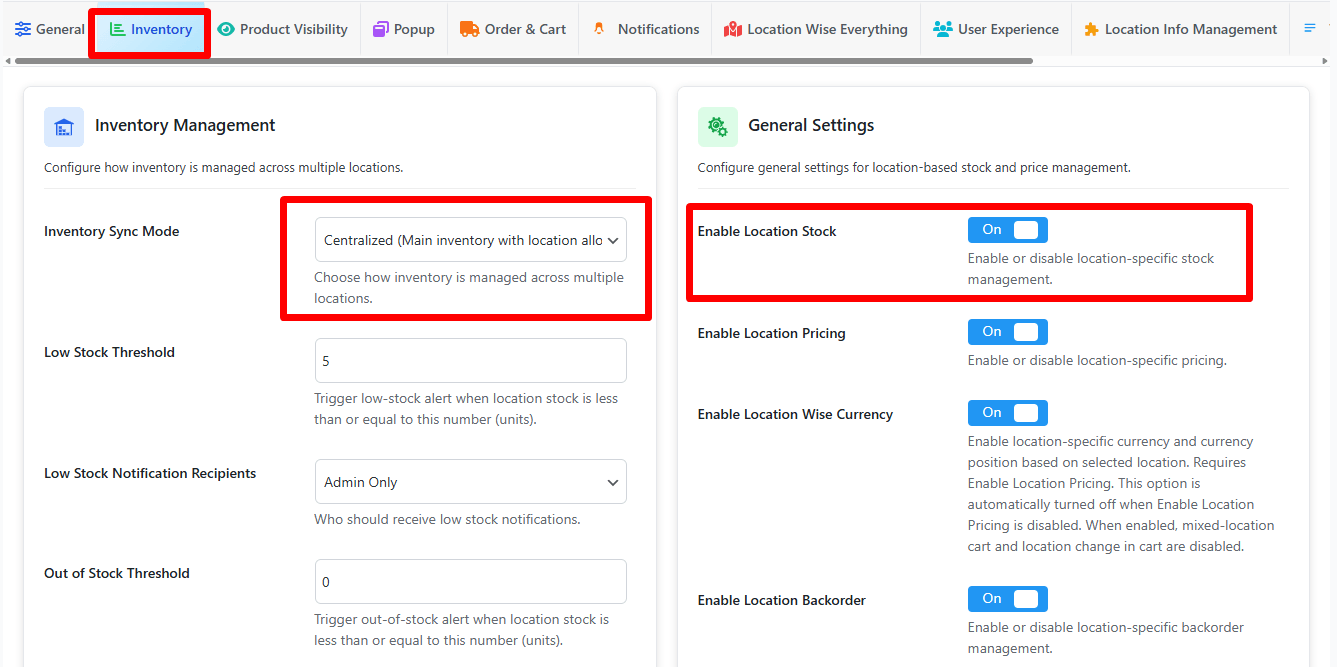
Root Causes of Location-Wise Stock Mismatch in WooCommerce
When location-wise stock shows incorrect quantity in WooCommerce, the problem usually does not come from a single setting. It happens because different parts of the system handle stock separately, and when one layer fails, the entire stock display becomes inconsistent.
To understand it clearly, we can break the problem into three system layers:
Data Sync Layer (Backend Stock Accuracy)
This layer controls how stock is stored and updated across locations. If syncing fails here, all other layers will display incorrect values.
- Stock not syncing between locations in real time
- API or database sync delays
- Background processes not updating inventory
- Multiple systems updating stock independently
Result:
- Backend data itself becomes inconsistent
- Leads to WooCommerce stock not syncing between locations
Display Layer (Frontend Stock Visibility)
Even if backend data is correct, the frontend may show incorrect values due to display issues.
- Cache showing outdated stock values
- CDN or server cache not refreshed
- Frontend logic not matching backend data
- AJAX updates not working properly
Result:
- Customers see wrong stock
- Backend and frontend do not match
Configuration Layer (Setup & Mapping Issues)
This layer controls how products and locations are connected. Misconfiguration here leads to incorrect stock assignment.
- Products not assigned to correct locations
- Location-wise stock fields not configured properly
- Variable products missing location mapping
- Default stock overriding location-based stock
Result:
- WooCommerce inventory mismatch by location
- Wrong stock per location even when total is correct
Integration Layer (Plugins & External Systems)
When multiple plugins or external systems interact with WooCommerce, they can override stock behavior.
- Inventory plugin conflicts
- ERP/POS integrations overwriting data
- Import/export tools resetting stock
- Multiple plugins controlling stock logic
Result:
- Inconsistent updates
- Random or unexpected stock values
Root Cause Summary
| Layer | Core Problem | Impact |
|---|---|---|
| Data Sync | Stock not updating properly | Incorrect backend values |
| Display | Cache or UI mismatch | Wrong frontend stock |
| Configuration | Wrong mapping/setup | Incorrect per-location stock |
| Integration | Plugin/API conflicts | Unstable stock behavior |
Key Insight
The most important takeaway:
Stock mismatch is not just a “bug”
It is usually a layer failure problem
Fixing only one layer (like cache) may not solve the issue if another layer (like sync) is broken. Understanding stock issues at the system layer level helps WooCommerce store owners diagnose problems more accurately and apply the right fix instead of guessing.

Quick Fix Checklist to Correct Location-Wise Stock Quantity
If location-wise stock is showing incorrect quantity in WooCommerce, go through this checklist step by step. These quick actions fix most issues without deep technical changes.
Clear All Cache
Cached data often shows outdated stock values.
- Clear plugin cache (LiteSpeed, WP Rocket, etc.)
- Clear server and CDN cache
- Test in incognito mode
Re-Save Product Data
Forces WooCommerce to refresh stock values.
- Open affected product
- Click update without changes
- Repeat for key products
Re-Sync Inventory Across Locations
Fixes WooCommerce stock not syncing between locations.
- Use plugin sync option
- Trigger manual stock sync
- Verify updated values
Check Location Assignment
Ensure products are mapped correctly.
- Confirm product is assigned to correct locations
- Verify stock per location
- Remove incorrect mappings
Disable Conflicting Plugins
Plugin conflicts can override stock logic.
- Temporarily disable non-essential plugins
- Keep only inventory plugin active
- Test stock display again
Verify Variable Product Settings
Variations often cause mismatch issues.
- Enable stock management per variation
- Check location-wise stock for each variation
- Update variation data
Run a Test Stock Update
Confirm changes reflect properly.
- Manually change stock in backend
- Refresh frontend
- Compare results
Check Import or Bulk Update Effects
Imports may overwrite location data.
- Review recent CSV uploads
- Verify location-specific fields
- Reassign stock if needed
Quick Fix Summary
| Action | What It Fixes |
|---|---|
| Clear cache | Outdated stock display |
| Re-save products | Refresh stock data |
| Sync inventory | Location mismatch |
| Check mapping | Wrong location stock |
| Disable plugins | Conflicts |
| Verify variations | Incorrect variation stock |
| Test updates | Confirm accuracy |
| Review imports | Overwritten data |
Following a structured checklist helps quickly resolve common stock display issues and ensures accurate location-wise inventory in WooCommerce.

System-Level Fixes for Location-Wise Stock Mismatch in WooCommerce
If location-wise stock is still showing incorrect quantity in WooCommerce after quick fixes, the issue is likely at the system level. This means your stock logic, sync process, or configuration is not structured properly.
Instead of fixing symptoms, you need to fix how your system handles stock overall.
Fix Data Sync Logic (Ensure Real-Time Accuracy)
Stock mismatch often starts at the backend when data is not synchronized properly across locations.
- Enable real-time inventory sync (if available)
- Avoid multiple systems updating stock simultaneously
- Ensure cron jobs or background sync processes are running correctly
- Reduce sync delay between updates
Goal: Keep stock data consistent across all locations
Fix Display Logic (Align Frontend with Backend)
Even correct data can be displayed incorrectly if frontend logic is not aligned.
- Exclude product, cart, and checkout pages from cache
- Ensure AJAX stock updates are working properly
- Match frontend templates with backend stock logic
- Test stock visibility across different pages
Goal: Show the same stock values everywhere
Fix Configuration Structure (Correct Mapping & Setup)
Incorrect setup leads to wrong stock assignment per location.
- Assign products to correct locations
- Ensure location-wise stock fields are properly configured
- Set consistent rules for all products
- Avoid mixing global and location-based stock settings
Goal: Maintain accurate WooCommerce inventory mismatch by location
Fix Integration Conflicts (Single Source of Truth)
Conflicts between plugins or external tools can break stock accuracy.
- Use only one system to control stock updates
- Disable duplicate inventory management plugins
- Check API or ERP sync frequency
- Prevent external tools from overriding WooCommerce data
Goal: Avoid conflicting stock updates
Fix Variation-Level Stock Handling
Variable products often behave differently than simple products.
- Enable stock management for each variation
- Assign location-wise stock per variation
- Avoid relying only on parent product stock
- Test each variation individually
Goal: Ensure accurate stock for all product options
Fix Bulk Update & Import Logic
Large updates can overwrite location-specific stock data.
- Use import tools that support location fields
- Validate CSV structure before uploading
- Re-sync stock after bulk updates
- Avoid overwriting location stock with global values
Goal: Protect location-wise stock during updates
System Fix Summary
| System Area | Fix Focus | Result |
|---|---|---|
| Data Sync | Real-time updates | Accurate backend stock |
| Display | Cache & frontend logic | Correct visible stock |
| Configuration | Proper mapping | Accurate location stock |
| Integration | Single system control | Stable stock behavior |
| Variations | Per-variation setup | Correct option stock |
| Imports | Safe bulk updates | No data overwrite |
Key Insight
Quick fixes solve surface issues, but:
- Long-term accuracy comes from system-level fixes
- Every layer must work together (sync + display + config)
If one layer fails, stock mismatch will return. System-level fixes ensure consistent stock accuracy, eliminate recurring issues, and create a reliable multi-location inventory setup in WooCommerce.
How to Audit Your Stock Accuracy (Validation Section)
After applying fixes, you need to confirm that location-wise stock is showing the correct quantity in WooCommerce. A proper audit helps you detect hidden mismatches and ensures your system is working consistently across all locations.
Follow this structured audit checklist:
Compare Backend vs Frontend Stock
Start by verifying whether displayed stock matches actual data.
- Check product stock in WooCommerce admin
- Compare with frontend product page
- Test for each location
Goal: Ensure no WooCommerce inventory mismatch by location
Verify Stock Per Location
Check if each location shows the correct quantity.
- Open product location settings
- Review stock assigned to each warehouse
- Compare with expected values
Goal: Confirm accurate per-location stock
Test Real-Time Stock Updates
Make a small stock change and observe behavior.
- Update stock manually
- Refresh frontend page
- Check if update reflects immediately
Goal: Detect sync delays or failures
Place Test Orders
Orders help validate real-world stock behavior.
- Place test order for a product
- Check if stock updates correctly
- Verify location-wise impact
Goal: Ensure stock updates correctly after transactions
Check Variable Products Separately
Variations often behave differently.
- Select different product variations
- Verify stock per variation
- Check location-wise mapping
Goal: Avoid hidden variation-level mismatches
Test Logged-In vs Guest View
Stock display can change based on session.
- View product as guest user
- Compare with logged-in view
- Test in incognito mode
Goal: Ensure consistent stock visibility
Check Across Devices and Browsers
Different environments may show different data.
- Test on mobile and desktop
- Use different browsers
- Clear cache before testing
Goal: Confirm consistent display across platforms
Review Recent Imports or Updates
Bulk changes often cause mismatches.
- Check recent CSV imports
- Review stock updates
- Confirm location-specific fields were not overwritten
Goal: Prevent data inconsistency from updates
Validation Summary
| Audit Step | What It Confirms |
|---|---|
| Backend vs frontend | Display accuracy |
| Location stock check | Correct per-location data |
| Real-time updates | Sync performance |
| Test orders | Transaction accuracy |
| Variations check | Option-level accuracy |
| User/session testing | Consistency |
| Device testing | Cross-platform accuracy |
| Import review | Data integrity |
Key Insight
A proper audit reveals:
- Whether the issue is fixed
- Which layer is still failing (sync, display, or config)
Without validation, stock issues may appear “fixed” but return later. Regular stock audits ensure consistent inventory accuracy, prevent hidden mismatches, and maintain trust in WooCommerce multi-location stores.

Advanced Issues That Cause Location-Wise Stock Mismatch in WooCommerce
Even after fixing common issues, location-wise stock showing incorrect quantity in WooCommerce can still appear in complex scenarios. These edge cases usually happen in advanced setups where multiple systems, product types, or processes interact.
Here are the most common advanced issues:
Variable Products With Partial Location Mapping
Variable products often cause hidden stock mismatches.
- Parent product shows correct stock
- Some variations missing location-wise stock
- Inconsistent mapping between variations
Result: Different stock values depending on selected variation
Bulk Import Overwriting Location Data
CSV imports can unintentionally reset stock.
- Location fields missing in import file
- Global stock overwrites location-wise stock
- Partial data updates break consistency
Result: Sudden multi location stock wrong quantity WooCommerce issue
API or ERP Sync Conflicts
External systems may override WooCommerce stock.
- ERP pushes outdated stock values
- API sync frequency mismatch
- Two systems updating stock simultaneously
Result: Random or inconsistent stock updates
Multi-Admin or Team Updates
When multiple users manage inventory, conflicts can occur.
- One user updates global stock
- Another updates location stock
- Changes overwrite each other
Result: Data inconsistency across locations
Scheduled Jobs (Cron) Not Running Properly
WooCommerce relies on background processes for updates.
- Cron jobs delayed or not triggered
- Sync process incomplete
- Stock updates stuck in queue
Result: Delayed or missing stock updates
Caching at Multiple Levels
Advanced caching setups can break stock display.
- CDN cache not refreshing
- Server cache overriding updates
- Browser cache showing old values
Result: Frontend shows outdated stock
Custom Code or Theme Overrides
Custom development can affect stock logic.
- Theme overrides stock display template
- Custom hooks modify stock output
- Logic mismatch between backend and frontend
Result: Incorrect stock shown despite correct data
Multi-Currency or Pricing Plugins Interference
Some plugins affect how product data is loaded.
- Stock tied with pricing logic
- Conditional loading affects stock visibility
- Conflicts in product data rendering
Result: Incorrect stock display under certain conditions
Advanced Issue Summary
| Issue | Impact |
|---|---|
| Variation mapping issue | Incorrect variation stock |
| Import overwrite | Data reset |
| API/ERP conflict | Inconsistent updates |
| Multi-admin edits | Data conflict |
| Cron failure | Delayed sync |
| Cache layers | Outdated display |
| Custom code | Incorrect rendering |
| Plugin interference | Conditional mismatch |
Key Insight
These issues show:
- Stock mismatch is not always a WooCommerce problem
- It is often caused by system complexity and integrations
The more complex your setup, the higher the risk of mismatch.Understanding advanced edge cases helps prevent recurring stock mismatches and ensures stable inventory accuracy in complex WooCommerce environments.
Why Most Stores Struggle With Stock Accuracy
Even after fixing technical issues, many stores still face location-wise stock showing incorrect quantity in WooCommerce. The reason is simple: most setups are not built for multi-location accuracy from the beginning.
This problem is not just about bugs. It is about how the entire system is designed, managed, and scaled over time.
No Single Source of Truth
Many stores manage stock from multiple places instead of one centralized system.
- WooCommerce stock updated manually
- External systems also updating stock
- No clear “main” data source
Result: WooCommerce inventory mismatch by location becomes unavoidable
Mixing Global and Location-Based Stock Logic
Stores often use both global stock and location-wise stock together.
- Some products use global stock
- Others use location-based stock
- No consistent rule across store
Result: Confusion in how stock is calculated and displayed
Too Many Plugins Controlling Stock
Using multiple plugins for inventory, shipping, and checkout creates conflicts.
- One plugin updates stock
- Another overrides it
- Logic becomes inconsistent
Result: Unpredictable stock behavior
Lack of Real-Time Sync Strategy
Many setups rely on delayed updates instead of real-time sync.
- Manual updates instead of automated sync
- Background jobs not optimized
- Delay between stock changes
Result: WooCommerce stock not syncing between locations
Poor Data Handling During Scaling
As stores grow, stock management becomes more complex.
- More products and locations added
- Old setup not updated
- Processes become inconsistent
Result: Increasing stock mismatch over time
No Regular Stock Auditing
Most store owners only check stock when problems appear.
- No routine validation
- Errors go unnoticed
- Issues compound over time
Result: Hidden mismatches across locations
Over-Reliance on Manual Updates
Manual stock management increases risk of error.
- Human mistakes in stock entry
- Incorrect location assignment
- Inconsistent updates
Result: Frequent data inconsistencies
Key Insight
The real reason most stores struggle:
- It’s not just a technical issue
- It’s a system design + process problem
Fixing one bug will not solve it if the system itself is not structured properly.
What This Means for Your Store
If you are facing stock mismatch issues:
- It’s likely not a one-time error
- It’s a recurring system problem
And the solution is: Build a structured, consistent stock management system
Stock accuracy improves when WooCommerce stores adopt a structured system, maintain consistent processes, and avoid fragmented inventory management approaches.
System-Based Solution for Location-Wise Stock Accuracy in WooCommerce
If you want to permanently fix location-wise stock showing incorrect quantity in WooCommerce, you need to move beyond quick fixes and focus on how your entire inventory system works.
Instead of treating stock issues as isolated problems, think of your store as a system where data, display, and processes must stay aligned at all times.
Build a Single Source of Truth
Your store should have one central place where stock is controlled and updated.
- Avoid updating stock from multiple systems
- Use one inventory source for all locations
- Ensure all updates flow from this source
Goal: Eliminate WooCommerce inventory mismatch by location
Enable Real-Time or Controlled Sync
Stock data must update consistently across all locations.
- Use real-time sync where possible
- Minimize delay between stock updates
- Ensure background processes run properly
Fix WooCommerce stock not syncing between locations
Keep Display Logic Aligned With Data
What customers see must always match backend data.
- Reduce heavy caching on product pages
- Use dynamic stock updates (AJAX)
- Ensure frontend pulls latest data
Goal: Accurate stock visibility across all pages
Standardize Product & Location Configuration
Consistency in setup prevents mismatches.
- Assign all products to correct locations
- Use the same stock rules across products
- Avoid mixing global and location stock logic
Goal: Stable and predictable stock behavior
Limit System Complexity
The more tools you use, the higher the risk of conflict.
- Avoid multiple inventory plugins
- Reduce overlapping features
- Keep your stack simple and focused
Goal: Prevent conflicts and inconsistent updates
Automate Instead of Manual Handling
Manual processes increase errors over time.
- Automate stock updates where possible
- Reduce human intervention
- Use scheduled sync processes
Goal: Improve long-term accuracy and reliability
Implement Regular Stock Audits
Even a good system needs validation.
- Schedule periodic stock checks
- Compare backend vs frontend data
- Monitor location-wise stock accuracy
Goal: Detect issues before they grow
System Thinking Summary
| Principle | Benefit |
|---|---|
| Single source of truth | Consistent data |
| Real-time sync | Accurate updates |
| Aligned display logic | Correct frontend stock |
| Standard configuration | Predictable behavior |
| Reduced complexity | Fewer conflicts |
| Automation | Lower error rate |
| Regular audits | Long-term stability |
Key Insight
The real solution is not:
❌ Fixing one bug
❌ Adjusting one setting
The real solution is: Building a system where stock stays accurate automatically
What This Means for Your Store
If you apply system thinking:
- Stock accuracy improves permanently
- Mismatches stop recurring
- Your store becomes easier to manage as it grows
Adopting a system-based approach ensures long-term stock accuracy, reduces errors, and creates a reliable multi-location inventory setup in WooCommerce.
Recommended Solution to Fix Location-Wise Stock Mismatch in WooCommerce
If your store keeps facing location-wise stock showing incorrect quantity in WooCommerce, it usually means your current setup cannot maintain consistent stock data across locations.
Quick fixes may work temporarily, but long-term accuracy requires a system that handles:
- Real-time stock synchronization
- Location-wise inventory tracking
- Consistent data across backend and frontend
Use a Centralized Multi-Location Inventory System (Recommended: Plugincy)
A centralized system ensures that stock data is managed from a single source and synced across all locations automatically.
- Real-time stock sync between locations
- Accurate per-location stock tracking
- Prevents WooCommerce stock not syncing between locations
- Unified dashboard for all inventory operations
Best for:
- Stores facing repeated stock mismatch
- Multi-warehouse or multi-store setups
- Businesses scaling inventory operations
Use Multiloca for Location-Based Stock Visibility
Multiloca is useful if your main goal is to display stock based on customer location.
- Shows stock per location dynamically
- Supports location-based selection
- Helps reduce frontend mismatch
Limitation:
- Sync logic is not as advanced for complex setups
Use Addify for Flexible Inventory Management
Addify provides more manual control over inventory structure.
- Manage multiple inventories per product
- Customize stock behavior per location
- Supports complex setups
Limitation:
- Requires more configuration to maintain accuracy
Avoid Relying on Default WooCommerce
WooCommerce alone is not designed for multi-location stock accuracy.
- No built-in location-wise stock system
- No real-time sync between locations
- High risk of mismatch in complex setups
Result: Leads to WooCommerce inventory mismatch by location
What This Means for Your Store
If you are facing:
- Incorrect stock per location
- Stock mismatch between backend and frontend
- Inconsistent updates across locations
Then the problem is:
- Not just a bug
- It is a system limitation
And the solution is: Using a tool that manages stock centrally and consistently
Final Recommendation
For most stores:
- If your priority is accuracy + automation → Go with Plugincy
- If your priority is simple location display → Use Multiloca
- If your priority is custom flexibility → Use Addify
Using the right multi-location inventory solution ensures accurate stock data, eliminates mismatches, and builds a reliable WooCommerce system for long-term growth.
Stock Accuracy Comparison for Multi-Location WooCommerce Systems
This comparison focuses on how well each system handles location-wise stock accuracy, synchronization, and consistency, which directly impacts whether your store shows correct quantities across locations.
Feature Comparison
| Feature / Capability | Default WooCommerce | Plugincy Multi-Location System | Multiloca | Addify Multi Inventory |
|---|---|---|---|---|
| Location-wise stock support | ❌ Not native | ✔ Full support | ✔ Supported | ✔ Supported |
| Real-time stock sync | ❌ No | ✔ Yes | ⚠ Limited | ⚠ Partial |
| Stock consistency across locations | ❌ Weak | ✔ Strong | ⚠ Moderate | ⚠ Moderate |
| Backend vs frontend accuracy | ❌ Often mismatched | ✔ Fully aligned | ⚠ Occasional mismatch | ⚠ Depends on setup |
| Sync between locations | ❌ Not available | ✔ Automatic | ⚠ Manual/limited | ⚠ Partial |
| Variable product stock accuracy | ❌ Limited | ✔ Fully supported | ⚠ Partial | ✔ Supported |
| Bulk update safety (no overwrite) | ❌ Risky | ✔ Safe handling | ⚠ Risk exists | ⚠ Needs caution |
| Conflict handling (plugins/APIs) | ❌ No control | ✔ Strong control | ⚠ Medium | ⚠ Medium |
| Cache-safe stock display | ❌ No | ✔ Optimized | ⚠ Depends on setup | ⚠ Depends on setup |
| Single source of truth | ❌ No | ✔ Yes | ⚠ Partial | ⚠ Partial |
| Best use case | Single location | Accurate multi-location system | Simple setups | Flexible setups |
What This Table Shows
The key difference is not features — it’s how accurately each system maintains stock data.
You can clearly see:
- Default WooCommerce struggles with multi-location accuracy
- Plugincy focuses on real-time sync + consistency
- Multiloca works well for basic setups
- Addify provides flexibility but needs proper configuration
Key Insight
If your main problem is:
- multi location stock wrong quantity WooCommerce
- WooCommerce stock not syncing between locations
Then you need:
- Strong sync system
- Consistent data handling
- Conflict-free setup
Not just “multi-location support”. Choosing a system based on stock accuracy and synchronization ensures reliable inventory data and prevents recurring location-wise stock mismatches in WooCommerce.
Which Plugin Should You Choose?
Choosing the right plugin depends on how serious your stock accuracy issue is and how your store operates.
Choose Plugincy → Best for Accuracy + Real-Time Sync
If your main problem is location-wise stock showing incorrect quantity in WooCommerce, this is the most reliable option.
- Centralized inventory control
- Real-time stock synchronization
- Reduces mismatches and sync errors (WordPress.org)
Best when:
- You need consistent stock across locations
- You want automation instead of manual fixes
Choose Multiloca → Best for Simple Stock Visibility
If your goal is mainly to display stock per location on the frontend.
- Shows real-time availability per location
- Easy setup for basic use cases (WordPress.org)
Best when:
- You run a simple multi-location store
- You don’t need complex sync logic
Choose Addify → Best for Flexible Inventory Setup
If you want more control over how inventory is structured.
- Manage multiple inventories per product
- Supports custom workflows and imports (WooCommerce)
Best when:
- You need flexibility
- You are comfortable managing setup manually
Final Decision
If your issue is:
- Stock mismatch across locations
- WooCommerce stock not syncing between locations
Then go with: Plugincy → for accuracy + long-term stability
Choosing the right inventory system based on sync accuracy ensures consistent stock data and prevents recurring location-wise mismatches in WooCommerce.
Frequently Asked Questions (FAQ)
Why is location-wise stock showing incorrect quantity in WooCommerce?
This usually happens when stock data is not properly synchronized between locations or when outdated values are displayed due to cache. It often results in a WooCommerce inventory mismatch by location, where per-location stock does not match actual inventory.
Does WooCommerce support location-wise stock accuracy by default?
No, WooCommerce does not natively support advanced multi-location stock management. It manages stock globally, so additional plugins or systems are required to maintain accurate stock per location.
How do I fix WooCommerce stock not syncing between locations?
You can fix this by enabling proper sync processes, clearing cache, re-saving product data, and ensuring that only one system controls stock updates. Using a centralized inventory system also helps prevent sync issues.
Why does total stock look correct but location stock is wrong?
This happens when backend data is correct but location-wise mapping or sync fails. The system calculates total stock properly but does not distribute it accurately across individual locations.
Can caching cause incorrect stock display in WooCommerce?
Yes, caching is one of the most common reasons. Cached pages may show outdated stock values even after updates, especially on product and shop pages.
Do variable products cause stock mismatch issues?
Yes, variable products can cause inconsistencies if stock is not properly assigned to each variation per location. This leads to incorrect stock being displayed for specific options.
Can plugins or integrations affect stock accuracy?
Yes, multiple plugins or external systems like ERP or POS tools can override stock data, causing conflicts and inconsistent updates across locations.
How can I prevent stock mismatch issues in the future?
Use a centralized system, enable real-time sync, avoid multiple conflicting plugins, and regularly audit your stock data. A structured setup helps maintain long-term accuracy.
What is the difference between stock mismatch and stock not updating?
Stock mismatch means incorrect values are shown per location, while stock not updating means changes are not reflected at all. This article focuses on mismatch, not update failure.
What is the best way to maintain accurate stock across locations?
The best approach is to use a system that ensures real-time synchronization, consistent data handling, and a single source of truth for all inventory updates.
A well-structured FAQ section improves search visibility, answers user intent clearly, and increases the chances of ranking in featured snippets and AI-generated search results.
Final Thoughts
When location-wise stock shows incorrect quantity in WooCommerce, it is rarely a random issue. In most cases, it reflects a deeper problem in how your store handles stock data, synchronization, and display across locations.
Many store owners try quick fixes, but the real improvement comes when your system ensures:
- Stock updates consistently across all locations
- Frontend always matches backend data
- Only one source controls inventory changes
Once these are aligned, stock mismatch issues stop repeating.
If your store is growing and managing multiple locations, relying on basic WooCommerce setup or disconnected tools will continue to create WooCommerce inventory mismatch by location problems.
The key is simple:
- This is not just a display issue
- This is a stock accuracy system issue
And solving it at the system level gives you long-term stability.
Final Takeaway
To maintain accurate stock across locations:
- Build a centralized inventory system
- Ensure real-time or controlled synchronization
- Avoid conflicting plugins or duplicate logic
- Audit stock regularly
These steps turn stock management from reactive fixes into a reliable system.
A structured inventory system ensures accurate stock visibility, prevents mismatches, and builds trust in WooCommerce multi-location stores.