
Seeing the cart work during admin testing does not always mean customers are getting the same experience. WooCommerce often treats administrators and shoppers differently through caching, session handling, validation, and plugin logic, which can make the cart look normal for you while failing for everyone else.
That gap is what makes this issue so easy to miss. Customers may run into empty carts, failed add-to-cart actions, or checkout problems even while your own tests seem completely fine. This guide explains why WooCommerce cart works for admin but not customers and how to find the real cause.
How Admin and Customer Cart Paths Start to Diverge?
WooCommerce cart behavior can begin to change as soon as store owners test from an admin account instead of the same path real shoppers follow. Before getting into the deeper reasons, it helps to see where that difference starts.
- Admin sessions often follow a protected storefront path
- Customer sessions rely on live cart conditions
- Guest users face stricter session behavior
- Store rules may apply differently by user type
- Frontend cart flow can shift outside admin testing
- Cart issues may stay hidden until a shopper interacts
The Most Common Causes of This WooCommerce Cart Issue
When a WooCommerce cart works for admin but not for customers, the problem usually comes from customer-side conditions that logged-in store owners do not pass through during testing. To narrow it down more accurately, these are the main causes worth checking in order.
Cause 1: Cached Cart Or Checkout Content
Caching is one of the biggest reasons customers see broken cart behavior while administrators do not. If the cart, checkout, account pages, or cart fragments are cached, shoppers may get stale cart states, empty carts, or pages that fail to reflect recent actions.
Cause 2: Incorrect WooCommerce Page Mapping
WooCommerce depends on the correct cart, checkout, and account pages being assigned in settings. If one of those pages is mapped incorrectly, customers can be pushed into the wrong flow or reach a page that does not behave like the live cart should.
Cause 3: Plugin Or Theme Conflicts
Some themes and plugins apply different storefront logic to customers than to administrators. When that affects cart behavior, validation, or page rendering, shoppers may face failed add-to-cart actions, broken updates, or checkout issues that admin testing never reveals.
Cause 4: Session And Cookie Problems
Customer carts rely on cookies and sessions staying active across page loads and shopping steps. If those are blocked, delayed, misconfigured, or cleared too early, customers may lose cart contents, fail to keep products added, or run into inconsistent checkout behavior.
Cause 5: AJAX Or JavaScript Errors
Many WooCommerce cart actions depend on AJAX requests and frontend scripts to update the cart without a full page reload. If those requests fail or scripts break for customer-facing sessions, add-to-cart actions may stop working even while the admin cart still appears normal.
Cause 6: Customer Validation Rules Can Block Cart Actions
Customers often face stock checks, quantity limits, backorder restrictions, shipping conditions, or other purchasability rules that administrators do not experience the same way. That can make a product look purchasable during admin testing while failing silently for actual shoppers.
Cause 7: Guest Cart Behavior Can Be More Fragile
Guest shoppers depend fully on browser-side sessions, live storefront behavior, and customer-facing cart logic. When that setup is unstable, guest carts are more likely to reset, lose products, or fail during checkout, even though admin sessions continue working without issues.
How to Fix WooCommerce Cart Issues the Right Way?
Fixing this issue works best when each solution matches the reason customers see a different cart experience than admins. Now that the main causes are clear, the next step is to apply the fixes in the same order so the troubleshooting path stays easier to follow.
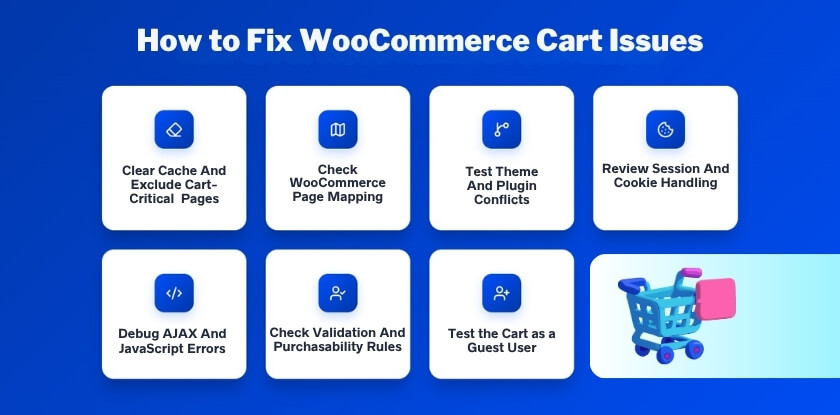
Fix 1: Clear Cache And Exclude Cart-Critical Pages
Start by clearing every caching layer that could be serving outdated cart content to shoppers. This includes caching plugins, server cache, CDN cache, and any host-level optimization affecting customer-facing pages.
- Purge all cache in tools like WP Rocket, SG Optimizer, LiteSpeed Cache, or Cloudflare
- Exclude the /cart/, /checkout/, and /my-account/ pages from caching
- Make sure cart fragments and session-based WooCommerce requests stay dynamic
Fix 2: Check WooCommerce Page Mapping
Make sure WooCommerce is pointing customers to the correct cart and checkout pages. A misassigned page can break the customer flow even when admin testing seems unaffected.
- Go to WooCommerce > Settings > Advanced
- Confirm the Cart Page, Checkout Page, and related pages are mapped correctly
- Retest the full cart path as a customer after saving settings
Fix 3: Test Theme And Plugin Conflicts
Switch to a default WooCommerce-friendly setup to see whether a theme or plugin is changing cart behavior only for shoppers. This is one of the fastest ways to isolate customer-side conflicts while keeping the storefront compatible with tools like multi location product management for WooCommerce.
- Temporarily switch to a default theme such as Storefront
- Disable non-WooCommerce plugins one by one
- Retest cart actions in a logged-out or customer session after each change
Fix 4: Review Session And Cookie Handling
Customer carts depend on stable sessions and properly working cookies across browsing steps. If those break, the cart may appear empty or lose products even though the add-to-cart action succeeded.
- Check whether WooCommerce cookies are being set correctly for guest users
- Test the cart after accepting or rejecting cookie consent banners
- Review session expiration and hosting-level session behavior for customer traffic
Fix 5: Debug AJAX And JavaScript Errors
If cart updates rely on AJAX or frontend scripts, customer-side errors can stop the cart from updating even when the product is technically added. Admin testing may not show the same failure.
- Open the browser console as a guest or customer user
- Look for JavaScript errors, failed AJAX requests, or broken fragment refresh behavior
- Retest add-to-cart, mini cart updates, and checkout actions outside the admin session
Fix 6: Check Customer Validation And Purchasability Rules
Products may be blocked for customers because of stock limits, quantity rules, shipping conditions, or other storefront restrictions that administrators do not hit during testing.
- Test products as a customer with the same quantity and checkout path a shopper would use
- Review stock status, backorder rules, minimum order limits, and shipping-based restrictions
- Confirm products are fully purchasable under real customer conditions
Fix 7: Test the Cart as a Guest User
Guest cart problems can stay hidden when store owners only test while logged in. A real guest session helps reveal whether the issue is tied to customer-facing cart behavior rather than admin access.
- Open the store in incognito or private mode
- Test add-to-cart, cart refresh, and checkout without any saved admin session
- Compare guest behavior with admin behavior to confirm the cart now works consistently
Extra Check: Reset Permalinks If the Issue Still Persists
If the cart still behaves strangely after the main fixes, refresh the site structure to rule out permalink-related issues affecting WooCommerce page handling.
- Go to Settings > Permalinks
- Click Save Changes without changing anything
- Retest the cart flow again as a customer
Final Check: Contact Your Host If Guest Sessions Keep Failing
If guest carts still break after everything above, the remaining issue may be tied to server-side session handling or hosting configuration. At that point, the storefront needs a deeper environment-level review.
- Ask your host to confirm WooCommerce sessions are working correctly for guest users
- Check whether server rules, proxies, or security layers are interrupting customer sessions
- Confirm session persistence remains stable across cart, checkout, and page refreshes
Does Inventory Logic Interfere With WooCommerce Cart Actions?
Yes, it can. Inventory logic affects more than stock display alone. When product availability, quantity rules, backorder settings, or location-based stock conditions are tied into the cart flow, WooCommerce cart actions can behave differently for customers than they do during basic admin testing.
Common examples include:
- stock limits blocking the requested quantity
- backorder rules changing add-to-cart behavior
- location-based availability affecting purchasability
- inventory sync delays creating cart mismatches
- customer-side validation reacting to live stock rules
This is also why stores using the WooCommerce multi locations inventory management plugin should test cart behavior under real customer conditions, not only through admin sessions. When inventory logic is handled cleanly, the cart is much less likely to show inconsistent behavior between the product page, cart, and checkout.

Tips for Keeping Customer Cart Behavior Consistent
Customer cart issues are easier to prevent when the storefront is tested the way real shoppers actually use it. To keep behavior more stable over time, these habits are worth checking regularly.
- Test Guest Sessions Regularly: Check cart behavior in logged-out browsing so customer-facing issues appear before they affect real shoppers.
- Retest After Store Changes: Recheck the cart after plugin updates, theme edits, cache changes, or checkout-related adjustments.
- Keep Cart Pages Dynamic: Make sure cart, checkout, and account-related activity is not served through cached customer pages.
- Compare User Roles Carefully: Test cart behavior across guest, customer, and admin sessions to catch role-based differences early.
- Check Mobile And Desktop Separately: Confirm cart actions stay consistent across phones, tablets, and desktop browsers.
- Watch Inventory Rule Changes: Recheck cart behavior after changing stock limits, purchasability rules, or product availability settings.
- Use Real Shopping Scenarios: Test full customer paths from product page to checkout instead of relying only on admin-side checks.
Frequently Asked Questions
Cart issues that affect customers but not admins often raise a different set of questions after the main troubleshooting is done. These answers focus on the practical uncertainties store owners still want to clear up before relying on the storefront again.
Why Does The Problem Sometimes Affect Only New Visitors?
New visitors usually go through the full guest storefront path without saved sessions, prior activity, or account continuity. That can expose cart issues returning users do not always trigger.
Can Customer Complaints Show Up Before Sales Data Looks Wrong?
Yes, smaller cart failures may appear first through support requests, abandoned browsing, or confused shoppers before the impact becomes obvious in store reports.
Should The Cart Be Retested After Routine Store Updates?
Yes, even normal changes to themes, plugins, checkout settings, or performance tools can affect how the cart behaves for customers.
Can Some Products Fail In The Cart While Others Still Work?
Yes, differences in stock setup, purchase conditions, quantity rules, or product restrictions can make cart behavior vary from one item to another.
Can Checkout Still Break After The Cart Looks Fine?
Yes, the cart may seem stable earlier in the journey while a later step fails when customer validation, session continuity, or final checkout conditions change.
Final Thoughts
If you have been trying to figure out why WooCommerce cart works for admin but not customers, the real problem is usually the gap between store-owner testing and the live customer experience. What looks normal from an admin account can still break once caching, guest sessions, customer rules, or storefront scripts come into play.
That is why this issue needs to be tested from the shopper side, not just the dashboard side. Once the cart behaves the same way for guests, customers, and admins, the store becomes much easier to trust, maintain, and grow.