
Login is where the real issue begins. WooCommerce has to move the cart from a temporary guest session to the customer’s logged-in account, and that transition does not always happen cleanly.
When the platform cannot verify the session properly, merge cart data correctly, or keep the same cart identity across login, it may load the wrong cart or clear it entirely. In this guide, we’ll explain everything about why WooCommerce empties the cart after login. Keep reading to learn in detail.
What Happens When a Customer Logs In to WooCommerce?
Login is where WooCommerce has to reconnect the cart to the customer in a different way. Seeing that transition first helps explain why the cart sometimes disappears right after sign-in.
Before looking at the signs, it helps to understand what changes during login. WooCommerce moves the shopper from a guest session to a logged-in account and tries to keep the same cart connected through that shift.
- Guest session stops, and account-based tracking begins
- WooCommerce tries to carry existing cart items into the logged-in session
- Older saved cart data can load instead of the current guest cart
- Session values may refresh and break cart continuity
- Cookies help WooCommerce recognize the same shopper
- Cached login or cart data can interrupt the handoff
- Failed cart matching can make the cart appear empty
Common Signs WooCommerce Is Emptying the Cart After Login
Cart loss after login usually shows up through a few clear patterns. Recognizing these signs helps confirm that WooCommerce is failing to preserve cart data during the shift from guest session to logged-in account.
- Cart Turns Empty After Login: Customers add products to the cart successfully as guests, log into their accounts, and then return to find the cart empty with no items left.
- Checkout Flow Breaks After Sign In: Shoppers move toward checkout normally, but after logging in, the cart resets and forces them to go back and add products again.
- Cart Works Only For Guest Users: Products stay in the cart during guest browsing, but once the customer signs in, WooCommerce fails to keep the same cart contents.
- Problem Appears On Specific Browsers Or Devices: Cart loss may happen only on certain browsers, mobile devices, or private sessions, which often points to cookies or session handling issues.
- Admin Testing Does Not Match Customer Experience: Store owners or admins may test the same login flow without any issue, while actual customers continue losing products after authentication.
- Older Saved Cart Replaces New Items: Instead of keeping the products added before login, WooCommerce may load an older saved cart and make the current cart appear empty or incomplete.
Top Reasons WooCommerce Empties the Cart After Login
Cart loss after login usually points to a break between the guest session and the logged-in customer session. Most cases come back to stale session data, caching layers, conflicting plugins, persistent cart bugs, or account settings that disrupt how WooCommerce carries items forward.
Some causes are technical, but the pattern is usually straightforward once you break it down. These are the most common reasons WooCommerce clears or replaces the cart right after sign-in.
Reason 1: Old Customer Sessions Create Cart Conflicts
WooCommerce keeps session records to remember cart activity across visits. When those records become outdated, corrupted, or stuck, the platform can struggle to match the current guest cart with the correct logged-in customer.
Reason 2: Cached Cart Or Account Pages Break The Handoff
Caching can serve an older version of the Cart, Checkout, or My Account pages during login. Instead of showing the latest session state, WooCommerce may load stale data and leave the customer looking at an empty cart.
Reason 3: Plugin Conflicts Interrupt Cart Persistence
Not every cart issue starts inside WooCommerce itself. Login plugins, security tools, checkout customizers, and optimization plugins can change session behavior or interfere with the cart merge process after sign-in.
Reason 4: Persistent Cart Data Gets Overwritten
WooCommerce may restore saved cart data when an account holder logs in. If that stored value is overwritten with an empty cart because of a bug or conflict, the customer loses the products added before authentication.
Reason 5: Incorrect WooCommerce Endpoints Disrupt Login Flow
Account, cart, and checkout endpoints help WooCommerce route users properly after login. When those settings are empty or misconfigured, the platform may fail to complete the cart transition the way it should.
Reason 6: Theme Conflicts Change Default WooCommerce Behavior
Theme-level customizations can also affect what happens after login. When a theme overrides WooCommerce templates or changes cart and account behavior, it can unintentionally break cart continuity for shoppers.
How to Fix WooCommerce Cart Reset After Login?
Fixing this issue usually means correcting the exact point where cart continuity breaks after sign-in. Since WooCommerce can lose cart data for different reasons, the safest approach is to work through the fixes in the same order as the most common causes. Following the fixes below makes it easier to isolate the problem without missing anything important.
Fix 1: Clear Old Customer Sessions
Old or broken session records can stop WooCommerce from matching the guest cart to the logged-in customer correctly. Clearing those sessions is often the fastest first step because it removes stale cart data that may still be interfering with new logins.
- Go to WooCommerce > Status > Tools
- Find Clear customer sessions
- Run the tool, then test the login flow again
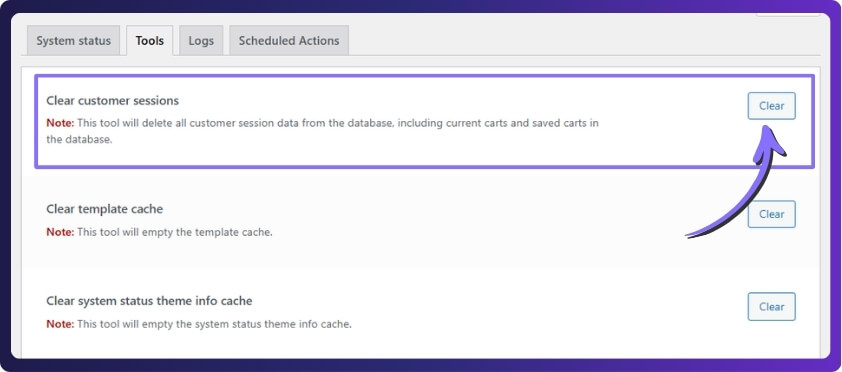
After that, add products as a guest, log in with a customer account, and check whether the cart stays intact. If the problem disappears, stale session data was likely the main cause.
Fix 2: Exclude Cart, Checkout, And Account Pages From Cache
Caching should never control pages that depend on live customer session data. If Cart, Checkout, or My Account pages are cached at the plugin, server, or CDN level, WooCommerce may load outdated cart data during login and replace the current cart state.
- Exclude the Cart page from cache
- Exclude the Checkout page from cache
- Exclude the My Account page from cache
- Review caching tools like WP Rocket, LiteSpeed, Cloudflare, or Varnish
Once those pages are fully dynamic, test the same login flow again. This step is especially important if the issue appears only for some users or only after login redirects.
Fix 3: Test For Plugin Conflicts
Plugins that affect login, sessions, security, performance, or checkout behavior can quietly interfere with WooCommerce cart persistence. That is why conflict testing should follow soon after session cleanup and cache checks.
- Temporarily disable plugins related to login
- Disable plugins tied to security
- Pause checkout customizers and optimization plugins
- Test WooCommerce after each change
- Re-enable plugins one by one to identify the culprit
Jetpack is one of the plugins often mentioned in reports around cart issues, but it is best to test broadly instead of assuming one plugin is always responsible.

Fix 4: Check Persistent Cart Behavior
WooCommerce may try to restore a saved cart when the customer logs in, but bugs or conflicts can overwrite that persistent cart data with an empty value. When that happens, the store loads the logged-in cart without the products that were added before sign-in.
Review whether the problem started after a WooCommerce update or after adding a cart-related plugin. If it did, inspect any custom code or plugin behavior that touches persistent cart storage.
- Check for recent WooCommerce updates
- Review cart-related custom code snippets
- Test whether saved carts are being replaced after login
- Look for known persistent cart bugs in your current setup
If the issue started suddenly after an update, a temporary rollback or compatibility test may help confirm whether persistent cart handling is involved.
Fix 5: Verify WooCommerce Account And Checkout Endpoints
Incorrect endpoint settings can interfere with how WooCommerce routes customers after login. Even when the cart itself is not broken, bad endpoint setup can make the cart flow look inconsistent or incomplete after authentication.
- Go to WooCommerce > Settings > Advanced
- Review Cart, Checkout, and My Account endpoint settings
- Make sure required fields are not empty or incorrectly assigned
- Save settings and retest the login process
This step is easy to miss because endpoint problems can look like cart issues even when the real problem is the path WooCommerce follows after login.
Fix 6: Switch To A Default Theme For Testing
Theme overrides can change WooCommerce behavior in ways that are hard to detect from the front end alone. If the cart still empties after login, switching briefly to a default WooCommerce-friendly theme can show whether the issue is coming from theme-level customization.
- Temporarily switch to Storefront or another default WooCommerce-compatible theme
- Repeat the guest-to-login cart test
- Compare the result with your current theme active
If the issue disappears on the default theme, the next step is to review theme overrides, custom account templates, or cart-related functions that may be interrupting WooCommerce’s normal cart handoff.
Why Cart Issues After Login Are Harder To Manage On Multi-Location Stores
Cart issues after login often become harder to manage when inventory is spread across more than one location. In stores running WooCommerce multi locations inventory management, adding stock rules, fulfillment logic, and sync activity can make cart behavior more difficult to trace.
- More Inventory Rules To Process: Multi-location stores often apply different stock rules by warehouse, branch, or pickup point, which adds more moving parts when WooCommerce tries to preserve cart contents after login.
- Stock Availability Can Shift By Location: Products may appear available in one location, but not another, so cart behavior can feel inconsistent when login, session changes, and location-based inventory checks happen together.
- Cart Problems Become Harder To Isolate: When session handling and inventory logic are both active in the same flow, it becomes more difficult to tell whether the issue starts with login, stock sync, or location rules.
- Real-Time Sync Raises The Complexity: Stock updates across multiple locations need stronger coordination, because mismatches between inventory movement and cart sessions can create confusing customer experiences after sign-in.
- Custom Fulfillment Logic Adds More Variables: Delivery zones, local pickup settings, and warehouse assignment rules can all influence what stays in the cart, especially when the customer signs in during checkout.
- Troubleshooting Takes More Time On Growing Stores: As store operations expand across locations, fixing cart issues usually requires checking session behavior, inventory movement, and location-based product availability together instead of separately.
- Consistency Matters More Across The Full Store: Multi-location businesses need stable coordination between cart behavior and inventory visibility, which becomes more important as the store grows across more warehouses or branches.
Best Solution For Managing Cart And Inventory Across Multiple Locations
Fixing the immediate login cart issue is important, but growing stores often need a stronger long-term setup to keep cart behavior and stock visibility consistent. That is where multi location inventory management for WooCommerce becomes especially valuable for stores managing products, stock, and fulfillment across more than one location. The core features include:
- Multi-location stock management
- Centralized inventory dashboard
- Location-based product assignment
- Per-location stock updates
- Real-time inventory sync
- Better stock visibility
- Support for branch and warehouse logic
- Simplified fulfillment coordination
- Improved cart and stock consistency
- Scalable inventory control for growth
Frequently Asked Questions
Shoppers losing cart contents after login can raise a few related questions beyond the main fix itself. These FAQs cover practical concerns store owners often have when reviewing account behavior, customer experience, and store setup.
Does WooCommerce Save Cart Items For Logged-In Users?
WooCommerce can save cart data for logged-in users, but how reliably it works depends on session handling, plugin behavior, and how the store is configured overall.
Can Custom Login Forms Affect Cart Behavior In WooCommerce?
Yes, custom login forms can sometimes affect how WooCommerce handles redirects, account sessions, or cart continuity, especially when they replace the default login flow.
Why Does The Problem Only Affect Some Customers?
The issue may only appear for certain users because browser settings, stored account data, plugin interactions, or device-specific behavior can vary from one customer session to another.
Can Server-Level Configuration Influence Cart Problems After Login?
Yes, server setup can play a role. Session storage, object caching, firewall rules, and other hosting-level settings may affect how WooCommerce keeps cart data connected after sign-in.
Should You Test Cart Behavior On A Staging Site First?
Yes, testing on a staging site is a safer way to review plugin changes, theme adjustments, and login flow behavior before applying changes to a live WooCommerce store.
Final Thoughts
Customers who lose products right after sign-in often abandon the purchase before reaching checkout. Understanding why WooCommerce empties the cart after login helps you fix the root issue faster and protect the shopping experience from unnecessary interruptions.
Once sessions, caching, plugins, and account settings work together properly, cart contents can carry over more reliably during login. For growing stores, that stability is even more important because smoother cart behavior and better inventory control can support stronger conversions.