
When WooCommerce shows in stock but blocks checkout, it usually means the product appears available on the product page, but something in the checkout validation process is preventing the purchase. This creates confusion because customers see “In Stock” but cannot complete the order.
In most cases, this issue is not about actual stock quantity. Instead, it happens due to validation rules, cart checks, variation mismatches, or hidden restrictions that only trigger during checkout. In this guide, you’ll learn why WooCommerce allows products to appear in stock but blocks checkout, what causes it, and how to fix it step by step.
Quick Fix for WooCommerce Shows In Stock but Blocks Checkout
Before diving into deeper causes, try these quick checks to resolve most cases where WooCommerce shows a product as in stock but prevents checkout.
Quick checks:
- Confirm the product is marked as purchasable and in stock
- Check if stock quantity is greater than zero
- Verify variation is properly selected and available
- Ensure stock management is enabled correctly
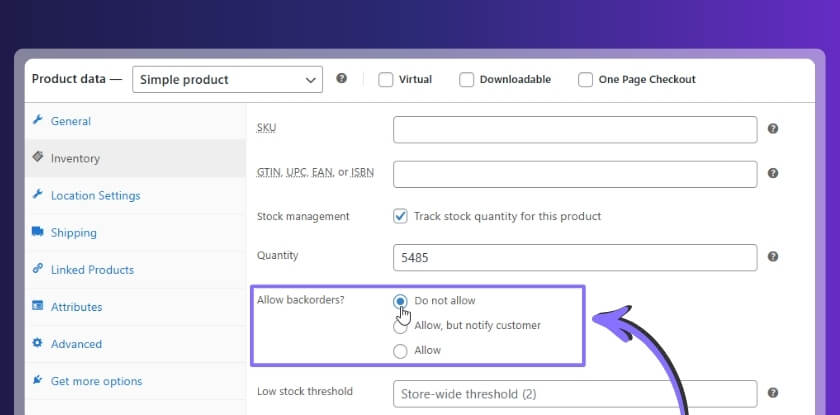
- Review backorder settings (Allow / Do not allow)
- Check for minimum or maximum quantity rules
- Disable conflicting plugins temporarily
- Test with a default theme (like Storefront)
- Clear page cache and object cache
- Check if shipping or location rules block checkout
- Check for pending or failed orders holding stock
- Review “Hold Stock (minutes)” setting in WooCommerce inventory
- Test checkout using classic checkout instead of block checkout
- Regenerate product lookup tables from WooCommerce tools
Key Insight: If WooCommerce shows in stock but blocks checkout, the issue is usually triggered during cart or checkout validation, not on the product page.

Signs WooCommerce Blocks Checkout Even When Product Is In Stock
Before identifying the exact cause, these signs help confirm that WooCommerce shows in stock but blocks checkout due to validation or rule-based issues during the purchase process.
Common checkout behavior signs:
- Product shows “In Stock” but cannot be added to cart: The product appears available on the product page, but WooCommerce prevents adding it due to hidden validation rules or missing configuration.
- Add to cart works, but checkout shows error message: Customers can add the product, but during checkout they see errors like “product is not available” or “cannot purchase this item.”
- Variation selection blocks purchase: Certain variations show as in stock, but selecting them prevents adding to cart or proceeding to checkout due to mismatch or invalid settings.
- Cart page removes the product automatically: The item is added successfully but gets removed when visiting the cart or checkout page due to validation checks.
- Checkout button is disabled or not working: Customers cannot proceed because WooCommerce detects an issue only at the checkout stage.
- Product is purchasable for some users but not others: Logged-in users may checkout successfully, while guests or users from specific locations are blocked.
- Stock appears available but quantity cannot be selected: Users see “In Stock” but cannot increase quantity or complete purchase due to quantity restrictions or rules.
- Error appears only after changing shipping or location: The product becomes unavailable when shipping method, country, or zone changes during checkout.
Key Insight: When WooCommerce shows in stock but blocks checkout, the problem usually appears only during cart or checkout validation, not on the product display level.
Why WooCommerce Shows In Stock but Blocks Checkout?
When WooCommerce shows a product as in stock but prevents checkout, the issue usually comes from validation rules that run after the product page. These checks verify whether the product is actually purchasable under current conditions.
Below are the most common causes behind this problem.
Stock Validation Fails at Checkout
WooCommerce performs a second validation during cart and checkout. Even if the product shows “In Stock,” it may fail validation when the system detects inconsistencies.
This usually happens when:
- Stock quantity is not synced correctly
- Product is marked in stock but actual quantity is zero
- Stock is already reserved or temporarily unavailable
- Validation rules trigger after the add-to-cart step
Quantity or Purchase Rules Block the Order
Products may appear available but cannot be purchased due to hidden quantity restrictions or rule-based conditions applied at checkout.
Typical rule-based restrictions include:
- Minimum or maximum quantity limits are not met
- Step quantity rules prevent valid selection
- Purchase limits per user or per order are applied
- Bulk or wholesale rules override standard availability
Variation Data Does Not Match Selection
Variable products often show “In Stock” at the parent level, but the selected variation may not be valid or purchasable.
You may notice this when:
- Selected variation is out of stock
- Variation is missing price or stock data
- Attribute mismatch creates an invalid combination
- Variation visibility differs from actual availability
Plugin or Theme Logic Overrides Purchasability
Third-party plugins or custom themes can change how WooCommerce validates products at checkout.
This issue often appears when:
- Checkout plugins add extra validation rules
- Membership or role-based restrictions are active
- Custom themes override product availability logic
- Inventory or pricing plugins modify cart behavior
Shipping or Location-Based Restrictions
Some products are restricted based on shipping zones, regions, or delivery rules, even if they appear in stock.
In these cases, you’ll typically find:
- Product is not available in the selected shipping location
- Shipping method does not support the item
- Zone-based restrictions block checkout
- Local pickup or delivery rules override availability
Backorder and Stock Settings Conflict
Incorrect backorder or stock configuration can create a mismatch between visible availability and actual purchasability.
This usually happens if:
- Backorders are disabled while stock is insufficient
- Stock status is manually set incorrectly
- Inventory settings conflict between product and variation
- “Out of stock” behavior is hidden by display settings
Cache or Session Shows Incorrect Stock Status
Caching layers may display outdated stock status, while checkout uses real-time validation.
This becomes noticeable when:
- Product pages show cached “In Stock” status
- Checkout pulls live stock data and blocks purchase
- Object cache stores old availability values
- AJAX updates fail to refresh correctly
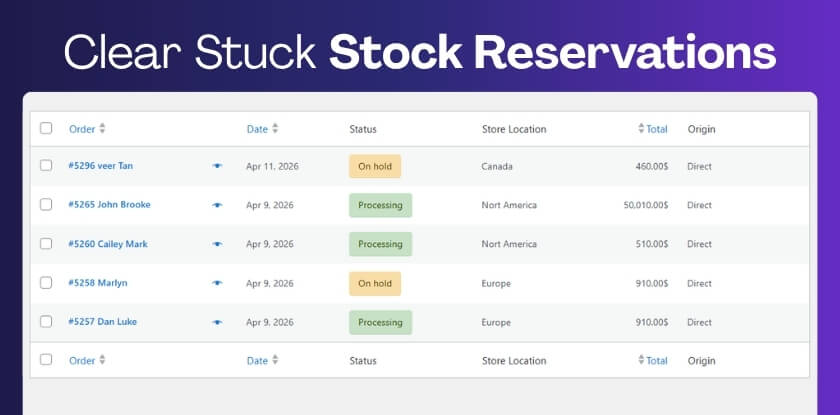
Pending Orders Reserve Stock Automatically
WooCommerce temporarily reserves stock for orders in “Pending Payment” or “On Hold” status. This can make products appear available but fail during checkout.
This is common when:
- Multiple pending orders reserve the same product
- Failed payments do not release stock immediately
- Hold stock duration keeps items locked
- Limited stock products are affected first
Key Insight: When WooCommerce shows in stock but blocks checkout, the issue is usually caused by validation rules, variation mismatches, or checkout-level restrictions, not the actual stock quantity.
How to Fix WooCommerce Shows In Stock but Blocks Checkout?
Fixing this issue means checking why the product looks available on the product page but fails during cart or checkout validation. In most cases, WooCommerce is not blocking the order randomly. It is reacting to a hidden stock, rule, variation, plugin, or shipping condition that only appears at checkout.
Use these steps one by one to identify and fix the exact problem.
Fix 1: Recheck Real Stock Quantity and Purchasable Status
Start by confirming that the product is not only marked “In Stock,” but is also truly purchasable in WooCommerce. Sometimes stock status is visible on the frontend while actual quantity or purchasable state is invalid.
Start with these checks:
- Product shows “In Stock” but stock quantity is zero
- Product is marked in stock manually without real quantity tracking
- Product is set as non-purchasable due to missing price or settings
- Inventory status is different between admin and variation level
Fix 2: Review Quantity and Purchase Restriction Rules
Products can be blocked at checkout even while showing in stock if WooCommerce or another plugin is enforcing quantity-based rules.
Look closely at:
- Minimum quantity requirement is not met
- Maximum quantity limit blocks the order
- Step quantity rules prevent valid selection
- Per-user, per-order, or wholesale purchase limits are active
Fix 3: Validate the Exact Variation Being Purchased
If this happens on variable products, test the exact variation instead of relying on the parent product stock message. Many WooCommerce variation problems appear only after a specific option is selected.
Verify the following:
- Selected variation is actually out of stock
- Variation has missing price, stock, or SKU data
- Attribute combination is invalid
- Parent product shows “In Stock” but variation is not purchasable
Fix 4: Disable Plugin or Theme Rules That Override Checkout Validation
Some plugins and themes add custom validation logic that can block products during checkout even when stock looks correct.
Check whether:
- Membership or user-role plugins restricting purchase
- Checkout plugins adding product validation rules
- Pricing or inventory plugins overriding WooCommerce defaults
- Theme functions changing product availability logic
Fix 5: Test Shipping and Location-Based Restrictions
A product may appear available until shipping details are entered. At that point, WooCommerce may block checkout because the item is not eligible for the selected location or delivery method.
Confirm that:
- Shipping zone does not support the product
- Country or region restrictions are active
- Delivery or pickup method conflicts with the product
- Location-based inventory rules block purchase
Fix 6: Correct Backorder and Stock Configuration Conflicts
Backorder settings can create confusing situations where the product looks available but is not actually purchasable under current rules.
Review settings like:
- Backorders disabled while stock is insufficient
- Product stock status set manually and incorrectly
- Variation backorder settings conflict with parent product settings
- “Out of stock” behavior hidden by theme or display settings
Fix 7: Clear Cache and Retest with Live Data
Sometimes the product page shows an outdated “In Stock” message while checkout uses live validation. In that case, the issue is not stock itself but stale frontend display.
Focus on clearing:
- Cached product pages showing old availability
- CDN or server cache not refreshing after stock changes
- Object cache storing stale stock or purchasability data
- AJAX fragments not updating correctly
Fix 8: Run a Full Product-to-Checkout Test
After making changes, test the complete flow from product page to cart to checkout. This helps confirm whether the issue is resolved at every stage, not just visually on the product page.
Make sure that:
- Product adds to cart correctly
- Cart keeps the item without removing it
- Checkout accepts the order without stock errors
- Variation, quantity, and shipping choices remain valid throughout
Key Insight: If WooCommerce shows in stock but blocks checkout, the real issue is almost always in the purchasability and validation flow, not just the stock label.
Fix 9: Clear Pending Orders That Reserve Stock
WooCommerce may block checkout if stock is already reserved by pending or failed orders.
Check if:
- Orders stuck in “Pending Payment”
- Failed orders still holding stock
- Duplicate test orders reserving inventory
Fix 10: Adjust Hold Stock (Minutes) Setting
WooCommerce holds stock for unpaid orders for a specific duration. If this value is too high, products may appear available but fail checkout.
Review whether:
- Hold stock value set too high
- Orders reserving stock longer than expected
- Limited stock being locked unnecessarily
Fix 11: Test Checkout Block Compatibility
If you are using WooCommerce Checkout Block, some plugins or payment gateways may not fully support it.
Watch for:
- Checkout not loading or blocking purchase
- Payment gateway not completing order
- Plugin compatibility issues with block checkout
Note: Test by switching to classic checkout temporarily.
Fix 12: Regenerate Product Lookup Tables
WooCommerce uses lookup tables to manage product data. If these are outdated, stock validation may fail during checkout.
This helps when:
- Stock mismatch between product page and checkout
- Product data not syncing correctly
- Checkout validation using outdated data
Run: WooCommerce → Status → Tools → Regenerate product lookup tables
How to Confirm the Checkout Issue Is Actually Fixed?
Fixing the settings is only part of the process. To ensure WooCommerce shows in stock but blocks checkout is fully resolved, you need to verify that the product remains purchasable across the entire flow from product page to order completion.
Use these checks to confirm everything is working correctly.
Signs the issue is fully resolved
| Check | What it confirms |
|---|---|
| Product can be added to cart without errors | Product is now recognized as purchasable |
| Cart keeps the product without removing it | Validation rules are no longer rejecting the item |
| Checkout proceeds without stock or validation errors | All checkout restrictions are resolved |
| Variation selection works for all options | Variation data is correctly configured |
| Quantity can be updated without issues | Quantity rules are properly aligned |
| Shipping selection does not block checkout | Location-based restrictions are fixed |
| Both guest and logged-in users can complete purchase | User-based rules are working correctly |
| Order completes successfully and is recorded | Full checkout workflow is stable |
Key Insight: If the product passes from product page → cart → checkout → order without errors, the WooCommerce checkout validation issue is fully resolved.
Why This Issue Becomes More Complex with Multi-Location Inventory?
When WooCommerce shows in stock but blocks checkout, the problem becomes more difficult to manage in stores that use multiple warehouses, locations, or fulfillment points. In these setups, stock is not just a single number. It depends on where the product is stored and how it is validated during checkout.
As your store grows, mismatches between visible stock and actual purchasability can increase due to multiple validation layers.
Where complexity increases:
- Stock availability depends on location: A product may appear in stock overall, but the selected location or shipping zone may not have available inventory.
- Checkout validation depends on fulfillment rules: WooCommerce may block checkout if the assigned warehouse cannot fulfill the order, even when stock exists elsewhere.
- Variation and location data must stay aligned: Each variation must match correct stock and location data, otherwise checkout validation can fail.
- Shipping zones affect product availability: A product may be purchasable in one region but blocked in another due to location-based rules.
- Inventory sync across systems becomes harder: Stock must remain consistent across admin, frontend, and fulfillment systems, increasing the chance of mismatch.
- Manual fixes become unreliable at scale: As order volume increases, manually fixing stock or checkout issues becomes inefficient and error-prone.
The Smarter Approach: Structured Inventory Control
Instead of repeatedly fixing checkout issues, a better approach is to structure how inventory is managed across locations. A multi location inventory management for WooCommerce system helps ensure that stock availability, checkout validation, and fulfillment rules are aligned.
What a structured system improves:
- Accurate stock per location: Each warehouse maintains its own inventory, reducing false “in stock” signals.
- Checkout validation based on real availability: WooCommerce allows checkout only when the correct location can fulfill the order.
- Consistent frontend and checkout behavior: Product pages and checkout validation follow the same inventory logic.
- Better handling of variations and complex products: Each variation uses location-based stock rules, reducing mismatch issues.
- Reduced checkout blocking errors: Validation becomes predictable and aligned with actual stock data.
Key Insight: When WooCommerce shows in stock but blocks checkout, the real issue is often a mismatch between displayed availability and fulfillment logic, especially in multi-location setups.

Frequently Asked Questions
WooCommerce shows in stock but blocks checkout can create confusion because the issue only appears during the final purchase step. These FAQs address the most common concerns related to WooCommerce product availability and checkout validation.
Why does WooCommerce show in stock but not allow checkout?
This happens when the product passes display-level checks but fails validation during cart or checkout. It is usually caused by quantity rules, variation issues, shipping restrictions, or plugin logic.
Can a product be in stock but still not purchasable?
Yes. WooCommerce separates stock visibility from purchasability. A product may appear in stock but cannot be purchased due to missing price, invalid variation, or rule-based restrictions.
Why does checkout fail only after selecting a variation?
Each variation has its own stock, price, and validation rules. If the selected variation is invalid or incomplete, WooCommerce blocks checkout even if the parent product shows in stock.
Can shipping or location block checkout for in-stock products?
Yes. Products may be restricted based on shipping zones, delivery methods, or region-specific rules. Checkout validation checks these conditions before allowing purchase.
Do plugins affect WooCommerce checkout validation?
Yes. Plugins can override default WooCommerce logic by adding custom rules, restrictions, or conditions that block products at checkout.
Why does the product work for some users but not others?
User roles, login status, or location-based rules can affect product availability. This is common in membership or wholesale setups.
How do I fix WooCommerce product not purchasable issues permanently?
To fix this, ensure stock, variation data, quantity rules, shipping conditions, and plugin logic are all aligned. Testing the full checkout flow is essential.
Final Thoughts
When WooCommerce shows in stock but blocks checkout, the issue is rarely just a simple setting mistake. It usually comes from a deeper mismatch between stock visibility, checkout validation, and real inventory conditions.
In smaller stores, this can often be fixed with proper configuration. But as your store grows with more variations, rules, and locations, these mismatches become harder to control manually. That is where a structured approach to inventory becomes important.
Using a multi location inventory management for WooCommerce system helps ensure that stock is validated based on real availability, not just display logic. It keeps product pages, cart validation, and checkout behavior aligned, reducing cases where products appear available but cannot be purchased.
Instead of fixing the same issue repeatedly, a structured inventory system creates consistency across your entire store.