
WooCommerce inventory not reducing automatically is a common issue where stock levels fail to decrease after an order is placed, processed, or completed. In a properly configured store, WooCommerce should automatically deduct stock based on order status and payment confirmation. When this does not happen, it usually indicates a breakdown in the order processing or stock deduction workflow.
In many cases, this WooCommerce stock not decreasing after order problem is caused by incorrect order status settings, delayed payment processing, or conflicts that prevent stock updates from triggering at the right time. As a result, WooCommerce inventory not updating after purchase becomes a recurring issue, leading to overselling, inaccurate stock levels, and fulfillment complications.
In this guide, you will learn why WooCommerce stock reduction not working happens, when stock should be reduced automatically, how to fix the issue step by step, and how to prevent automatic inventory problems from affecting your store.

What Does “WooCommerce Inventory Not Reducing Automatically” Mean?
When WooCommerce inventory is not reducing automatically, it means the system is not deducting stock levels after an order is placed or processed. Normally, WooCommerce should reduce inventory based on order status changes such as processing or completed. If this does not happen, it indicates that the automatic stock reduction process is not being triggered correctly.
This WooCommerce stock not decreasing after order issue usually occurs when the connection between order flow, payment confirmation, and inventory update is broken. In some cases, WooCommerce inventory not updating after purchase happens because stock reduction is delayed, skipped, or blocked by system settings or external factors.
As a result, products may continue showing as in stock even after being sold, leading to overselling, incorrect availability, and inventory management problems.
Common Signs of Automatic Stock Reduction Issues
- Stock does not decrease after order is placed
- Inventory remains unchanged after payment completion
- WooCommerce stock reduction not working for specific orders
- Orders are completed but stock is not updated
- Backend inventory does not match actual sales
When WooCommerce Should Reduce Inventory Automatically?
WooCommerce is designed to reduce inventory automatically based on specific actions in the order lifecycle. If inventory is not reducing automatically, it usually means one of these trigger points is not working correctly.
Understanding when WooCommerce should deduct stock helps you identify why WooCommerce stock not decreasing after order is happening and where the process is failing.
After Order Is Placed (Stock Hold Stage)
When a customer places an order, WooCommerce can temporarily hold stock depending on your settings. This prevents other customers from purchasing the same item before payment is completed.
After Payment Is Confirmed
In most stores, stock is reduced after payment is successfully completed. If payment gateways delay confirmation, WooCommerce inventory not updating after purchase may occur.
When Order Status Changes to Processing
WooCommerce typically reduces stock when an order moves to the processing status. If orders remain in pending status, stock reduction may not happen automatically.
When Order Status Is Completed
In some configurations, stock is reduced only when the order is marked as completed. This depends on how your WooCommerce settings are configured.
During Manual Order Updates
If orders are updated manually, WooCommerce may trigger stock reduction depending on the action taken. Incorrect manual updates can interrupt the automatic stock deduction process.
Why WooCommerce Inventory Is Not Reducing Automatically?
WooCommerce inventory not reducing automatically usually happens when the system fails to trigger stock deduction during the order process. This is not always a single issue but often a combination of misconfigured settings, delayed workflows, or conflicts that interrupt the automatic stock update process.
In many cases, this WooCommerce stock not decreasing after order problem occurs because the connection between order status, payment confirmation, and inventory update is not working correctly. Identifying the exact cause helps fix WooCommerce inventory not updating after purchase more effectively.
Incorrect Order Status Configuration
WooCommerce reduces stock based on order status. If orders remain in pending, failed, or on-hold, stock will not decrease automatically. This is one of the most common reasons for WooCommerce stock reduction not working.
Payment Gateway Delay or Failure
Some payment gateways delay confirmation or keep orders in pending status until payment is verified. During this time, WooCommerce inventory not updating after purchase can occur because the system is waiting for payment confirmation.
Stock Reduction Settings Disabled
If stock management or automatic stock reduction is disabled in WooCommerce settings, inventory will not decrease after orders. Even a small configuration issue can break the entire automatic stock workflow.
Hold Stock Settings Misconfigured
WooCommerce can temporarily reserve stock for pending orders. If hold stock duration is set incorrectly, inventory may not be released or reduced properly, causing stock inconsistencies.
Plugin or Theme Conflicts
Third-party plugins or custom themes can override WooCommerce’s default stock behavior. This can prevent stock from reducing automatically or delay updates.
Cron Job or Background Process Issues
WooCommerce relies on background processes (cron jobs) to update stock in some cases. If cron jobs are not running properly, stock updates may fail or be delayed.
Manual Order or Stock Updates
Manual edits to orders or stock can interrupt automatic processes. If stock is adjusted manually without following the correct workflow, WooCommerce may skip automatic reduction.
Caching or Server-Level Delays
Caching systems may display outdated stock values even when backend inventory is updated. This makes it appear as if WooCommerce stock not decreasing after order is happening, even when the system has processed the update.
Quick Fix for WooCommerce Inventory Not Reducing Automatically
If your WooCommerce inventory is not reducing automatically, you can often fix the issue quickly by correcting a few key settings and workflow steps. Most WooCommerce stock reduction not working problems are caused by simple misconfigurations rather than complex system errors.
Start with these quick fixes to restore automatic stock deduction and resolve WooCommerce stock not decreasing after order issues.
Quick Fix Checklist
- Ensure stock management is enabled in WooCommerce settings
- Verify that orders move to processing or completed status
- Check that your payment gateway confirms orders properly
- Review hold stock duration settings
- Disable or test conflicting plugins or themes
- Clear cache and server-level caching systems
- Re-save products or settings to refresh stock logic
How to Fix WooCommerce Inventory Not Reducing Automatically?
Fixing WooCommerce inventory not reducing automatically starts with reviewing how stock is configured, when it is deducted, and how order processing triggers inventory updates. In most cases, this issue happens when WooCommerce stock reduction is not aligned with order status, payment confirmation, or system settings. Go step by step to ensure each part of the workflow supports automatic stock deduction.
Fix 1: Recheck the Product-Level Inventory Setup
Start by reviewing the products where stock is not reducing. Incorrect or incomplete product settings can prevent WooCommerce from updating inventory automatically.
Check for issues such as:
- Stock management is not enabled on the product
- For variable products, Manage stock is not enabled inside each variation
- Stock quantity is missing or incorrect
- Sold individually or other settings are affecting quantity updates
Fix 2: Verify Order Status for Stock Reduction
WooCommerce reduces stock based on order status. If orders are not reaching the correct stage, inventory will not decrease.
Check for issues such as:
- Orders remain in pending or on-hold status
- Stock reduction is not triggered at processing or completed
- Manual order updates are skipping stock deduction
Fix 3: Review Payment Gateway Behavior
Payment confirmation plays a key role in triggering stock updates. If the gateway does not update order status correctly, stock will not reduce.
Check for issues such as:
- Payment gateway delays confirmation
- Orders are not moving to processing after payment
- Webhooks or callbacks are not working properly
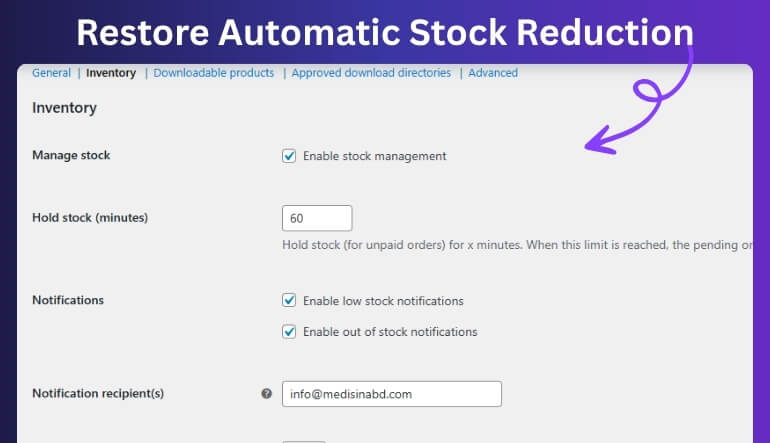
Fix 4: Check WooCommerce Inventory Settings
Global settings can override product-level behavior and block automatic stock reduction.
Check for issues such as:
- Enable stock management is turned off
- Hold stock duration is set incorrectly
- Backorders are allowing purchases without reducing stock
Fix 5: Test Background Processes (Cron Jobs)
WooCommerce uses background processes to handle some stock updates. If these fail, inventory may not update automatically.
Check for issues such as:
- WordPress cron jobs are not running
- Delayed or skipped background tasks
- Hosting restrictions affecting scheduled processes
Fix 6: Remove Plugin or Theme Conflicts
Third-party tools can interfere with WooCommerce stock behavior and stop automatic reduction.
Check for issues such as:
- Inventory or checkout plugins overriding stock logic
- Theme conflicts affecting order processing
- Custom code interrupting stock updates
Fix 7: Clear Cache and Refresh Inventory Data
Caching can show outdated stock values even when inventory is updated correctly.
Check for issues such as:
- Full-page cache displaying old stock
- AJAX or dynamic data not refreshing
- Browser or server cache delaying updates
Fix 8: Run a Full Order Test
After applying fixes, test the complete workflow to confirm everything is working correctly.
Check for issues such as:
- Stock not reducing after checkout
- Payment not triggering stock update
- Inventory not matching completed orders
WooCommerce Settings That Affect Automatic Stock Reduction
WooCommerce inventory not reducing automatically is often caused by incorrect system settings rather than major technical problems. Even if your products and order flow are configured correctly, global WooCommerce settings can override or block automatic stock deduction.
Reviewing these settings is essential to fix WooCommerce stock not decreasing after order and ensure inventory updates happen consistently.
Enable Stock Management
Stock management must be enabled globally in WooCommerce settings. If this option is disabled, WooCommerce will not track or reduce inventory automatically.
Configure Stock Reduction Timing
WooCommerce reduces stock based on order status. Ensure your settings allow stock reduction when orders reach processing or completed status.
Set Hold Stock Duration Properly
Hold stock settings control how long inventory is reserved for pending orders. If misconfigured, stock may not be reduced or released correctly, causing inconsistencies.
Disable Unnecessary Backorders
Backorders allow purchases without stock, which can hide WooCommerce stock reduction not working issues. Disabling them ensures accurate stock tracking.
Enable Low Stock Notifications
Low stock alerts help you detect inventory issues early and prevent overselling when WooCommerce inventory not updating after purchase occurs.
How Payment Gateways Affect WooCommerce Stock Reduction?
WooCommerce inventory not reducing automatically is often directly linked to how payment gateways handle order confirmation. Since WooCommerce relies on payment status to trigger stock reduction, any delay or failure in payment processing can interrupt the automatic inventory update process.
In many cases, WooCommerce stock not decreasing after order happens because the payment gateway keeps orders in pending status instead of moving them to processing or completed.
Common Payment-Related Issues
- Delayed Payment Confirmation: Some gateways do not instantly confirm payments, which prevents stock from being reduced automatically.
- Pending or On-Hold Orders: Orders remain in pending status until manual approval or external confirmation, blocking WooCommerce inventory not updating after purchase.
- Incorrect Gateway Configuration: Improper setup may stop WooCommerce from triggering order status changes after payment.
- Failed Webhooks or Callbacks: If the payment gateway fails to send confirmation signals, WooCommerce cannot update stock correctly.
How to Prevent WooCommerce Inventory Not Reducing Automatically?
Preventing WooCommerce inventory not reducing automatically requires maintaining a consistent and well-structured order and inventory workflow. Once your system is properly configured, most WooCommerce inventory not updating after purchase issues can be avoided.
The goal is to ensure that every order triggers stock reduction at the correct stage without delays or interruptions.
Best Practices to Prevent Stock Issues
- Ensure Proper Order Status Flow: Make sure orders automatically move to processing or completed after payment.
- Use Reliable Payment Gateways: Choose gateways that provide instant confirmation and proper webhook support.
- Keep Inventory Settings Consistent: Avoid mixing different stock rules or manual overrides that break automation.
- Monitor Background Processes: Ensure cron jobs and background tasks run correctly for stock updates.
- Test Order Workflow Regularly: Run test orders to confirm stock reduces automatically at the correct stage.
Why Multi-Location Inventory Makes Automatic Stock Issues Worse?
WooCommerce inventory not reducing automatically becomes more complex when managing multiple warehouses or store locations. Each location may have separate stock levels, and automatic stock deduction must be synchronized across all systems.
Without proper coordination, WooCommerce stock reduction not working can lead to mismatched inventory, overselling, and incorrect stock reporting across locations.
Best Solution for Growing Stores
To manage automatic stock reduction effectively across multiple locations, you need a system that synchronizes inventory in real time and ensures consistent stock deduction.
Using a multi location inventory management for WooCommerce solution helps:
- Sync stock across all warehouse locations
- Ensure automatic stock reduction happens correctly
- Prevent overselling across multiple stores
- Maintain accurate inventory data in real time
- Fix WooCommerce inventory not updating after purchase issues

Frequently Asked Questions About WooCommerce Inventory Not Reducing Automatically
WooCommerce inventory not reducing automatically can create confusion around order flow, payment processing, and stock settings. These FAQs cover the most common issues users face when WooCommerce stock not decreasing after order.
Why is WooCommerce inventory not reducing automatically?
WooCommerce inventory not reducing automatically usually happens when order status does not trigger stock deduction. If orders remain pending or on-hold, stock will not decrease. It can also be caused by payment gateway delays, incorrect settings, or plugin conflicts interrupting stock updates.
How do I fix WooCommerce stock not decreasing after order?
To fix WooCommerce stock not decreasing after order, ensure that orders move to processing or completed status after payment. Also, enable stock management, check payment gateway configuration, and remove any plugin conflicts that may block stock reduction.
What causes WooCommerce inventory not updating after purchase?
WooCommerce inventory not updating after purchase is often caused by delayed payment confirmation, incorrect hold stock settings, or background process failures. In some cases, caching or server-level delays can also prevent stock updates from reflecting correctly.
Does order status affect WooCommerce stock reduction?
Yes, order status directly controls when WooCommerce reduces stock. Stock is usually reduced when orders move to processing or completed. If orders stay in pending or on-hold status, WooCommerce stock reduction not working will occur.
Can payment gateways prevent WooCommerce stock reduction?
Yes, payment gateways can delay or block stock reduction if they do not confirm payment properly. If payment status is not updated or webhook fails, WooCommerce cannot trigger automatic stock deduction.
Why does WooCommerce stock not reduce during high traffic?
During high traffic, multiple orders can create delays in stock updates, especially if real-time synchronization is not properly configured. This can cause WooCommerce inventory not reducing automatically or delayed stock updates.
Can plugins or themes affect stock reduction?
Yes, plugins or custom themes can override WooCommerce stock behavior. Some checkout, inventory, or caching plugins may interfere with automatic stock updates and cause WooCommerce stock reduction not working issues.
How can I prevent WooCommerce inventory issues in the future?
To prevent WooCommerce inventory issues, maintain proper order flow, use reliable payment gateways, ensure stock management is enabled, and regularly test your checkout and stock update process.
Final Thoughts
WooCommerce inventory not reducing automatically is usually a sign that the connection between order processing, payment confirmation, and stock deduction is not working correctly. While the issue may seem technical, it is often caused by simple misconfigurations in order status, payment gateway setup, or inventory settings.
Fixing this problem requires ensuring that stock reduction is triggered at the correct stage of the order lifecycle and that all related systems work together without conflict. Once these elements are aligned, WooCommerce stock not decreasing after order issues can be resolved effectively.
For stores managing large inventories or multiple locations, maintaining automatic stock accuracy becomes more complex over time. In such cases, using a multi location inventory management for WooCommerce solution helps ensure real-time synchronization, accurate stock tracking, and consistent inventory updates across all products.