
WooCommerce cart loss after a page refresh usually points to a breakdown in session continuity, cart cookies, caching, or request handling. Instead of reconnecting the shopper to the existing cart, the refreshed page treats the visit like a new session and loads an empty cart.
That is what makes the issue so disruptive. Products may appear to add normally, but a simple reload can wipe out the cart and interrupt the path to checkout. This guide explains why WooCommerce loses cart on page refresh and what to check to make cart behavior stable again.
Reasons Cart Data Disappears After a Refresh?
WooCommerce does not hold cart contents in page memory alone. After a refresh, it has to reconnect the shopper to the same cart using the same session and cookie signals that were active before the reload.
For that to happen, WooCommerce needs to:
- recognize the same visitor
- read the same cart-related cookies
- restore the active session data
- reload the existing cart instead of starting a new one
When one of those steps fails, the refreshed page can behave like a brand-new visit. That is why the cart may look normal one moment and empty right after a reload.
The Most Common Reasons WooCommerce Loses Cart Contents on Reload
Cart loss after a page refresh usually happens when WooCommerce cannot reconnect the shopper to the same live cart state it was using moments earlier. In most cases, the break happens in caching, page setup, session handling, or cart update behavior rather than in the cart itself.

Reason 1: Cached Pages Or Cached Cart Requests Break Cart Persistence
Caching is the most common reason WooCommerce loses cart contents after a refresh. If the cart, checkout, or account pages are cached, shoppers may see an empty or outdated cart state instead of the live session-based version.
Reason 2: Incorrect WooCommerce Page Settings Break Cart Flow
WooCommerce depends on the correct Cart, Checkout, and My Account pages being assigned in settings. If one of those pages is missing, misassigned, or broken, page refreshes can interrupt normal cart behavior.
Reason 3: Customer Session Data Is Corrupted Or Not Restored Properly
WooCommerce uses customer sessions to preserve cart contents between requests. If session data is stale, corrupted, expired too early, or not restored correctly after reload, the cart may appear empty even though products were added moments earlier.
Reason 4: Plugin Or Theme Conflicts Reset The Cart On Refresh
Some plugins and themes interfere with cart persistence during page load. Performance tools, checkout customizations, or theme-level WooCommerce changes can silently reset cart data or break the expected cart refresh behavior.
Reason 5: PHP Session Support Or Server Session Handling Is Unstable
Server-side session support plays a major role in keeping WooCommerce cart data available after refresh. If PHP sessions are unstable or the hosting setup does not preserve them correctly, cart contents may disappear between requests.
Reason 6: Cart Fragment Updates Do Not Load Properly
WooCommerce relies on cart fragments and related frontend updates to keep the visible cart state in sync. If those scripts fail to load or stop updating properly, the cart may look empty or inconsistent after a page refresh.
How to Fix WooCommerce Cart Loss on Page Refresh?
Refresh-related cart issues are easier to solve when the fixes follow the same path as the most likely causes. Since cart loss after reload usually starts with cache, setup, or session problems, it helps to work through the fixes in that same order.
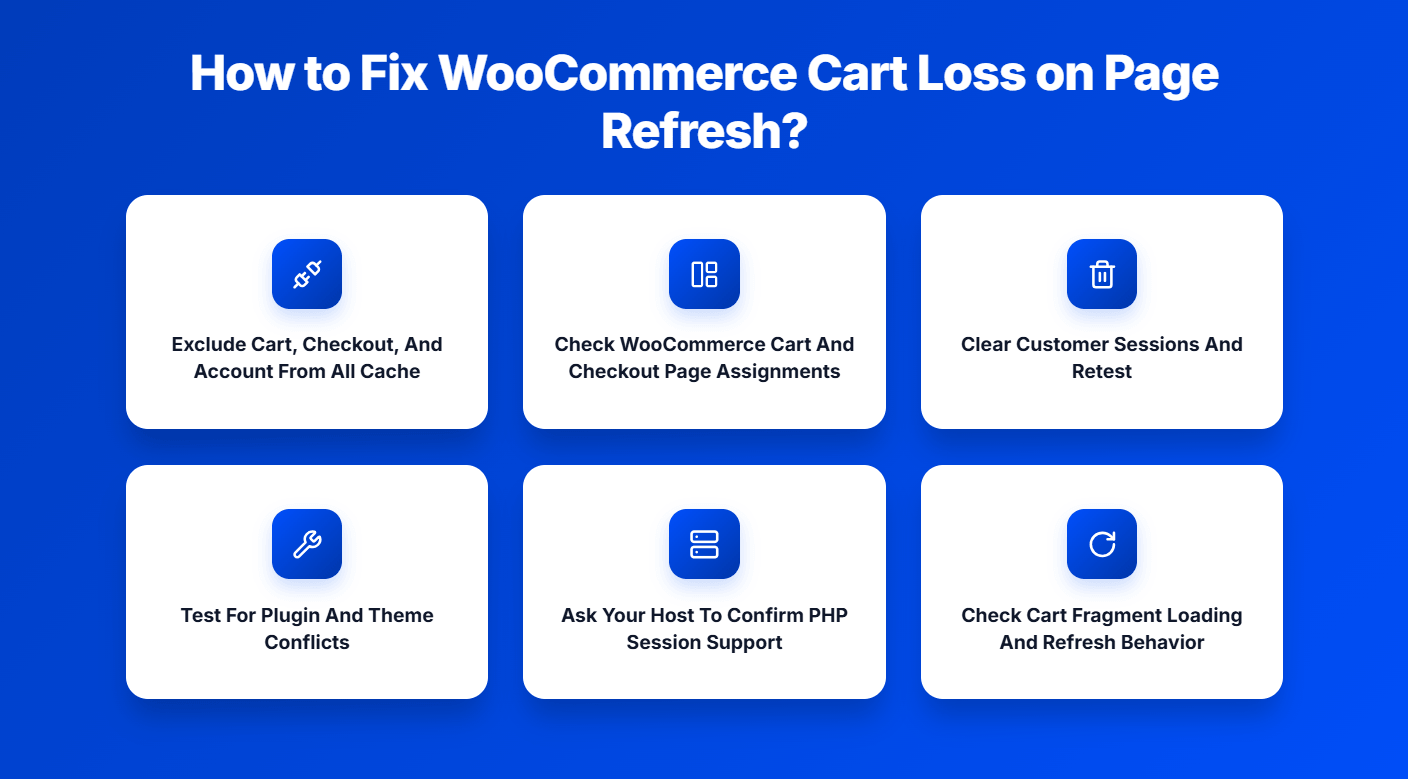
Fix 1: Exclude Cart, Checkout, And Account Pages From All Cache
Caching is the first place to check because a cached cart page can make WooCommerce show an empty or outdated cart even when the session still exists. Cart-related pages should always stay dynamic so shoppers see the live cart state after every reload.
- Exclude /cart/, /checkout/, and /my-account/ from all caching layers
- Review caching plugins such as WP Rocket, LiteSpeed Cache, or W3 Total Cache
- Check server-level cache through your host, including Varnish or NGINX rules
- Bypass CDN cache for cart-sensitive pages if you use Cloudflare or similar services
Fix 2: Check WooCommerce Cart And Checkout Page Assignments
WooCommerce depends on the correct page structure to load cart behavior properly after a refresh. If Cart, Checkout, or My Account pages are assigned incorrectly, the reload flow can break even when products seem to add normally at first.
- Go to WooCommerce > Settings > Advanced
- Confirm the Cart, Checkout, and My Account pages are mapped correctly
- Make sure those pages still exist and are not replaced with the wrong content
- Retest the full cart path after updating the settings
Fix 3: Clear Customer Sessions And Retest
Stale or corrupted customer sessions can stop WooCommerce from restoring the cart correctly after a reload. Clearing old session data helps rule out bad cart persistence before moving on to deeper plugin or server checks.
- Go to WooCommerce > Status > Tools
- Use the Clear customer sessions option
- Open a fresh guest session and test the cart again
- Check whether products remain in the cart after multiple refreshes
Fix 4: Test For Plugin And Theme Conflicts
Plugin and theme conflicts often interfere with how the cart state is restored on load. A controlled conflict test can quickly show whether custom storefront behavior, performance logic, or product availability rules are affecting cart persistence after refresh. This is also a good stage to confirm that multi location inventory management fits smoothly into the broader WooCommerce setup without disrupting cart behavior during reloads.
- Deactivate all plugins except WooCommerce
- Reactivate them one by one while retesting the cart
- Temporarily switch to a default theme such as Storefront
Fix 5: Ask Your Host To Confirm PHP Session Support
WooCommerce needs reliable session handling on the server side to reconnect shoppers to the same cart after refresh. If PHP sessions are unstable or cleaned too aggressively, cart contents may disappear even though the product was added correctly.
- Ask your host whether PHP sessions are enabled and working properly
- Confirm sessions are not expiring too early between requests
- Check whether session storage remains stable across page reloads
- Ask whether server configuration could be interrupting WooCommerce session persistence
Fix 6: Check Cart Fragment Loading And Refresh Behavior
Visible cart updates often depend on WooCommerce fragment behavior loading correctly on the frontend. If those scripts fail, the cart may look empty or outdated after a refresh even when the underlying session is still active.
- Check whether wc-cart-fragments is loading properly
- Look for failed requests or JavaScript errors in the browser console
- Retest add-to-cart, mini cart, and page refresh behavior as a guest user
- Confirm cart totals, counts, and contents stay in sync after reload
Extra Fix: Flush Permalinks
If the main fixes do not fully stabilize cart behavior, refreshing permalinks can help clean up page handling problems that interfere with WooCommerce routing after reload.
- Go to Settings > Permalinks
- Click Save Changes without changing anything
- Retest the cart refresh flow again in a fresh browser session

Checking Other Issues After Fixation
Solving the cart refresh issue is a major step, but it is still important to check whether related cart behavior stays stable across the rest of the shopping flow. Once the main problem is fixed, these extra checks help confirm nothing else is quietly breaking in the background.
- Mini Cart Stays In Sync: Confirm the mini cart, full cart page, and checkout page all show the same products, quantities, and totals after customer actions.
- Coupon Updates Still Apply Properly: Test adding and removing coupons to make sure discounts refresh correctly without creating stale totals or inconsistent cart values.
- Stock Messages Stay Accurate: Check whether stock notices, low-stock warnings, or availability messages still match the actual cart state, especially in stores using the WooCommerce Inventory Management Plugin for location-based stock handling.
- Remove Actions Work Cleanly: Remove products from the cart and confirm totals, item counts, and cart contents update correctly without leaving old cart data behind.
- Variation Products Stay Consistent: Test variable products to make sure selected options, quantities, and cart behavior remain accurate after refreshes and navigation.
- Logged-In Customer Carts Stay Stable: Check whether customer account sessions preserve cart behavior properly across repeat visits, saved sessions, and account-based shopping activity.
- Checkout Totals Remain Reliable: Verify that shipping, tax, and final order totals stay correct after cart updates, product changes, and page reloads.
Simple Ways to Keep Cart Sessions More Stable
Cart sessions stay more reliable when the storefront is kept predictable across browsing conditions, customer actions, and store updates. To reduce the chance of future session drops, these habits can help keep WooCommerce cart behavior more consistent over time.
- Keep Store URLs Consistent: Use one preferred domain format across the site so cart sessions do not get split between different URL versions.
- Avoid Unnecessary Redirect Chains: Reduce redirects between pages to help WooCommerce carry the same session cleanly from one request to the next.
- Limit Session-Sensitive Custom Code: Keep theme functions and custom logic from interfering with how WooCommerce restores cart state during page loads.
- Review Store Changes In Staging First: Test performance, theme, and plugin changes in a staging environment before applying them to the live store.
- Check Guest Browsing More Often: Revisit the storefront as a guest regularly to catch session issues that may not appear in logged-in testing.
- Keep Cart Flow As Lightweight As Possible: Fewer moving parts in the cart experience usually mean fewer chances for session behavior to become unstable.
How To Prevent WooCommerce Cart Loss On Page Refresh
Preventing cart loss is usually easier than fixing it after customers start reporting empty carts. Once the cart is working properly again, these habits can help keep refresh-related issues from returning.
- Keep Cart-Critical Pages Dynamic: Make sure cart, checkout, and account-related pages always stay outside cache rules and continue loading live customer data.
- Use One Consistent Site Version: Keep domain, HTTPS, and redirect behavior consistent so WooCommerce can reconnect shoppers to the same cart session reliably.
- Audit Store Changes Before Launch: Test plugin updates, theme edits, and performance changes before pushing them live to avoid breaking cart persistence unexpectedly.
- Watch Session Behavior After Infrastructure Changes: Recheck cart stability after hosting, CDN, object cache, or server-level adjustments that could affect session continuity.
- Limit Fragile Cart Customizations: Avoid adding unnecessary cart logic, reload hooks, or custom functions that make WooCommerce session behavior harder to keep stable.
- Keep Inventory Logic Storewide Consistent: Stores using WooCommerce multi location inventory management should confirm that location-based stock handling supports a predictable cart flow during refreshes and repeat visits.
- Retest Cart Persistence Regularly: Refresh the cart, navigate between pages, and repeat the same actions in guest mode to catch persistence issues before shoppers do.
Frequently Asked Questions
Cart loss after a page refresh often leaves store owners with a few follow-up questions, even after the main cause is clear. These answers cover practical concerns that usually come up before the issue feels fully under control.
Why Does The Cart Sometimes Break Only For First-Time Visitors?
First-time visitors often go through the full guest session path without saved browsing data or prior cookies. That can expose refresh-related cart problems that returning shoppers may not trigger the same way.
Can Refresh-Related Cart Loss Hurt Conversion Rates Quietly?
Yes, many shoppers leave after the cart disappears instead of reporting the problem. That makes the issue easy to miss while still reducing checkout completion and overall trust.
Should Cart Refresh Testing Be Done On More Than One Browser?
Yes, because browser behavior can affect how sessions, cookies, and cart updates are handled after a page reload. Testing in more than one environment helps confirm the fix is reliable.
Can Some Products Trigger The Problem More Often Than Others?
Yes, products with variation logic, stricter purchase conditions, or more complex availability rules may expose cart persistence issues more easily than simpler products.
Is One Successful Refresh Test Enough To Confirm The Fix?
No, because cart persistence should remain stable across repeated refreshes, navigation steps, guest sessions, and different shopping conditions, not just one clean test.
Final Thoughts
If you have been trying to understand why WooCommerce loses cart on page refresh, the issue usually comes back to one thing: WooCommerce is not reconnecting the shopper to the same live cart state after the reload. When sessions, cookies, cache behavior, or cart-related scripts stop working together properly, the cart can disappear even though the customer just added products moments earlier.
Once those weak points are fixed, cart behavior becomes much more reliable across refreshes, page changes, and repeat visits. A stable cart experience protects customer trust, reduces abandonment, and gives shoppers a smoother path from product page to checkout.