
WooCommerce removes products from cart automatically when the system loses track of cart data, revalidates product conditions, or detects inconsistencies during the shopping session. Customers may add items successfully, only to see them disappear after a page refresh, login, or checkout step.
In most cases, this issue is caused by session problems, caching conflicts, cookie restrictions, or plugin and theme logic interfering with how WooCommerce stores cart data. If not fixed, it can lead to lost sales and a poor user experience.
Quick Fixes to Try First
When WooCommerce removes products from cart automatically, the issue is often related to session handling, caching, or validation conflicts. Start with these quick checks before moving into deeper troubleshooting.
Start with these quick fixes:
- Make sure cart sessions are not expiring too quickly
- Clear site cache, CDN cache, and browser cache
- Test cart behavior in incognito mode (no extensions or saved cookies)
- Disable recent plugins or custom code changes
- Check if the issue happens only for guest users or logged-in users
- Verify that products are still valid and purchasable after add-to-cart
- Ensure no rules or plugins are clearing the cart automatically
- Test using a default WooCommerce theme like Storefront
Key Insight: If cart items disappear after refresh, login, or navigation, the issue is usually in the session, cache, or validation layer, not the product itself.

Signs Your WooCommerce Cart Behavior Is Broken
Cart issues do not always show as clear errors. In most cases, WooCommerce cart items disappear under specific conditions, which helps identify where the problem starts.
You may notice this when:
- Cart items disappear after page refresh: Products are added successfully but vanish when the page reloads, indicating session or cache issues.
- Cart becomes empty after login or logout: Items are stored for guests but lost when switching user state, often caused by session or persistent cart conflicts.
- Cart resets when adding a new product: Adding a second product removes the previous one, usually due to custom rules or cart-clearing logic.
- Cart items disappear at checkout: Products stay in the cart initially but are removed during checkout validation due to stock or rule checks.
- Different behavior across devices or browsers: Cart works on one device but not another, often linked to cookies or session handling differences.
- Cart only breaks for guest users: Logged-in users retain cart items, but guests lose them, indicating cookie or session persistence issues.
- Specific products disappear while others stay: This usually points to product-level rules, variation issues, or plugin-based restrictions.
Key Insight: The way cart items disappear helps identify whether the issue is caused by session loss, cache conflicts, or validation logic.
Why WooCommerce Removes Products From Cart Automatically?
WooCommerce cart issues usually happen when the system cannot consistently track cart data or revalidates product conditions during the shopping session. Instead of a single error, the problem often comes from multiple layers like sessions, cache, login state, or plugin logic.
Here are the most common causes behind disappearing cart items:
Session or Cookie Issues Break Cart Persistence
WooCommerce relies on sessions and cookies to store cart data. If these fail, the cart cannot remember added products.
This typically happens when:
- Browser blocks or restricts cookies
- Session expires too quickly
- Server session handling is misconfigured
- Security plugins interfere with session storage
Cache Layers Override Real Cart Data
Caching improves speed, but it can break dynamic cart behavior if not configured properly.
This becomes noticeable when:
- Cached pages do not update cart contents
- CDN serves outdated cart or session data
- Cart or checkout pages are cached
- AJAX cart fragments fail to refresh correctly
Login or User State Resets the Cart
Switching between guest and logged-in states can reset or override cart data.
You may experience this when:
- Cart is lost after login or logout
- Persistent cart feature conflicts with session data
- Different carts are stored for guest and logged-in users
- User role or account logic overrides cart contents
Plugin or Theme Conflicts Change Cart Behavior
Third-party plugins or themes can modify how WooCommerce handles cart logic.
This issue often appears when:
- Cart or checkout plugins override default behavior
- Pricing or inventory plugins modify cart validation
- Custom theme functions change cart logic
- Recently installed plugins introduce conflicts
Product Validation Removes Items After Add-to-Cart
WooCommerce rechecks products after they are added to the cart. If something is invalid, items may be removed automatically.
This usually happens when:
- Product becomes unavailable after being added
- Variation data does not match selection
- Quantity or purchase rules fail validation
- Stock or availability changes in the background
Key Insight: WooCommerce removes products from cart automatically when session tracking, cache behavior, or validation logic fails to stay consistent across the shopping flow.
When Cart Removal Is Triggered by Custom Code or Plugins
In some WooCommerce stores, cart items are removed intentionally through custom logic, plugins, or automation rules. This is different from random cart issues and usually happens due to specific configurations.
This can occur when:
- A plugin automatically clears the cart when a new product is added
- Custom PHP code modifies cart behavior during add-to-cart actions
- Rules remove specific items based on product combinations
- Persistent cart settings override or reset cart data
Common triggers include:
- Hooks like
woocommerce_add_to_cartmodifying cart contents - Functions tied to
woocommerce_before_calculate_totals - Custom snippets clearing or replacing cart items
- Plugins designed for cart rules or timed cart expiration
How to verify this:
- Review your theme’s functions.php file
- Check active plugins related to cart, checkout, or pricing
- Temporarily disable custom snippets or code plugins
- Test cart behavior after removing recent changes
Quick fix approach:
- Disable or adjust cart-modifying logic
- Remove unnecessary cart-clearing rules
- Test using default WooCommerce behavior
- Re-enable only required functionality step by step
Key Insight: If cart items disappear consistently under specific actions, the behavior may be intentional logic, not a system error.
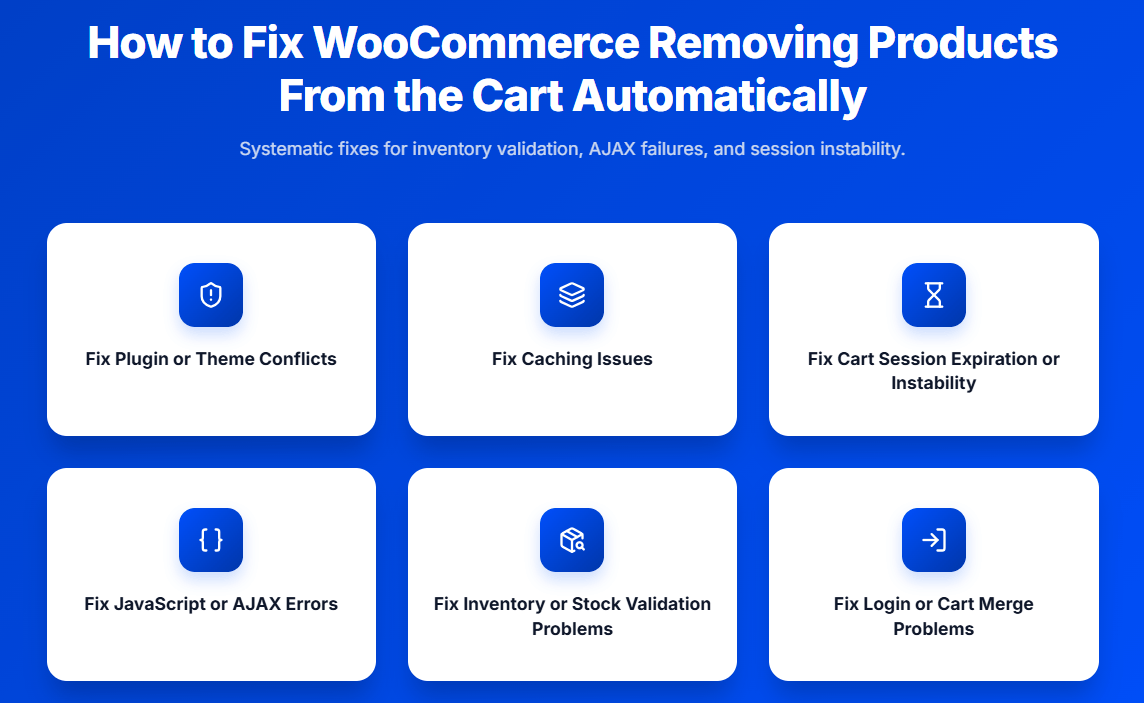
How to Fix WooCommerce Removing Products From Cart Automatically?
Fixing this issue requires identifying which layer is breaking the cart flow. WooCommerce cart removal usually comes from session loss, cache conflicts, login resets, plugin logic, or validation failures.
Follow these steps based on the exact cause:
Fix 1: Restore Stable Session and Cookie Handling
Cart data depends on sessions and cookies. If they fail, items will not persist.
Start by checking:
- Cookies are enabled in the browser
- No security plugin is blocking session cookies
- Session timeout is not too short
- Hosting environment supports WooCommerce sessions properly
Quick action: Test the cart in incognito mode to confirm whether cookies are the issue.
Fix 2: Exclude Cart and Checkout from Cache
Caching should never affect dynamic cart behavior.
Make sure that:
/cartand/checkoutpages are excluded from caching- CDN (Cloudflare, etc.) is not caching cart pages
- Object cache is not storing cart session data
- AJAX cart fragments refresh correctly
Quick action: Clear all cache layers and retest cart behavior.
Fix 3: Fix Cart Reset After Login or Logout
Cart issues often appear when switching user states.
Check whether:
- Cart disappears after login
- Guest cart and user cart are not merging properly
- Persistent cart feature conflicts with session data
Quick action: Disable persistent cart temporarily and test login behavior.
Fix 4: Identify Plugin or Theme Conflicts
External logic can override WooCommerce cart handling.
To isolate the issue:
- Disable all plugins except WooCommerce
- Switch to a default theme like Storefront
- Re-enable plugins one by one
- Check cart behavior after each activation
Focus especially on:
- Cart, checkout, or pricing plugins
- Inventory or rule-based plugins
- Custom code snippets
Fix 5: Validate Products and Variations Properly
WooCommerce may remove items if they fail validation after being added.
Verify that:
- Product is still in stock after adding to cart
- Variation has valid price, stock, and attributes
- Quantity rules are not blocking purchase
- Product is fully purchasable under current conditions
Quick action: Test with a simple product to isolate validation issues.
Fix 6: Remove Cart-Clearing Logic from Code or Plugins
Some setups intentionally clear the cart when certain actions occur.
Check for:
- Custom code in
functions.phpmodifying cart behavior - Hooks like
woocommerce_add_to_cartorwoocommerce_cart_item - Plugins that reset cart when adding new products
- Rules that remove items based on conditions
Quick action: Disable custom snippets and test if cart items persist normally.
Fix 7: Fix Session Expiry and Hosting-Level Issues
Server configuration can silently break cart persistence.
Look into:
- PHP session configuration
- Hosting cache or optimization tools
- Reverse proxy or server-level caching
- Firewall rules affecting session requests
Quick action: Ask hosting support to confirm WooCommerce session compatibility.
Fix 8: Run Full Cart-to-Checkout Testing
After applying fixes, verify the entire shopping flow.
Confirm that:
- Product stays in cart after refresh
- Cart remains stable after login/logout
- Adding multiple products does not reset the cart
- Checkout completes without removing items
Key Insight: WooCommerce removes products from cart automatically when session data, cache layers, or validation rules fail to stay consistent across the shopping journey.

Special Cases That Cause WooCommerce Cart Issues
Some cart problems only appear under specific conditions like login changes, mobile devices, or advanced caching setups. These edge cases are often missed during basic troubleshooting but can cause persistent cart removal issues.
Here are the most common special scenarios to check:
Cart Empties After Login or Logout
Cart items may disappear when a user logs in or logs out due to session switching or cart merging issues.
This usually happens when:
- Guest cart is not merged with user cart
- Persistent cart feature overrides current session
- User roles apply different cart rules
- Session resets during authentication
What to do: Test login flow with and without persistent cart enabled and confirm cart data stays consistent.
Cart Issues Only on Mobile Devices
Mobile users may experience cart removal more often due to browser limitations and aggressive caching.
You may notice this when:
- Cart works on desktop but not on mobile
- Items disappear after switching apps or tabs
- Mobile browser clears cookies automatically
- Device-level optimization tools interfere
What to do: Test on multiple mobile browsers (Chrome, Safari) and ensure cookies and sessions are properly supported.
Cart Breaks After Page Refresh or Navigation
Some carts only fail when users refresh the page or move between pages.
This often indicates:
- Cached pages showing outdated cart state
- AJAX cart fragments not updating
- Session data not persisting across requests
What to do: Disable caching temporarily and verify if the issue disappears.
Cart Clears When Adding Another Product
Adding a second product may remove existing items from the cart.
This is commonly caused by:
- Custom logic that empties the cart on add-to-cart
- Plugins enforcing “one product at a time” rules
- Code snippets modifying cart behavior
What to do: Review custom code and plugin rules that affect add-to-cart actions.
Cart Works for Logged-In Users but Not Guests
Guest users may lose cart data while logged-in users do not.
This usually points to:
- Cookie or session restrictions for guests
- Cache serving different versions to guest users
- Security or firewall rules blocking guest sessions
What to do: Test cart behavior as a guest user in incognito mode and compare results.
Cart Resets Across Multiple Devices or Browsers
Cart behavior may differ between devices, causing inconsistent user experience.
This happens when:
- Sessions are device-specific
- Persistent cart is not syncing correctly
- Cookies are not shared across browsers
What to do: Understand that WooCommerce carts are session-based and verify if persistent cart is configured correctly.
Key Insight: Special cases often reveal hidden issues in session handling, device behavior, or advanced caching layers that are not visible during normal testing.
How to Prevent WooCommerce Cart Items From Being Removed Automatically?
Once the issue is fixed, the next step is making sure it does not return. WooCommerce cart problems often come back when sessions, caching, or plugins are not managed consistently as the store grows.
Follow these best practices to keep cart behavior stable:
Keep Session and Cookie Handling Reliable
Stable cart behavior depends on consistent session tracking across the entire store.
Make sure to:
- Use hosting that supports WooCommerce sessions properly
- Avoid overly short session expiration times
- Ensure cookies are not blocked by security or privacy tools
- Test cart persistence for both guest and logged-in users
Configure Cache for Dynamic WooCommerce Pages
Caching must be handled carefully to avoid breaking cart functionality.
Always:
- Exclude
/cart,/checkout, and/my-accountfrom cache - Avoid caching AJAX requests related to cart updates
- Configure CDN rules to bypass dynamic pages
- Regularly test cart behavior after enabling performance tools
Limit Unnecessary Plugins and Custom Logic
The more plugins and custom code you use, the higher the chance of conflicts.
Best practices include:
- Only install plugins that are essential
- Avoid overlapping functionality (multiple cart or checkout plugins)
- Document any custom code added to
functions.php - Review changes after every plugin update
Test Cart Behavior After Every Major Change
Cart issues often appear after updates or configuration changes.
You should always:
- Test add-to-cart, refresh, login, and checkout flow
- Check behavior across devices and browsers
- Verify both simple and variable products
- Monitor guest and logged-in user behavior separately
Keep Product and Variation Data Clean
Invalid product data can trigger cart validation issues.
Ensure that:
- All variations have correct stock, price, and attributes
- Products are marked purchasable when required
- Stock status matches actual inventory
- No incomplete or broken product configurations exist
Monitor Plugin and Theme Compatibility
Conflicts often happen silently after updates.
Stay proactive by:
- Keeping WooCommerce, plugins, and themes updated
- Testing compatibility after updates
- Using staging environments before applying changes live
- Avoiding outdated or unsupported plugins
Use Staging for Safe Testing
Testing directly on a live store can create unexpected issues.
Instead:
- Use a staging environment for updates and testing
- Validate cart behavior before pushing changes live
- Roll back quickly if issues appear
Key Insight: Preventing WooCommerce cart issues depends on maintaining stable sessions, proper cache configuration, and controlled plugin usage.
When to Use a Plugin to Stabilize WooCommerce Cart Behavior?
If WooCommerce removes products from cart automatically even after applying fixes, it usually indicates a deeper structural issue rather than a simple configuration problem. At this stage, the cart flow is being affected by multiple layers working together, not just one isolated cause.
Why Basic Fixes Stop Working
In simple stores, session, cache, or validation issues can be fixed individually. But as your store grows, cart behavior becomes more dependent on how different systems interact.
You may notice this when:
- Cart issues return after every update or change
- Multiple plugins affect cart or checkout behavior
- Custom rules modify how products are added or removed
- Cart behaves differently across users, devices, or sessions
At this point, fixing one issue at a time does not create long-term stability.
A More Structured Approach to Cart Stability
Instead of reacting to issues, growing WooCommerce stores often move toward a more controlled setup where cart behavior is managed consistently across all conditions.
This approach focuses on:
- Keeping cart sessions stable during refresh, login, and navigation
- Ensuring validation rules do not conflict at checkout
- Reducing unexpected cart clearing from plugins or custom logic
- Maintaining consistent behavior across all user states
Where a Dedicated WooCommerce Solution Helps
Some WooCommerce-focused solutions are built to handle complex cart and checkout behavior in a more predictable way. Instead of relying on multiple disconnected plugins, they help manage cart flow, validation, and compatibility in a unified structure.
This becomes especially useful when:
- Your store uses advanced checkout or pricing rules
- Multiple plugins interact with cart or session data
- You rely on dynamic inventory or variation-based logic
- Cart consistency directly impacts conversions
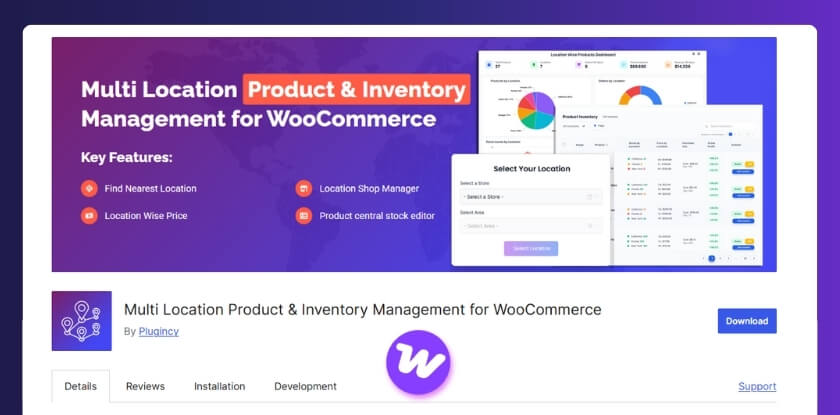
How This Connects to Multi-location Inventory Management Plugin?
As WooCommerce stores grow, cart behavior becomes closely tied to how inventory is managed across locations, sessions, and validation layers. When stock, availability, or fulfillment logic is handled in multiple places, it increases the chances of cart inconsistencies.
Structured solutions like a WooCommerce multi-location inventory management plugin help create a more stable environment by aligning stock data, cart validation, and checkout behavior in one system. Instead of relying on disconnected logic, they ensure WooCommerce handles sessions, availability, and user actions more consistently. This reduces unexpected cart removals and improves overall checkout reliability, especially for stores managing inventory across multiple warehouses or sales points.
Smart Insight: When WooCommerce removes products from cart automatically on a recurring basis, the real fix is not just solving errors — it is building a stable cart flow across sessions, validation, and plugin interactions.
Frequently Asked Questions
Why does WooCommerce remove products from cart automatically?
WooCommerce removes products from cart automatically when session data is lost, cache conflicts occur, or product validation fails during cart or checkout. This usually happens due to cookie issues, caching layers, plugin conflicts, or invalid product conditions after add-to-cart.
Why do WooCommerce cart items disappear after refresh?
Cart items disappear after refresh when the session or cookie storing cart data is not persisting correctly. This can be caused by browser restrictions, server session issues, or caching systems serving outdated cart states.
Why does the WooCommerce cart empty after login?
The WooCommerce cart may empty after login because the system switches from guest session to user session and fails to merge cart data. Persistent cart conflicts or session resets during authentication can also cause this issue.
Can plugins cause WooCommerce cart items to be removed?
Yes, plugins can remove cart items if they modify cart validation, apply rules, or override default WooCommerce behavior. Cart, checkout, pricing, or inventory plugins are the most common sources of this issue.
Does caching affect WooCommerce cart behavior?
Yes, caching can break cart functionality if dynamic pages like cart or checkout are cached. Cached data may override live session data, causing cart items to disappear or reset unexpectedly.
Why are some products removed from cart but not others?
Some products are removed from cart because they fail validation rules such as stock availability, variation mismatch, or purchase restrictions. This usually indicates product-level configuration or rule-based conditions.
How do I stop WooCommerce from clearing the cart automatically?
To stop WooCommerce from clearing the cart, fix session issues, exclude cart pages from cache, and remove conflicting plugins or custom cart logic. Testing with a default setup helps identify the exact cause.
Can session or cookie issues cause cart problems?
Yes, WooCommerce depends on sessions and cookies to store cart data. If they fail, cart items will not persist. This is one of the most common reasons for disappearing cart items.
Does WooCommerce remove cart items intentionally?
WooCommerce may remove items intentionally if products become invalid, out of stock, or fail validation rules during checkout. Custom code or plugins can also trigger intentional cart clearing.
How do I confirm the cart issue is fully fixed?
You can confirm the issue is fixed when cart items remain stable after refresh, login, adding new products, and completing checkout. Consistent behavior across devices and users is the key indicator.
Final Thoughts
When WooCommerce removes products from cart automatically, the issue is rarely random. In most cases, it comes down to how sessions, cache, validation rules, and plugins interact during the shopping flow. A product may be added successfully, but if any layer fails to stay consistent, WooCommerce will remove it to maintain data accuracy.
The key is not just fixing one symptom, but understanding where the cart flow breaks. Once you align session handling, exclude dynamic pages from cache, and remove conflicting logic, cart behavior becomes predictable and stable again.
For simple stores, these fixes are usually enough. But as your store grows and relies on multiple plugins, custom rules, or advanced checkout setups, maintaining consistent cart behavior requires a more structured approach. At that stage, improving how WooCommerce handles cart sessions, validation, and compatibility across your entire setup becomes essential for long-term stability.