
Location-wise pricing for WooCommerce allows store owners to set different product prices based on customer location, helping businesses adjust pricing for regions, cities, or store locations. This is especially useful for stores operating across multiple markets where costs, demand, or competition vary.
WooCommerce does not support location-based pricing by default, which makes it difficult to offer flexible pricing strategies across different locations. As a result, many store owners struggle to manage pricing efficiently when selling in multiple regions.
If not implemented properly, this can lead to missed revenue opportunities, inconsistent pricing, and a poor customer experience.
Quick Answer
Location-wise pricing for WooCommerce allows store owners to set different prices for the same product based on the customer’s location, such as country, city, or store branch. This is typically achieved using plugins or custom logic, since WooCommerce does not support location-based pricing by default.
In WooCommerce, pricing is usually global, meaning every customer sees the same price. However, businesses operating in multiple regions often need to adjust prices based on factors like shipping costs, local demand, taxes, or competition.
With location-based pricing, you can:
- Set different prices for different countries or regions
- Offer store-specific pricing for multi-location setups
- Adjust pricing based on warehouse or branch location
- Create dynamic pricing strategies based on customer location
Location-wise pricing is different from currency conversion. It allows custom pricing per location, not just automatic exchange rate adjustments.
Why Location-Based Pricing Matters in WooCommerce?
For many WooCommerce stores, using the same price for every customer does not reflect real business conditions. Costs, demand, and competition can vary significantly by location, making fixed pricing less effective.
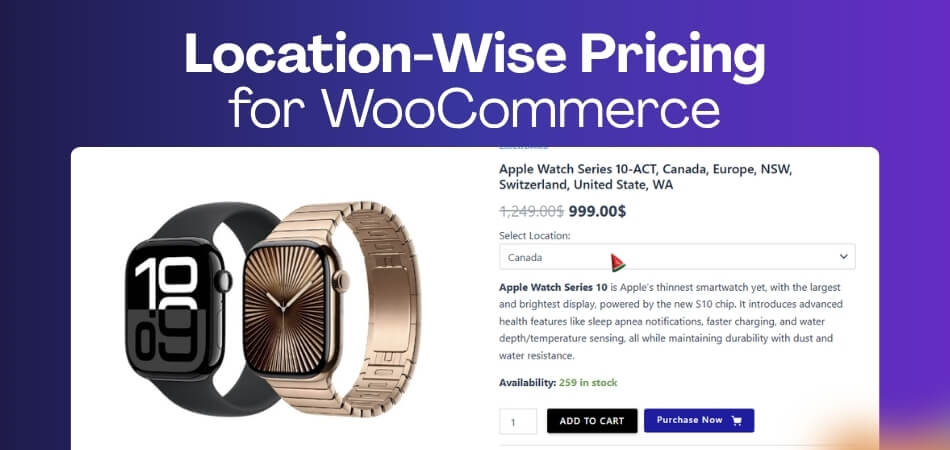
This is where location-wise pricing becomes important.
Different Costs Across Locations
Shipping, taxes, import duties, and operational costs often differ by region.
Without location-based pricing:
- You may lose profit in high-cost regions
- Or overprice products in competitive markets
Adjusting pricing by location helps maintain healthy margins.
Better Competitiveness in Local Markets
Customers compare prices within their local market, not globally.
With location-based pricing:
- You can match local competitors
- Offer region-specific discounts
- Improve conversion rates in targeted areas
This directly impacts sales and customer trust.
Support for Multi-Store or Multi-Warehouse Businesses
If your business operates across multiple locations, pricing often needs to vary per store or warehouse.
For example:
- Different pricing for city-based branches
- Warehouse-based pricing depending on stock location
- Local pickup pricing vs delivery pricing
This makes WooCommerce multi location pricing essential.
Flexible Pricing Strategies
Location-wise pricing allows you to create more advanced pricing models.
You can:
- Run location-specific promotions
- Set premium pricing in high-demand areas
- Offer lower pricing in price-sensitive regions
This helps maximize revenue across different markets.
Improved Customer Experience
Customers expect pricing that makes sense for their region.
Without it:
- Prices may feel unfair or inconsistent
- Checkout abandonment may increase
With proper pricing:
- Customers see relevant, localized pricing
- Trust and purchase confidence improve
Why This Matters for Multi-Region Stores
- If you are selling in multiple regions, using a single price limits your growth.
Location-based pricing gives you control to adapt, compete, and scale more effectively.
Location-based pricing helps WooCommerce stores align pricing with real market conditions, improving both profitability and customer experience.
What You Can Do With Location-Wise Pricing in WooCommerce?
Location-wise pricing is not just about changing product prices. It allows you to build flexible pricing strategies based on where your customers are and how your business operates.
Here are the key things you can do:
Set Different Prices by Country or Region
You can assign unique prices for different countries or regions instead of relying on a single global price.
This helps you:
- Adjust pricing for local markets
- Compete with regional competitors
- Handle currency and cost differences more effectively
Create City or Zone-Based Pricing
For businesses operating within the same country, pricing can vary by city or delivery zone.
You can:
- Offer different prices for major cities vs smaller areas
- Adjust pricing based on delivery cost or demand
- Create location-specific offers
Apply Store or Warehouse-Level Pricing
If you manage multiple warehouses or physical stores, pricing can differ based on stock location.
This allows you to:
- Set pricing per store or branch
- Adjust prices based on inventory location
- Optimize local fulfillment strategies
Offer Location-Based Discounts or Markups
Instead of fixed pricing, you can apply dynamic rules based on customer location.
Examples:
- Lower prices in price-sensitive regions
- Premium pricing in high-demand areas
- Location-specific seasonal discounts
Control Pricing Visibility by Location
You can decide which price a user sees based on their location.
This helps you:
- Show relevant pricing instantly
- Avoid confusion during checkout
- Improve conversion by displaying accurate pricing upfront
Combine Pricing with Inventory and Shipping Logic
Location-wise pricing becomes more powerful when combined with inventory and delivery rules.
You can:
- Match price with nearest warehouse stock
- Adjust pricing based on shipping availability
- Align pricing with fulfillment costs
How This Changes Your Pricing Strategy
Location-based pricing turns WooCommerce into a flexible, multi-market pricing system instead of a fixed-price store.
Using location-wise pricing allows WooCommerce store owners to create smarter pricing strategies that match real business conditions and customer expectations.
Where Default WooCommerce Falls Short?
WooCommerce is designed for simple, global pricing. While it works well for basic stores, it lacks the flexibility needed for businesses operating across multiple locations.
Here’s a clear comparison:
Default WooCommerce vs Location-Wise Pricing Needs
| Feature | Default WooCommerce | With Location-Wise Pricing |
|---|---|---|
| Pricing by Country/Region | Not supported | Fully supported |
| City or Zone-Based Pricing | Not available | Can set pricing by city or zone |
| Store / Warehouse-Level Pricing | Not supported | Pricing per store or location |
| Dynamic Pricing by Location | Limited (basic discounts only) | Advanced location-based rules |
| Pricing + Inventory Connection | No direct link | Price can align with stock location |
| Customer-Specific Price Display | Same price for all users | Location-specific price shown |
| Setup Complexity | Simple but limited | Requires plugin or structured setup |
| Scalability for Multi-Location Stores | Low | High |
Limitations of Default WooCommerce Pricing
- Default WooCommerce works for single-market stores, but it becomes restrictive when your business needs location-specific pricing control.
- With proper location-wise pricing, you can adapt pricing strategies based on real business conditions instead of using a fixed global price.
A comparison table helps clearly highlight WooCommerce limitations and shows why location-based pricing is essential for growing multi-location stores.
How Location-Based Pricing Works in WooCommerce?
Location-based pricing works by detecting where a customer is visiting from and then showing the correct price based on that location.
In simple terms: Customer location → Pricing rule → Correct price displayed
Step-by-Step Process
Here’s how it works behind the scenes:
- Customer Location is Detected: WooCommerce identifies the user’s location using IP address, shipping address, or selected store location.
- Pricing Rules Are Applied: The system checks predefined rules such as country, city, or store location.
- Correct Price is Displayed: The product price updates based on the matched location rule.
- Cart and Checkout Use the Same Price: The selected price remains consistent through cart and checkout.
Simple Example
Imagine you sell the same product in two locations:
- USA → $100
- Canada → $120
When:
- A US customer visits → sees $100
- A Canadian customer visits → sees $120
Same product, different price based on location.
What Controls the Pricing Logic
Location-based pricing can depend on:
- Country or region
- City or delivery zone
- Store or warehouse location
- Customer-selected location
- Shipping method or availability
How Pricing Becomes More Flexible
Instead of using one fixed price, you can create a flexible pricing system that adapts automatically based on where your customer is located.
Understanding how location-based pricing works helps WooCommerce store owners implement smarter pricing strategies that match real-world business needs.

Ways to Implement Location-Wise Pricing in WooCommerce
There are two main ways to implement location-wise pricing in WooCommerce: using custom code or using a plugin. Each approach has its own advantages and limitations depending on your store’s complexity.
Option 1: Custom Code (Basic Approach)
You can implement location-based pricing using custom PHP code and WooCommerce hooks.
How it works:
- Detect user location using IP or shipping data
- Apply conditional pricing logic in functions
- Override product price dynamically
Best for:
- Developers or technical users
- Simple pricing rules
- Small stores with limited locations
Limitations:
- Requires coding knowledge
- Difficult to maintain and scale
- High risk of conflicts with themes or plugins
- No built-in UI for managing rules
Option 2: Plugin-Based Solution (Recommended)
Using a plugin is the most practical way to implement location-wise pricing, especially for growing WooCommerce stores.
How it works:
- Set pricing rules through an admin dashboard
- Assign prices by country, city, or store location
- Automatically apply pricing based on user location
Best for:
- Non-technical users
- Multi-location stores
- Businesses with complex pricing strategies
Advantages:
- Easy to set up and manage
- Scalable for multiple locations
- Works with inventory, shipping, and checkout
- Reduces development and maintenance effort
Quick Comparison
| Method | Custom Code | Plugin-Based |
|---|---|---|
| Ease of Use | Requires coding | User-friendly interface |
| Setup Time | High | Low |
| Flexibility | Limited | High |
| Scalability | Difficult | Easy |
| Maintenance | Complex | Simple |
| Risk of Errors | High | Low |
| Integration with Inventory | Limited | Full support |
Custom Code vs Scalable Solutions
- Custom code may work for simple setups, but as your store grows, managing location-wise pricing manually becomes inefficient.
- A plugin-based approach provides a structured, scalable, and reliable solution for WooCommerce location based pricing.
Choosing the right implementation method ensures your location-based pricing system remains efficient, scalable, and easy to manage.
Recommended Solution for Location-Wise Pricing in WooCommerce
If you want a reliable and scalable way to manage location-wise pricing for WooCommerce, using a dedicated plugin is the most practical approach.
One solution that combines both pricing and inventory control is: Multi Location Product & Inventory Management for WooCommerce (Plugincy)
Why a Structured Solution Is Important
As discussed earlier, WooCommerce does not support location-based pricing by default. Trying to manage pricing manually or through custom code quickly becomes difficult as your store grows.
A structured plugin-based system helps you:
- Apply pricing rules based on location automatically
- Maintain consistency between pricing, stock, and checkout
- Avoid conflicts caused by custom code or multiple plugins
What You Can Do With This Solution
With a multi-location setup, you can:
- Set different prices per store, warehouse, or region
- Apply WooCommerce location based pricing rules easily
- Manage pricing and inventory from a single dashboard
- Show accurate prices based on customer location
- Align pricing with fulfillment and delivery logic
Why This Works Better Than Default WooCommerce
Instead of:
- Managing one global price ❌
- Using complex custom code ❌
You get:
- Full control over WooCommerce multi location pricing ✔
- Scalable setup for growing stores ✔
- Cleaner and more stable implementation ✔
When You Should Consider Using It
This solution is especially useful if:
- You sell in multiple countries or regions
- You manage multiple warehouses or stores
- You need pricing flexibility based on location
- You want to scale your WooCommerce store efficiently
What This Means for Your Store
- Instead of forcing WooCommerce to handle something it wasn’t built for, you can use a structured system that connects pricing, inventory, and location logic together.
- This not only simplifies management but also improves accuracy and customer experience.
If you are planning to implement location-wise pricing for WooCommerce, using a multi-location solution can help you avoid technical complexity and manage everything from one place.
A dedicated multi-location solution provides a more efficient and scalable way to handle pricing across different regions in WooCommerce.
Setting Up Location-Wise Pricing in WooCommerce
Setting up location-wise pricing for WooCommerce becomes much easier when you use a structured multi-location system. Instead of managing pricing manually, you can handle locations, inventory, and pricing together from one place.
Follow this step-by-step setup process:
Step 1: Install and Activate the Plugin
Before configuring location-based pricing, you need to install and activate the multi-location plugin in your WooCommerce store.
The setup supports both free and premium versions, so you can start with the option that fits your needs.
Install the Free Version (Recommended for Getting Started)
This method is suitable for stores that want to test WooCommerce location based pricing using the free version from the WordPress plugin directory.
Install via WordPress Dashboard
Follow these steps:
- Go to Plugins → Add New in your WordPress dashboard
- Search for multi location product & inventory management for WooCommerce
- Click Install Now and wait for the installation to complete

Activate the Plugin
Once installed:
- Click Activate
- The plugin will be available inside your WooCommerce dashboard
Now you are ready to configure location-wise pricing rules.
Install the Paid Version (Pro)
If you need advanced control over location-wise pricing for WooCommerce, the Pro version provides extended features for managing pricing, inventory, and multi-location logic.
This setup method is ideal for stores that require scalable and flexible pricing rules.
Download the Pro Plugin File
After purchasing the plugin:
- Download the Pro plugin ZIP file from your account
- Keep your license key ready for activation
Upload and Install the Plugin
Follow these steps:
- Go to Plugins → Add New → Upload Plugin in your WordPress dashboard
- Upload the downloaded ZIP file
- Click Install Now and wait for the installation to complete

Activate the License
Once installed:
- Click Activate
- Go to Location Manage → Plugin License after activation.
- Enter your license key to unlock Pro features

What You Get With the Pro Version
Upgrading allows you to:
- Manage advanced WooCommerce location based pricing rules
- Set pricing per store, warehouse, or region
- Combine pricing with inventory and fulfillment logic
- Scale pricing strategies across multiple locations
Benefits of Upgrading to Advanced Features
The Pro setup gives full control over WooCommerce multi location pricing without relying on complex custom code.
Step 2: Create Your Locations
After installing the plugin, the next step is to create the locations you want to use for pricing, inventory, and fulfillment. These locations can represent stores, warehouses, service areas, or delivery zones depending on your business setup.
Follow these steps to add locations:
Open Location Management
- Go to the plugin’s Location Management section in your WordPress dashboard
- Access the area where all business locations are created and managed
Add a New Location
- Click Add New Location
- Start creating a new branch, warehouse, store, or service region

Enter Location Details
- Add the location name and required details
- Include any relevant configuration based on your store setup
Save the Location
- Click Save to store the location
- Repeat the process for each additional location
What This Step Does
Creating locations allows you to:
- Assign pricing per location
- Manage stock by location
- Prepare your store for location-wise pricing for WooCommerce
Step 3: Set Up Location-Wise Pricing
Once your locations are created, you can start applying WooCommerce location based pricing rules.
There are two main ways to configure pricing:
Product-Level Pricing (Simple Method)
- Go to a product edit page
- Set different prices for each location
- Ideal for controlling pricing on specific products
Centralized Pricing (Advanced Method)
- Use a central dashboard (like stock or pricing manager)
- Apply pricing rules across multiple products and locations
- Best for large stores with multiple SKUs
How Pricing Rules Work Together
By combining locations with pricing rules, you can create a flexible system where each product can have different prices based on location, inventory, or business strategy.
Method 1: Set Location-Wise Pricing from the Product Page
This method is ideal when you want to manage location-wise pricing for WooCommerce at the product level. It gives you direct control over pricing, inventory, and assigned locations from a single screen.
Step 1: Create or Edit a Product
Start by accessing your products:
- Go to Products in your WordPress dashboard
- Click Add New or edit an existing product
This is where you will apply WooCommerce location based pricing rules.

Step 2: Configure Base Pricing
Before adding location-based pricing:
- Go to Product Data → General
- Set the default regular price and sale price
This base price acts as a fallback if no location rule is applied.

Step 3: Assign Product Locations
Next, link the product to specific locations:
- Find the Location panel in the product edit screen
- Select one or more locations
Pricing rules will only apply to the selected locations.

Step 4: Enable Inventory Management
To ensure accurate pricing and stock handling:
- Go to Product Data → Inventory
- Enable stock management
- Set the product quantity
This connects pricing with location-based inventory logic.

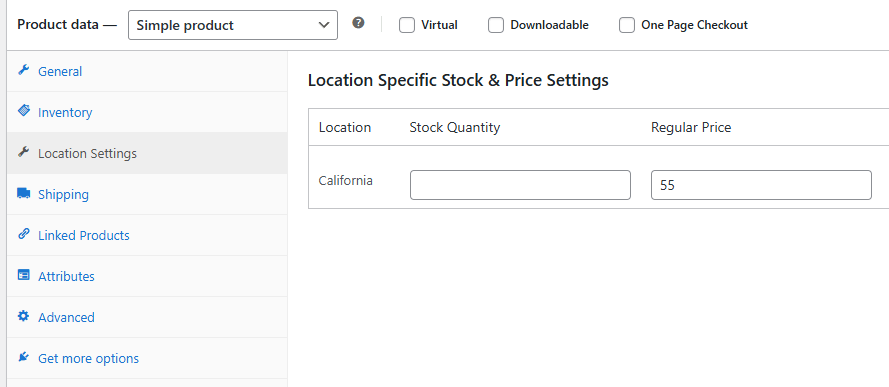
Step 5: Add Location-Based Pricing
Now apply pricing for each location:
- Open the Location Settings section
- For each location, set:
- Regular price
- Sale price
- Stock quantity
- Backorder settings
This is where WooCommerce multi location pricing becomes active.
Step 6: Save and Preview
Final step:
- Click Publish or Update
- Preview the product from different locations
Make sure the correct price appears based on location.
What This Method Is Best For
This approach works best when:
- You want control over individual product pricing
- Products require different pricing per location
- You need simple and direct configuration
Method 2: Set Location-Wise Pricing from Stock Central
This method is ideal for stores that need a centralized way to manage location-wise pricing for WooCommerce across multiple products. Instead of editing each product individually, you can control pricing, inventory, and location rules from one dashboard.
Step 1: Open Stock Central
Start by accessing the central management panel:
- Go to Location Manager → Stock Central in your dashboard

- Find the product you want to manage
- Click Manage Location
This opens a unified interface for pricing and inventory.
Step 2: Assign Locations
Next, connect the product to specific locations:
- Click the plus (+) icon
- Select the locations you want to assign
The selected locations will appear as tabs for configuration.

Step 3: Configure Default Pricing
Before setting location-specific values:
- Enter fallback pricing such as:
- Purchase price
- Regular price
- Sale price
- Backorder settings
This acts as the base configuration for all locations.
Step 4: Add Location-Based Pricing
Now configure pricing for each location:
- Open each location tab
- Enter location-specific values:
- Regular price
- Sale price
- Stock quantity
- Backorder options
This enables full WooCommerce multi location pricing control.

Step 5: Save Changes
Final step:
- Click Save Changes
- Pricing will be applied automatically on the frontend based on customer location
Method 1 vs Method 2 (Quick Comparison)
| Method | Best For | Control Level |
|---|---|---|
| Product Page | Individual product pricing | High (per product) |
| Stock Central | Bulk and centralized pricing | Very high (multi-product) |
Custom Development Method for Location-Wise Pricing in WooCommerce
Custom development is useful when your pricing rules depend on specific business logic such as delivery zones, pickup locations, or branch-based operations that standard tools may not fully support.

Instead of using a ready-made system, this method gives you full control over how location-wise pricing for WooCommerce behaves across the product page, cart, and checkout.
Step 1: Define the Pricing Trigger
First, decide what controls the price change.
Common triggers include:
- Selected pickup location
- Shipping zone or delivery area
- Detected user location (IP-based)
- Selected store or branch
This becomes the foundation of your pricing logic.
Step 2: Store the Active Location
Save the selected or detected location so WooCommerce can use it during the session.
Most setups use:
- WooCommerce session
- Checkout field
- Custom selector
Example:
WC()->session->set(‘active_location’, ‘New York’);
Step 3: Create a Location-Based Price Structure
Define how prices will be stored for each location.
A simple approach is using an array or product meta:
$location_prices = [
‘New York‘ => 120,
‘Los Angeles‘ => 135,
‘California‘ => 128,
];
Each location has its own price value.
Step 4: Save Prices in Product Meta
Store these values inside WooCommerce product data.
update_post_meta($product_id, ‘_location_prices’, [
‘New York‘ => 120,
‘Los Angeles‘ => 135,
‘sCalifornia‘ => 128,
]);
This allows you to retrieve pricing during cart and checkout.
Step 5: Detect Active Location Before Cart Calculation
Before WooCommerce calculates totals, retrieve the active location:
- From session
- From user selection
- From shipping logic
This ensures correct pricing is applied at the right time.
Step 6: Override Product Price in the Cart
Hook into WooCommerce pricing and replace the default price:
add_action(‘woocommerce_before_calculate_totals’, ‘custom_location_based_pricing’); function custom_location_based_pricing($cart) { if (is_admin() && !defined(‘DOING_AJAX’)) return; $active_location = WC()->session ? WC()->session->get(‘active_location’) : ”; if (!$active_location) return; foreach ($cart->get_cart() as $cart_item) { $product_id = $cart_item[‘product_id’];
$location_prices = get_post_meta($product_id, ‘_location_prices’, true); if (isset($location_prices[$active_location])) {
$cart_item[‘data’]->set_price((float) $location_prices[$active_location]);
}
}
}
This applies the correct WooCommerce location based pricing dynamically.
Step 7: Connect Frontend Location Selector
If users can select a location manually:
- Capture the selected value
- Save it in session using AJAX
Example:
add_action(‘wp_ajax_set_active_location’, ‘set_active_location’);
add_action(‘wp_ajax_nopriv_set_active_location’, ‘set_active_location’); function set_active_location() {
if (isset($_POST[‘location’]) && WC()->session) {
WC()->session->set(‘active_location’, sanitize_text_field($_POST[‘location’]));
}
wp_send_json_success();
}
This keeps pricing updated during browsing.
Step 8: Test the Full Pricing Flow
Always test the system:
- Switch locations
- Add products to cart
- Update quantities
- Verify checkout pricing
Ensure pricing stays consistent across all pages.
Step 9: Add Fallback and Edge Case Logic
Handle situations like:
- No location selected
- Cached sessions
- Coupon and discount conflicts
- Variable products
Always include a fallback price to prevent errors.
What This Method Is Best For
Use custom development when:
- You need very specific pricing logic
- Your workflow is highly customized
- You have developer resources available
When Custom Development Makes Sense
- Custom development gives full flexibility, but it requires ongoing maintenance and careful testing.
- For most stores, managing this manually becomes complex as products and locations grow.
Custom development provides maximum flexibility for WooCommerce location-based pricing but requires strong technical control and regular maintenance.
Comparison: Default vs Plugin vs Custom Development
Choosing the right approach for location-wise pricing for WooCommerce depends on your store size, technical ability, and pricing complexity. The table below compares the three main methods.
Location-Wise Pricing Methods Comparison
| Feature | Default WooCommerce | Plugin-Based Solution | Custom Development |
| Location-Based Pricing | Not supported | Fully supported | Fully customizable |
| Pricing by Country/City | Not available | Easy to configure | Requires custom logic |
| Store / Warehouse Pricing | Not supported | Built-in support | Requires development |
| Ease of Setup | Very easy | Easy | Complex |
| Technical Knowledge | Not required | Not required | Required (PHP + WooCommerce) |
| Scalability | Low | High | Medium (depends on code quality) |
| Maintenance | Minimal | Low | High |
| Risk of Errors | Low | Low | High |
| Integration with Inventory | Limited | Full integration | Needs custom build |
| Speed of Implementation | Instant | Fast | Time-consuming |
| Flexibility | Very limited | High | Very high |
| Cost | Free | Free + Paid options | Development cost required |
Key Takeaways
- Default WooCommerce is suitable only for simple stores with one global price.
- Custom development offers flexibility but requires time, maintenance, and technical expertise.
- Plugin-based solutions provide the best balance of ease, scalability, and control for most WooCommerce stores.
What This Means for Your Store
- If you want a fast and reliable way to implement WooCommerce location based pricing, a plugin-based solution is usually the most practical choice.
- It allows you to manage pricing, inventory, and locations without dealing with complex code or maintenance challenges.
A comparison table helps identify the most efficient method for implementing location-based pricing based on your store’s needs and resources.
Common Mistakes in Location-Based Pricing + Fixes
Even after setting up location-wise pricing for WooCommerce, many stores face issues due to incorrect configuration or missing logic. Understanding these common mistakes helps ensure your pricing works accurately across all locations.
Mistake 1: Using Currency Conversion Instead of Location-Based Pricing
Many store owners confuse currency switching with actual location-based pricing.
Why it happens:
- Currency plugins automatically convert prices
- No custom pricing logic per location
Fix:
- Use true WooCommerce location based pricing rules
- Set separate prices per location instead of relying on exchange rates
Mistake 2: Prices Change Only at Checkout
Some setups apply location-based pricing too late in the process.
Why it happens:
- Pricing logic is tied to shipping or checkout
- Location is detected after product view
Fix:
- Detect location earlier (IP or selector)
- Apply pricing on product and shop pages
Mistake 3: Cart and Product Prices Don’t Match
Customers see one price on the product page and another in the cart.
Why it happens:
- Pricing not applied consistently across WooCommerce hooks
- AJAX or caching issues
Fix:
- Ensure pricing is applied during cart calculation and checkout
- Test full flow (product → cart → checkout)
Mistake 4: Location Not Properly Stored
The system fails to remember the selected location.
Why it happens:
- Session not set correctly
- Cookies or caching interfering
Fix:
- Store location in session or user data
- Ensure it persists across pages
Mistake 5: Caching Breaks Pricing Logic
Users from different locations see the same cached price.
Why it happens:
- Full-page caching ignores location logic
- CDN not configured properly
Fix:
- Exclude dynamic pricing pages from cache
- Use location-aware caching rules
Mistake 6: Missing Fallback Pricing
If no location is detected, pricing breaks or shows incorrectly.
Why it happens:
- No default price configured
- Logic fails when location is empty
Fix:
- Always define a base or fallback price
- Handle edge cases in pricing logic
Mistake 7: Overcomplicating Pricing Rules
Too many rules create conflicts and unpredictable pricing.
Why it happens:
- Multiple plugins or custom logic overlap
- Complex conditional rules
Fix:
- Keep pricing rules simple and structured
- Use a centralized system for better control
Quick Summary Table
| Mistake | Fix |
| Using currency conversion only | Set real location-based prices |
| Pricing applied only at checkout | Apply pricing earlier |
| Cart and product mismatch | Sync pricing across all stages |
| Location not saved | Store location in session |
| Cache conflicts | Exclude dynamic pages from cache |
| No fallback price | Always define base price |
| Overcomplicated rules | Simplify pricing structure |
Impact of Fixing Pricing Mistakes
- Avoiding these mistakes ensures your WooCommerce multi location pricing works correctly across all pages and improves customer trust.
- A well-structured setup prevents pricing errors, reduces abandoned carts, and improves overall conversion.
Identifying and fixing common pricing mistakes helps maintain accurate and consistent location-based pricing across WooCommerce stores.
Real Use Cases of Location-Wise Pricing in WooCommerce
Location-wise pricing is not just a technical feature. It directly impacts how businesses sell, compete, and grow in different markets. Below are real-world use cases where location-wise pricing for WooCommerce becomes essential.
Selling in Multiple Countries with Different Pricing
Many stores sell globally but cannot use the same price everywhere.
Example:
- USA → $100
- UK → £95
- Canada → $120
Why this matters:
- Adjust for taxes, shipping, and demand
- Stay competitive in each region
- Avoid underpricing or overpricing
City-Based Pricing for Delivery Cost Optimization
Businesses operating within one country often face different delivery costs by city.
Example:
- New York → Lower delivery cost → Lower product price
- Los Angeles → Higher delivery cost → Slightly higher price
Result:
- Balanced profit margins
- Fair pricing based on logistics
Multi-Warehouse Pricing Strategy
Stores with multiple warehouses can price products based on stock location.
Example:
- Warehouse A (near customer) → Lower price
- Warehouse B (far) → Higher price
Why it works:
- Reduces shipping loss
- Encourages local fulfillment
- Improves delivery speed
Store Pickup vs Delivery Pricing
Some businesses offer different pricing depending on how the product is received.
Example:
- Pickup from store → Lower price
- Home delivery → Higher price
Benefit:
- Encourages store visits
- Reduces delivery load
- Improves operational efficiency
Region-Based Discounts and Promotions
You can run targeted campaigns based on location.
Example:
- 10% discount in low-demand regions
- Premium pricing in high-demand cities
Impact:
- Better sales targeting
- Improved conversion rates
- Smarter marketing strategy
B2B vs B2C Location Pricing
Some stores serve both business and retail customers across regions.
Example:
- Wholesale zone → Lower pricing
- Retail zone → Standard pricing
Result:
- Clear pricing segmentation
- Better margin control
Seasonal or Event-Based Local Pricing
Pricing can change based on local demand or events.
Example:
- Tourist areas → Higher seasonal pricing
- Off-season regions → Discounted pricing
Benefit:
- Maximizes revenue opportunities
- Adapts to market demand
What This Means for Your Store
These use cases show that WooCommerce location based pricing is not optional for scaling businesses.
It helps you:
- Align pricing with real costs
- Compete in different markets
- Improve conversion and profitability
Real-world use cases highlight how location-based pricing helps WooCommerce stores adapt to different markets and maximize revenue opportunities.
Frequently Asked Questions (FAQ)
What is location-wise pricing in WooCommerce?
Location-wise pricing in WooCommerce allows store owners to set different product prices based on customer location, such as country, city, or store branch. It helps businesses adapt pricing to different markets instead of using a single global price.
Does WooCommerce support location-based pricing by default?
No, WooCommerce does not support location-based pricing out of the box. You need to use a plugin or custom development to implement WooCommerce location based pricing effectively.
What is the difference between location-based pricing and currency conversion?
Currency conversion only changes the price based on exchange rates, while location-based pricing allows you to set completely different prices for each region based on business strategy, costs, or demand.
Can I set different prices for different cities or regions?
Yes, with the right setup, you can define pricing by country, city, delivery zone, or store location. This is especially useful for businesses managing WooCommerce multi location pricing.
Will location-based pricing affect cart and checkout?
Yes, if configured correctly, the same location-based price should appear consistently across the product page, cart, and checkout. Proper setup ensures there are no pricing mismatches.
Is plugin-based pricing better than custom development?
For most stores, a plugin-based solution is easier to manage, faster to set up, and more scalable. Custom development is better suited for highly specific or complex pricing requirements.
How do I detect customer location in WooCommerce?
Location can be detected using IP address, shipping address, or user-selected location. Many plugins handle this automatically without requiring manual configuration.
Final Thoughts
Location-wise pricing for WooCommerce is no longer an optional feature for growing stores. As soon as your business operates across multiple regions, a single pricing structure starts limiting your ability to compete, optimize costs, and maximize revenue.
By implementing WooCommerce location based pricing, you can:
- Adjust pricing based on real market conditions
- Improve conversion with region-specific pricing
- Align pricing with inventory and fulfillment logic
- Scale your store across multiple locations more efficiently
While custom development offers flexibility, most store owners benefit from a structured plugin-based approach that simplifies management and reduces technical complexity.
The key is to choose a method that fits your store’s size, growth plan, and operational needs.
A well-implemented location-based pricing strategy helps WooCommerce stores stay competitive, improve customer experience, and scale efficiently across different markets.