
WooCommerce cart breaks with ad blockers enabled when browser extensions block essential scripts, AJAX requests, or cookies required for cart functionality. As a result, the cart may fail to update, products may not be added properly, or items may disappear during the shopping process.
WooCommerce relies heavily on real-time communication between the browser and server to maintain cart sessions. When ad blockers interfere with these background requests, it can lead to issues like WooCommerce cart not working, add-to-cart failures, or checkout interruptions. This is especially common in modern stores that depend on AJAX-based cart updates and dynamic scripts.
If not addressed, this problem can affect user experience, reduce conversions, and create confusion for customers who cannot complete their purchases even when products appear available.
What’s happening behind the scenes:
- Ad blockers can block WooCommerce AJAX requests
- Cart updates rely on background scripts and cookies
- Blocking these requests interrupts cart communication
- This leads to issues like cart not updating or items disappearing
Quick Answer
WooCommerce cart breaks with ad blockers enabled because some browser extensions block AJAX requests, cookies, or frontend scripts required for cart functionality. When these essential requests are blocked, the cart cannot update properly, items may not be added, or products may disappear during checkout.
In WooCommerce, cart actions like adding products, updating totals, and maintaining sessions rely on background requests such as admin-ajax.php and cart fragment scripts. Ad blockers may treat these as tracking or unnecessary scripts and block them.
This typically results in:
- WooCommerce cart not working
- Add-to-cart button failing
- Cart not updating after adding products
- Checkout being blocked or incomplete
If WooCommerce cart actions depend on AJAX and those requests are blocked, the cart cannot function correctly regardless of product or inventory setup.

Signs Your WooCommerce Cart Is Breaking Because of Ad Blockers
Before diving into fixes, these signs help confirm that your WooCommerce cart issues are caused by browser extensions blocking essential scripts or requests.
You are likely facing this issue if:
- Add-to-cart button clicks, but product is not added to cart
- Cart count does not update after adding a product
- You notice WooCommerce cart not working on certain browsers
- Cart updates only after refreshing the page
- Products disappear from the cart during checkout
- You experience a WooCommerce AJAX cart issue where totals or items do not update
- Cart works in one browser but fails in another (especially with extensions enabled)
- Checkout fails or shows incomplete cart data
- Cart behaves differently in incognito mode (with extensions disabled)
- You see errors related to blocked requests in the browser console
If WooCommerce cart behavior changes depending on browser extensions or works in incognito mode, the issue is very likely caused by ad blockers interfering with AJAX or session requests.
Why Ad Blockers Affect WooCommerce Cart Behavior?
WooCommerce cart functionality depends on background scripts, AJAX requests, and session handling to keep cart data updated in real time. Ad blockers are designed to stop scripts and requests that look like tracking or background activity, which can unintentionally interfere with these essential WooCommerce processes.
How Ad Blockers Interfere with Cart Functionality
Ad blockers may block or modify:
- AJAX requests such as
admin-ajax.phpused for add-to-cart and cart updates - Cart fragment scripts that refresh cart totals and item counts
- Cookies or session-related scripts required to maintain cart data
- JavaScript files that handle checkout validation and cart interactions
When these elements are blocked, WooCommerce cannot communicate properly between the browser and server, causing the cart to stop functioning as expected.
What Happens When These Requests Are Blocked?
This typically leads to:
- WooCommerce add-to-cart not working
- WooCommerce cart not updating after adding products
- Cart items disappearing or resetting
- Checkout being blocked or incomplete
- WooCommerce AJAX cart issues across pages
Why This Problem Is More Common Today?
Modern WooCommerce stores rely heavily on dynamic scripts and AJAX-based interactions. Many ad blockers use aggressive filtering rules that block requests based on patterns, not actual intent.
This increases the chance of conflict when:
- Scripts resemble tracking or analytics behavior
- Requests run in the background without visible user interaction
- Multiple plugins add additional JavaScript layers
Ad blockers do not specifically target WooCommerce, but they often block AJAX requests and scripts that WooCommerce relies on. When these requests are blocked, the cart cannot communicate properly with the server, which breaks core cart functionality.
Here’s what actually happens:
- Ad blockers block AJAX requests like
admin-ajax.php - Cart updates rely on background scripts to sync data
- Blocking these scripts interrupts cart communication
- WooCommerce cart fails without real-time updates
What Usually Gets Blocked by Ad Blockers in WooCommerce?
Ad blockers do not directly target WooCommerce, but they often block scripts and requests that appear similar to tracking, analytics, or background activity. Unfortunately, many of these are essential for WooCommerce cart functionality.
Common WooCommerce Elements That Get Blocked
These components are most frequently affected:
- AJAX Requests (
admin-ajax.php): Used for add-to-cart actions, cart updates, and dynamic interactions. If blocked, WooCommerce add-to-cart may stop working completely. - Cart Fragments (
wc-cart-fragments): Responsible for updating cart totals, item count, and mini cart without page reload. Blocking this causes WooCommerce cart not updating issues. - Session Cookies and Storage: Required to maintain cart data across pages. If restricted, users may see cart resets or missing items.
- Frontend JavaScript Files: Scripts handling cart behavior, checkout validation, and product interactions may be blocked or delayed.
Why These Are Mistaken as “Trackers”
Ad blockers use pattern-based rules, not context. This means WooCommerce requests may be blocked simply because they look like tracking scripts.
This usually happens when:
- URLs include keywords like “ajax”, “track”, or “collect”
- Requests run in the background without visible UI interaction
- Scripts behave similarly to analytics or ad tracking tools
- Multiple plugins add layered scripts that trigger filter rules
Real Impact on Cart Behavior
When these elements are blocked, you may see:
- WooCommerce cart not working or not updating
- Add-to-cart actions failing silently
- Cart totals stuck or incorrect
- Products disappearing from cart
- Checkout blocked by browser extensions
What’s Actually Happening
Most WooCommerce cart issues with ad blockers occur because essential AJAX requests and cart scripts are incorrectly flagged and blocked, not because of WooCommerce errors.
This leads to:
admin-ajax.phprequests being blocked- Cart fragments failing to update
- Session cookies not persisting cart data
- Scripts being flagged as tracking activity
- Cart losing sync with the server
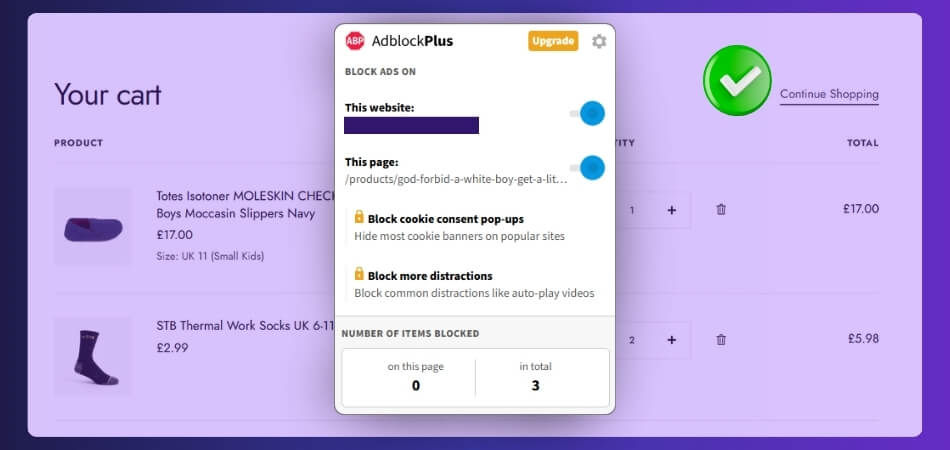
Common Store Setups That Trigger WooCommerce Cart Issues with Ad Blockers
Not all WooCommerce stores are affected equally. Cart issues caused by ad blockers are more likely to appear in setups that rely heavily on dynamic scripts, optimizations, or multiple plugins working together.
These configurations increase the risk of cart breaking:
Stores Using Heavy JavaScript and AJAX Features
Modern WooCommerce themes and plugins often rely on AJAX for add-to-cart, cart updates, and checkout interactions.
This becomes a problem when:
- Add-to-cart actions depend on background requests
- Cart fragments update without page reload
- Scripts are loaded dynamically
Ad blockers may block these requests, causing WooCommerce AJAX cart issues.
Sites with Multiple Optimization Plugins
Performance plugins can delay or modify scripts to improve speed, which can conflict with ad blockers.
Common triggers include:
- JavaScript delay or deferral
- Script minification and combination
- Lazy loading of cart-related scripts
Combined with ad blockers, this can break WooCommerce cart not updating behavior.
Stores Using CDN and Edge Caching
CDNs and caching systems can serve static versions of pages that do not reflect real-time cart data.
Issues appear when:
- Cart fragments are cached incorrectly
- AJAX requests are blocked or delayed
- Dynamic cart updates fail to load
This leads to inconsistent cart behavior across sessions.
Shops with Multiple Third-Party Plugins
Each plugin may add scripts or modify cart logic, increasing the chance of conflicts.
This is common when:
- Multiple plugins control cart, checkout, or UI
- Tracking or marketing scripts are added
- Script order or dependencies break
Ad blockers may block some of these scripts, causing WooCommerce cart not working issues.
Custom Themes or Headless Setups
Custom-built themes or headless WooCommerce stores rely heavily on custom scripts and APIs.
Problems occur when:
- Custom AJAX endpoints resemble tracking requests
- API calls are blocked by extensions
- Cart logic depends on external scriptsThis makes the cart more sensitive to browser-level blocking.
Why Some WooCommerce Stores Are More Affected?
The more a WooCommerce store depends on dynamic scripts, AJAX requests, and multiple plugins, the higher the chance that ad blockers will interfere with cart functionality.
This becomes more noticeable when:
- AJAX-heavy stores rely on background requests for cart updates
- Script optimization delays or modifies critical WooCommerce scripts
- CDN and caching layers interrupt real-time cart behavior
- Multiple plugins add overlapping scripts and dependencies
- Custom or advanced setups increase sensitivity to blocking
How to Test Whether an Ad Blocker Is Causing WooCommerce Cart Issues?
Before applying fixes, confirm that ad blockers are actually interfering with your WooCommerce cart. This helps avoid unnecessary changes and ensures accurate troubleshooting.
Follow these step-by-step checks:
Test in Incognito Mode (No Extensions)
Open your store in a private or incognito window where most extensions are disabled by default.
What to check:
- Add a product to cart
- Refresh the page
- Go to checkout
If the cart works normally here, the issue is likely caused by a browser extension.
Disable Ad Blocker and Retest
Turn off your ad blocker temporarily and repeat the same cart actions.
Compare behavior:
- With ad blocker → cart fails
- Without ad blocker → cart works
This confirms a WooCommerce cart issue caused by browser extensions.
Test Across Different Browsers
Use multiple browsers (Chrome, Firefox, Edge) to identify differences.
Look for:
- Cart working in one browser but not another
- Issues only appearing with specific extensions enabled
Check Browser Console for Blocked Requests
Open Developer Tools → Network or Console tab.
Watch for:
- Blocked
admin-ajax.phprequests - Failed AJAX calls
- Script errors related to cart or checkout
These indicate a WooCommerce AJAX cart issue.
Test Add-to-Cart Behavior Step-by-Step
Try different cart interactions:
- Add product → check cart count
- Refresh page → check if item remains
- Navigate pages → verify cart persistence
If any step fails, scripts may be blocked.
Disable Extensions One by One
If multiple extensions are installed, disable them individually.
This helps you:
- Identify the exact ad blocker causing the issue
- Confirm whether other tools (privacy blockers, script blockers) are involved
Test Logged-In vs Guest Users
Some cart issues only affect guest sessions.
Check if:
- Logged-in users → cart works
- Guest users → cart breaks
If WooCommerce cart works normally when extensions are disabled or in incognito mode, the issue is almost certainly caused by ad blockers interfering with AJAX or scripts.
You can confirm this when:
- Cart works in incognito mode
- Disabling ad blocker restores cart functionality
- AJAX requests appear blocked in the browser console
- Issue varies across different browsers
- Guest users are more affected than logged-in users
Quick Fixes You Can Try First
If WooCommerce cart breaks with ad blockers enabled, you can often fix it quickly by adjusting scripts, requests, or browser settings. Start with these simple fixes before moving to advanced solutions.
Try these quick fixes:
- Disable your ad blocker and test if the cart starts working normally
- Add your website to the ad blocker whitelist (allowlist)
- Exclude
admin-ajax.phpfrom being blocked in extension settings - Disable AJAX add-to-cart temporarily to test if requests are blocked
- Turn off JavaScript delay or optimization for cart and checkout pages
- Clear browser cache and test cart behavior again
- Test the cart in incognito mode to compare results
- Check if WooCommerce cart not updating only happens in specific browsers
- Disable other browser extensions (privacy, script blockers) one by one
- Switch to a default theme like Storefront for quick testing
Quick Actions to Restore Cart Functionality
Most WooCommerce cart issues with ad blockers can be resolved by allowing essential AJAX requests and preventing script blocking for your store domain.
Start with these quick actions:
- Disable ad blocker to test cart functionality
- Whitelist your WooCommerce site in the extension
- Allow
admin-ajax.phprequests - Disable script delay for cart and checkout pages
- Test cart without browser extensions
Long-Term Fixes for Stable WooCommerce Cart Performance
Quick fixes can solve immediate issues, but long-term cart stability requires proper handling of scripts, requests, and session behavior. If your store depends on dynamic features, you need a setup that works reliably even when browser extensions are active.
Apply these long-term fixes to prevent recurring issues:
Whitelist Essential WooCommerce Scripts and Requests
Ensure that critical WooCommerce endpoints are never blocked by ad blockers or security tools.
Focus on:
admin-ajax.phpfor cart actions and updateswc-cart-fragmentsfor real-time cart refresh- Core WooCommerce JavaScript files
This prevents WooCommerce AJAX cart issues and ensures cart updates work consistently.
Reduce Dependency on AJAX Where Possible
AJAX improves UX but increases dependency on background requests.
To improve stability:
- Disable AJAX add-to-cart for testing or fallback
- Use full page reload for critical cart actions
- Ensure checkout works without relying on AJAX
This helps avoid failures when requests are blocked.
Avoid Aggressive Script Optimization
Performance tools can delay or modify scripts, making them more likely to be blocked.
Best practices:
- Exclude WooCommerce scripts from JS delay and minification
- Avoid combining cart-related scripts into one file
- Keep execution timing predictable
Keep Cart and Checkout Pages Clean
Cart-related pages should remain free from unnecessary scripts and third-party interference.
Do this by:
- Avoid loading heavy tracking scripts on cart/checkout
- Limit marketing and popup tools on critical pages
- Reduce script conflicts from multiple plugins
Monitor Cart Behavior Across Environments
Cart issues often appear only under certain conditions.
Regularly test:
- Different browsers and devices
- Logged-in vs guest users
- With and without extensions enabled
This helps catch issues before customers report them.
Maintain a Controlled Plugin Environment
The more plugins you use, the higher the risk of conflicts.
For better stability:
- Use only essential plugins
- Avoid overlapping functionality
- Keep plugins updated and compatible
Implement a Fallback Cart Experience
A fallback ensures cart functionality even when dynamic features fail.
Examples:
- Use non-AJAX cart fallback
- Ensure page reload cart still works
- Keep checkout functional without dynamic scripts
How to Keep WooCommerce Cart Stable Long-Term?
Long-term WooCommerce cart stability depends on reducing reliance on blocked scripts and ensuring critical cart actions always have a reliable fallback.
To maintain stable cart behavior:
- Whitelist
admin-ajax.phpand essential cart scripts - Reduce dependency on AJAX for critical cart actions
- Avoid aggressive script optimization that delays execution
- Keep cart and checkout pages clean from unnecessary scripts
- Use fallback cart behavior to ensure functionality under all conditions

When to Disable AJAX Cart Behavior in WooCommerce?
AJAX-based cart functionality improves user experience by updating the cart without reloading the page. However, it also increases dependency on background requests that can be blocked by ad blockers or browser extensions.
When Disabling AJAX Is the Right Choice
You should consider disabling AJAX cart behavior if your store frequently experiences issues related to blocked requests or inconsistent cart updates.
This is especially useful when:
- WooCommerce add-to-cart not working consistently
- Cart updates fail without page refresh
- You face recurring WooCommerce AJAX cart issues
- Cart works in incognito mode but fails with extensions
- Ad blockers are common among your target users
Why AJAX Causes Problems with Ad Blockers
AJAX requests often run silently in the background, which makes them look similar to tracking or analytics scripts.
As a result:
- Requests like
admin-ajax.phpmay be blocked - Cart fragments fail to update
- Add-to-cart actions do not complete properly
This leads to WooCommerce cart not updating or broken cart behavior.
What Happens When You Disable AJAX?
Disabling AJAX changes how WooCommerce handles cart actions.
Instead of background updates:
- Cart actions trigger a full page reload
- Product is added with visible confirmation
- Cart data updates reliably without AJAX dependency
This improves stability even when scripts are blocked.
How to Disable AJAX Add-to-Cart?
Follow these steps:
- Go to WooCommerce → Settings → Products
- Uncheck “Enable AJAX add to cart buttons on archives”
- Save changes and test cart behavior
You can also disable AJAX through theme settings or custom code if needed.
Trade-Off: UX vs Stability
Disabling AJAX has a trade-off:
| Benefit | Limitation |
|---|---|
| More stable cart behavior | Slightly slower user experience |
| Works even with ad blockers | Page reload required |
| Fewer AJAX-related errors | Less dynamic interaction |
When Disabling AJAX Improves Cart Stability?
If WooCommerce cart issues are caused by blocked AJAX requests, disabling AJAX can provide a reliable fallback that ensures cart functionality continues to work.
Here’s why this helps:
- AJAX requests may be blocked by ad blockers
- Disabling AJAX improves overall cart stability
- Page reload replaces background updates
- Reduces dependency on
admin-ajax.php - Fixes WooCommerce cart not updating issues
Plugin / Theme Conflict Check for WooCommerce Cart Issues
Sometimes WooCommerce cart issues caused by ad blockers are not only due to blocked requests but also how plugins and themes handle scripts, AJAX calls, and dependencies. Conflicts between these components can make cart behavior more fragile and easier to break.
Why Plugin and Theme Conflicts Matter?
WooCommerce relies on multiple scripts working together. If plugins or themes modify how these scripts load, they can increase the chance of ad blockers interfering with cart functionality.
Conflicts often occur when:
- Multiple plugins control cart, checkout, or scripts
- Scripts are delayed, combined, or modified incorrectly
- Theme overrides default WooCommerce behavior
- Dependencies load in the wrong order
How to Identify Plugin Conflicts?
Follow this step-by-step process:
- Temporarily disable all plugins except WooCommerce
- Test cart behavior with ad blocker enabled
- Re-enable plugins one by one
- Identify which plugin causes the issue
This helps isolate the exact source of the conflict.
How to Check Theme Compatibility?
Themes can override WooCommerce templates and scripts, which may break cart functionality.
Test this by:
- Switching to a default theme like Storefront
- Testing add-to-cart and checkout behavior
- Comparing results with your current theme
If the issue disappears, your theme is likely causing the conflict.
Common Conflict Triggers
Watch for these high-risk setups:
- Performance plugins delaying JavaScript
- Marketing or tracking scripts added to all pages
- Custom code modifying AJAX requests
- Page builders injecting additional scripts
These can trigger WooCommerce cart not working or cart not updating issues.
How to Fix Identified Conflicts?
Once identified, apply these fixes:
- Exclude WooCommerce scripts from optimization plugins
- Disable unnecessary features in conflicting plugins
- Update plugins and themes to latest versions
- Replace outdated or unsupported tools
This reduces the chance of ad blockers breaking cart behavior.
How to Identify Plugin and Theme Conflicts?
Most WooCommerce cart issues are not caused by a single plugin, but by how multiple plugins and themes interact with scripts and AJAX requests.
To find and fix conflicts:
- Disable plugins one by one to identify the source of the issue
- Switch to a default theme like Storefront for testing
- Check if script optimization is breaking cart behavior
- Reduce overlapping plugins controlling cart functionality
- Fix issues by isolating or adjusting conflicting scripts
Frequently Asked Questions
Why does WooCommerce cart break with ad blockers enabled?
WooCommerce cart breaks because ad blockers may block AJAX requests, cookies, or scripts required to add products, update totals, and maintain cart sessions.
Why is WooCommerce add to cart not working with ad blockers?
Add-to-cart may fail because requests like admin-ajax.php are blocked, preventing WooCommerce from processing cart actions.
Can ad blockers affect WooCommerce checkout?
Yes, ad blockers can block scripts used for checkout validation, cart updates, or session tracking, causing incomplete or failed checkout.
Why is WooCommerce cart not updating after adding products?
This usually happens when cart fragment scripts or AJAX updates are blocked, preventing real-time cart refresh.
Does disabling AJAX fix WooCommerce cart issues?
In many cases, yes. Disabling AJAX reduces dependency on blocked background requests and provides a more stable fallback using page reloads.
How do I fix WooCommerce cart issues caused by browser extensions?
Fix it by whitelisting your site in ad blockers, allowing essential scripts, disabling aggressive optimization, and ensuring AJAX requests are not blocked.
Why does WooCommerce cart work in incognito mode but not in normal browser?
Incognito mode disables most extensions. If the cart works there, the issue is likely caused by ad blockers or other browser extensions.
Which WooCommerce scripts are commonly blocked?
Commonly blocked elements include:
admin-ajax.phpwc-cart-fragments- Session cookies and JavaScript files
Final Thoughts
When WooCommerce cart breaks with ad blockers enabled, the issue is not with the cart itself but with how modern stores rely on background scripts, AJAX requests, and session handling. These components are essential for real-time cart updates, but they can be mistakenly blocked by browser extensions designed to filter tracking or background activity.
This is why problems like WooCommerce cart not working, add-to-cart failures, or cart not updating often appear only in specific browsers or when extensions are active. The more your store depends on dynamic scripts and optimizations, the more sensitive it becomes to these interruptions.
Fixing the issue requires a balanced approach. You need to ensure essential WooCommerce requests are always allowed, reduce unnecessary script complexity, and provide fallback behavior where possible. In some cases, disabling AJAX or simplifying cart logic can significantly improve stability.
In the long run, a stable WooCommerce cart is not just about functionality but about consistency across browsers, devices, and user environments.