
When WooCommerce stock not updating after order happens, it usually means the stock deduction process did not trigger correctly during checkout or after payment. Instead of reducing inventory automatically, WooCommerce leaves the quantity unchanged, which can lead to overselling, incorrect stock levels, and order fulfillment issues.
This WooCommerce stock not reducing after purchase problem is often linked to order status, payment confirmation, or stock configuration settings. Even when an order is placed successfully, the system may fail to update inventory if the workflow is interrupted.
In this guide, you will learn why WooCommerce order stock not deducted issues occur, how to fix them step by step, and how to ensure stock updates correctly after every order.

Quick Fixes for WooCommerce Stock Not Updating After Order
When WooCommerce stock not updating after order occurs, the issue is usually related to order status, payment confirmation, or stock configuration. Start with these quick checks before moving into detailed fixes.
Quick Checks:
- Check if the order reached Processing or Completed status
- Make sure stock management is enabled globally
- Confirm stock management is enabled on the product
- Review variation-level stock settings
- Verify payment gateway completed the order properly
- Check for cache delaying stock updates
- Test with non-essential plugins disabled
- Review recent custom code or checkout changes
Signs Your WooCommerce Stock Update Workflow Is Broken
Before diving into causes, these signs help confirm whether WooCommerce stock not updating after order is happening in your store. In most cases, the issue appears through repeated inconsistencies after checkout rather than clear system errors.
Common signs to watch for:
- Orders are marked paid, but stock stays the same: WooCommerce records the sale, but the stock deduction step does not trigger.
- Inventory only changes after manual edits: Stock updates only when adjusted manually, indicating the automatic deduction flow is failing.
- Some products reduce stock while others do not: This points to inconsistent product or variation-level stock settings.
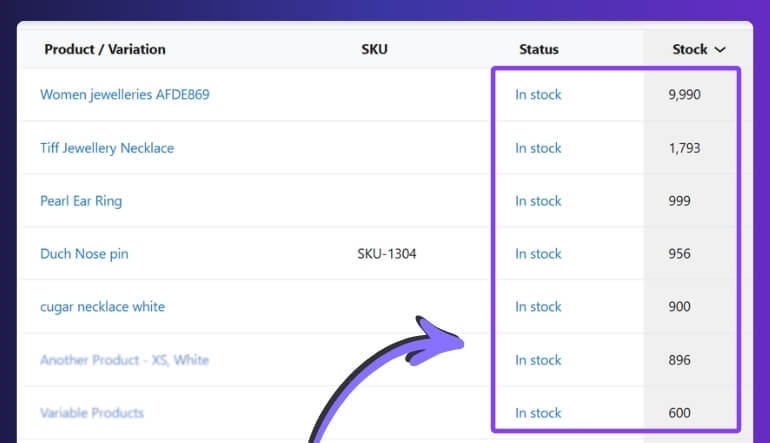
- Frontend and admin stock do not match: Stock appears different across backend and storefront due to delayed updates or sync issues.
- The issue started after a plugin or payment change: New plugins, checkout customizations, or gateway updates may interrupt stock deduction.
- Completed orders still allow products to be purchased again: Customers can reorder the same item, confirming WooCommerce order stock not deducted properly.
- Variable products behave differently from simple products: Variation-level stock configuration may not be aligned correctly.
- Repeated test orders show inconsistent results: Stock updates behave unpredictably across multiple test orders, indicating a broken workflow.
Key Insight: 👉 If stock does not consistently change after completed orders, your WooCommerce stock deduction trigger is not working correctly.
Why WooCommerce Stock Is Not Updating After Order
WooCommerce stock not updating after order usually happens when something interrupts the normal stock deduction flow. In most cases, the issue is related to order status triggers, stock configuration, payment processing, or system-level overrides.
To understand why WooCommerce stock not reducing after purchase occurs, let’s break down the most common causes.
Order Status Does Not Reach the Right Trigger
WooCommerce reduces stock only when an order reaches a stock-triggering status like Processing or Completed. If the order stays in Pending Payment, On Hold, or a custom status, stock deduction will not happen.
Stock Management Is Disabled Somewhere
Stock updates work only when inventory tracking is enabled properly. If stock management is disabled globally, at the product level, or skipped for variations, WooCommerce order stock not deducted issues will occur.
Product Setup Does Not Support Stock Deduction
Some products appear “in stock” without using real quantity-based tracking. Missing stock values, manual stock status, or incomplete variation setup can stop WooCommerce from reducing stock after checkout.
Payment Flow Interrupts the Update
WooCommerce often depends on payment confirmation to trigger stock reduction. If the payment gateway delays confirmation, fails callbacks, or uses a custom flow, the stock deduction step may not run.
Stock Is Reduced and Then Restored
In some cases, WooCommerce reduces stock briefly and then adds it back. This can happen due to failed payments, timeout rules, duplicate notifications, or automatic order cancellation settings.
Cached Data Makes Stock Look Unchanged
Sometimes stock updates correctly in the backend, but caching layers continue showing old values. This creates the impression that WooCommerce stock not updating after checkout, even when it actually has.
Plugins or Custom Code Override the Default Logic
Third-party plugins or custom snippets can override WooCommerce stock behavior. Even a small change to stock hooks, order processing, or product sync can interrupt the normal deduction flow.
Key Insight 👉 WooCommerce stock not updating after order is usually caused by a break in the order status → payment confirmation → stock deduction flow.
How to Fix WooCommerce Stock Not Updating After Order?
Fixing WooCommerce stock not updating after order requires making sure the stock deduction process is triggered correctly during checkout and order processing. In most cases, the issue is caused by incorrect order status flow, disabled stock settings, or interruptions in payment confirmation.
Follow these steps to resolve WooCommerce stock not reducing after purchase and ensure inventory updates properly after every order.
Fix 1: Ensure Orders Reach Processing or Completed Status
WooCommerce reduces stock only when an order reaches a stock-triggering status such as Processing or Completed. If orders remain in Pending Payment or On Hold, stock will not be deducted.
Check for issues:
- Orders stuck in Pending or On Hold status
- Payment gateway not updating order status
- Custom order statuses bypassing stock deduction
Fix 2: Enable Stock Management Globally and Per Product
Stock updates only work when inventory tracking is enabled correctly. If stock management is disabled anywhere in the system, WooCommerce cannot reduce stock after checkout.
Make sure:
- “Enable stock management” is active in WooCommerce settings
- Stock management is enabled on each product
- Variation-level stock is configured for variable products
Fix 3: Fix Product-Level Stock Configuration
Some products appear in stock but are not actually tracked using quantity-based inventory. This prevents WooCommerce from reducing stock after an order.
Check for:
- Missing stock quantity values
- Stock status set manually instead of using tracking
- Variation stock fields left empty
Fix 4: Validate Payment Gateway Behavior
WooCommerce often depends on payment confirmation to trigger stock deduction. If the payment gateway does not complete the order properly, stock will not update.
Look for:
- Payment marked as pending or failed
- Gateway not sending confirmation callbacks
- Delayed payment verification
Fix 5: Prevent Stock Being Restored After Reduction
In some cases, WooCommerce reduces stock but then restores it due to failed payments or automatic cancellation rules.
Common causes:
- Failed or canceled payments restoring stock
- Timeout rules triggering auto-cancel
- Duplicate order notifications
Fix 6: Disable Conflicting Plugins or Custom Code
Plugins or custom scripts can override WooCommerce stock logic and stop stock from updating after order completion.
Test by:
- Disabling non-essential plugins
- Switching to a default theme
- Checking custom functions related to checkout or inventory
Fix 7: Clear Cache and Verify Real-Time Updates
Although this is mainly an order-flow issue, caching can sometimes make it look like stock is not updating after checkout.
Check:
- Page cache and object cache
- CDN caching product pages
- AJAX fragments showing old stock
Fix 8: Test the Full Order Flow End-to-End
Sometimes individual settings look correct, but the full checkout flow still breaks stock deduction.
Test properly:
- Place a test order
- Complete payment
- Verify stock reduction immediately
- Repeat test to confirm consistency
Key Insight: 👉 WooCommerce stock not updating after order is almost always caused by a failure in the order → payment → status → stock deduction flow.
Why WooCommerce Stock Not Updating After Order Gets Worse in Multi-Location Stores
WooCommerce stock not updating after order becomes significantly harder to manage when inventory is spread across multiple locations. In multi-location setups, stock must be deducted from the correct warehouse while staying aligned across admin, storefront, and fulfillment systems.
As complexity increases, even small issues in the order-to-stock flow can create larger mismatches across your store.
Where the complexity increases:
- Stock must be deducted from the correct location: A product may sell correctly, but stock errors occur if WooCommerce deducts inventory from the wrong warehouse or store.
- Location-based availability adds another layer: Products can appear available overall while the actual fulfillment location is already out of stock.
- Order routing introduces additional risk: Stock deduction depends on correct warehouse assignment. If routing fails, inventory updates may not match the real fulfillment process.
- Inventory sync must stay aligned across systems: Stock updates must match across backend records, frontend display, and fulfillment operations at the same time.
- Manual corrections become harder to manage: Fixing stock errors across multiple locations requires more effort and increases the risk of repeated mismatches.
- Fulfillment errors become more expensive: Incorrect stock updates can lead to delays, wrong shipments, or canceled orders.
- Frontend and backend mismatches spread faster: A stock issue in one location can affect how availability appears across the entire store.
- Overselling risk increases across locations: Products may remain purchasable in one location even when inventory is already depleted elsewhere.
Key Insight: 👉 Multi-location inventory increases the number of points where WooCommerce stock deduction can fail after an order.

The Smarter Fix: Automate Stock Control Across Every Location
Manual inventory handling becomes unreliable as your WooCommerce store grows across multiple warehouses or fulfillment points. When WooCommerce stock not updating after checkout becomes frequent, the real solution is to structure how stock is tracked and deducted across locations. A multi location inventory management for WooCommerce system helps ensure that stock updates are accurate, location-aware, and consistent across your entire store.
How it solves WooCommerce stock update issues:
- Track stock separately by location: Each warehouse maintains its own inventory, preventing conflicts caused by shared stock values.
- Deduct stock from the correct source: Stock is reduced from the correct warehouse after each order instead of a general product total.
- Keep frontend and admin stock aligned: Customers and store admins see consistent availability because both use the same inventory source.
- Support accurate multi-location fulfillment: Stock updates match the actual location responsible for fulfilling the order.
- Reduce manual stock corrections: Eliminates the need for repeated manual adjustments caused by mismatched stock data.
- Improve visibility across all locations: Store owners can track inventory clearly across multiple warehouses instead of relying on combined totals.
- Lower overselling risk: Location-based stock control prevents products from staying purchasable when inventory is unavailable.
- Build a scalable inventory workflow: As order volume and complexity grow, stock updates remain stable and predictable.
Key Insight: 👉 Instead of repeatedly fixing WooCommerce stock not updating after order, a better approach is to structure inventory flow across all locations.
Frequently Asked Questions
WooCommerce stock not updating after order can raise additional questions even after applying fixes. These FAQs address deeper concerns related to WooCommerce stock not reducing after purchase and order-based inventory behavior.
Can WooCommerce stock update differently for physical and virtual products?
Yes. Physical and virtual products can follow different order flows. Some virtual products may skip shipping-related steps, which can affect when WooCommerce triggers stock deduction after checkout.
Can imported products cause stock not updating after order?
Yes. Imported products may include missing stock values, incorrect variation settings, or inconsistent inventory rules. These issues may not appear immediately but can break stock updates after new orders are placed.
Why does stock not update for certain payment methods?
Different payment gateways process orders differently. Some update order status instantly, while others delay confirmation. If the order does not reach a stock-triggering status, WooCommerce stock not updating after checkout can occur.
Can manual admin changes affect future stock updates?
Yes. Repeated manual edits to stock, order status, or product settings can create inconsistencies in how WooCommerce handles inventory updates, making future stock behavior unpredictable.
When is this more than a simple WooCommerce setting issue?
If WooCommerce order stock not deducted issues happen frequently across multiple products, orders, or locations, the problem is likely deeper than a basic configuration issue and requires a structured inventory workflow.
Why does WooCommerce stock reduce only after payment confirmation?
WooCommerce typically deducts stock when the order reaches Processing or Completed status. If payment confirmation is delayed or fails, stock reduction will not trigger immediately.
Can variable products cause stock update issues after order?
Yes. Variable products depend on variation-level stock tracking. If variations are not configured correctly, WooCommerce stock not reducing after purchase can affect only specific product options.
Final Thoughts
WooCommerce stock not updating after order is rarely just a simple configuration issue. In most cases, it happens when order processing, payment confirmation, and stock settings are not aligned properly within the checkout workflow.
While quick fixes can resolve immediate problems, repeated stock update failures often indicate a deeper issue in how your store handles order-based inventory deduction.
As your store grows with more products, variations, and locations, maintaining accurate stock updates becomes more complex. Instead of relying on repeated manual fixes, building a structured inventory workflow ensures consistent stock deduction, reduces overselling risk, and keeps your store reliable for customers.