
WooCommerce stock updates in admin but not frontend usually means the inventory change has been saved correctly in the backend, but the storefront is still showing outdated stock data. This creates a mismatch where products may appear in stock when they are not, or out of stock even though inventory has already been updated.
This WooCommerce frontend stock not updating issue is commonly caused by caching, delayed synchronization, or conflicts between display logic and actual inventory data. As a result, customers see incorrect availability, which can lead to overselling, missed sales, or confusion during checkout.
In this guide, you will learn why WooCommerce stock not syncing between admin and frontend happens, how to fix it step by step, and how to keep your store inventory accurate and consistent across all views.

Quick Fixes for WooCommerce Stock Not Updating on Frontend
When WooCommerce stock updates in admin but not frontend, the issue is usually related to caching, display layers, or delayed synchronization rather than the actual inventory data. Before diving into deeper troubleshooting, apply these quick fixes to resolve most WooCommerce frontend stock not updating problems.
Start with these quick checks:
- Make sure stock management is enabled for the affected product so WooCommerce can track and display inventory correctly
- Clear page cache for the affected product page, as cached content often shows outdated stock values
- Purge CDN cache (Cloudflare or similar) if the frontend still displays old inventory data
- Check object cache (Redis/Memcached) for stale stock records that may override updated values
- Test the product using a default theme to rule out theme-related display conflicts
- Refresh AJAX-driven stock elements, especially for variable products or dynamic pricing sections
- Review variation display settings if only specific variations show incorrect stock availability
- Disable stock-related plugins temporarily to identify conflicts causing WooCommerce stock not syncing
Why WooCommerce Backend and Frontend Stock Go Out of Sync?
When WooCommerce stock updates in admin but not frontend, it usually means the backend inventory is correct, but the storefront is showing outdated or processed data. This WooCommerce stock not syncing issue happens because frontend stock display passes through multiple layers such as cache, theme logic, AJAX requests, and plugins before reaching the customer.
Unlike the admin panel, which reads stock data directly from the database, the frontend often depends on cached or dynamically generated content. This difference is the main reason WooCommerce frontend stock not updating problems occur.
Common Reasons for Stock Mismatch
- Admin Reads Direct Database Data: The WooCommerce backend pulls real-time inventory directly from the database, so it always shows the latest stock value without delay.
- Frontend Passes Through Multiple Layers: The storefront processes stock through themes, templates, and filters, which can delay or alter how inventory is displayed.
- Cache Displays Outdated Stock Information: Page cache, CDN cache, or object cache can store older stock values and continue showing them even after updates in admin.
- Theme Customization Overrides Stock Display: Some themes modify stock labels like “In Stock” or “Out of Stock,” which may not reflect actual inventory levels.
- AJAX Loads Old Availability Data: Dynamic elements such as variation selectors or quick view may fetch outdated stock due to delayed AJAX refresh.
- Variation Logic Changes Display Behavior: For variable products, WooCommerce may show availability based on default or selected variation, causing mismatched stock visibility.
- Plugins Use Different Stock Sources: Inventory, filtering, or multi-location plugins may pull stock from separate sources, creating inconsistency between backend and frontend.
Key Insight: 👉 WooCommerce does not have a stock problem here — it has a display synchronization problem.
What WooCommerce Frontend Stock Issues Look Like in a Real Store?
When WooCommerce stock updates in admin but not frontend, the problem rarely appears as a single clear error. Instead, store owners notice inconsistent stock behavior across different pages, users, or sessions. This WooCommerce frontend stock not updating issue often creates confusion because the backend shows correct inventory while the storefront behaves differently.
Here are the most common signs that WooCommerce stock is not syncing between admin and frontend:
Common Real-World Symptoms
- Stock updates instantly in admin but not on product pages: Inventory changes appear correctly in the WooCommerce dashboard, but the frontend continues showing outdated stock values due to caching or delayed synchronization.
- Product pages display old stock status: Customers may still see “In Stock” or “Out of Stock” messages that no longer match the actual inventory, indicating a WooCommerce cache stock issue.
- Different users see different stock availability: Admins, logged-in users, and guests may see different stock statuses depending on cache layers or session-based content delivery.
- Cache clearing temporarily fixes the issue: After clearing cache, stock appears correct, but the problem returns later. This usually confirms that WooCommerce stock not syncing is caused by caching layers.
- Variation stock looks correct only in admin: For variable products, backend variation stock is accurate, but the frontend shows incorrect availability due to AJAX or variation display logic.
- Customers can purchase unavailable products: In some cases, outdated frontend stock allows users to place orders for products that are already out of stock, leading to overselling issues.
Key Insight: 👉 If the issue appears inconsistent across users or sessions, it is almost always a frontend display or cache problem, not an inventory problem.
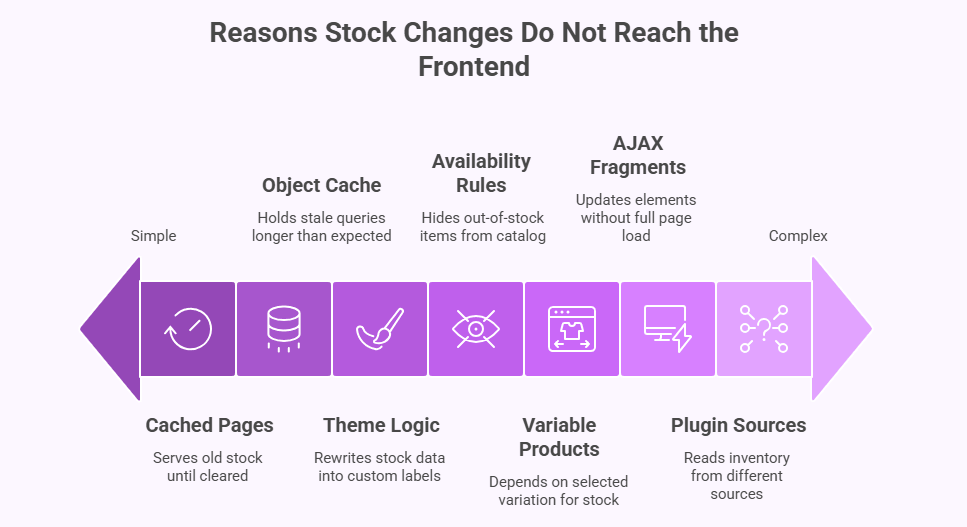
The Most Common Reasons WooCommerce Stock Does Not Sync with Frontend?
When WooCommerce stock updates in admin but not frontend, the issue is rarely with the inventory itself. Instead, it usually comes from how stock data is processed, cached, or displayed on the storefront. This WooCommerce stock not syncing problem happens when frontend layers do not reflect the latest database updates.
Below are the most common reasons WooCommerce frontend stock not updating occurs.
Reason 1: Cached Product Pages Show Old Stock Data
Page caching can store an older version of a product page even after stock changes in WooCommerce. As a result, visitors continue seeing outdated availability messages until the cache is cleared or refreshed, making it appear that WooCommerce stock not syncing is happening.
Reason 2: Object Cache Stores Stale Inventory Queries
Persistent object caching systems like Redis or Memcached can keep old stock query results longer than expected. Even when the backend inventory is updated, the frontend may still display outdated values due to cached database responses.
Reason 3: Theme Logic Overrides Stock Display
Many WooCommerce themes do not display stock values directly from the database. Instead, they apply custom logic or labels such as “Limited Stock” or “Available,” which may not match the actual inventory quantity, causing frontend stock mismatch.
Reason 4: Availability Rules Override Stock Quantity
WooCommerce catalog visibility settings can affect how stock appears. For example, hiding out-of-stock products or modifying availability rules may create a situation where the displayed stock status does not reflect real inventory data.
Reason 5: Variable Products Add Display Complexity
Variable products introduce another layer of logic where stock availability depends on selected variations. If variation settings are incomplete or inconsistent, WooCommerce frontend stock not updating issues can occur even when backend stock is correct.
Reason 6: AJAX Fragments Load Outdated Stock Data
WooCommerce uses AJAX to update dynamic elements like mini carts and variation selectors. If these fragments are cached or not refreshed properly, they may continue showing old stock values instead of the latest inventory.
Reason 7: Plugins Pull Stock from Different Sources
Third-party plugins, especially inventory or filtering tools, may read stock from custom tables or cached sources instead of the default WooCommerce database. This can create inconsistencies between backend and frontend stock display.
Key Insight : 👉 If WooCommerce stock is correct in admin but wrong on frontend, the issue is almost always caused by cache, display logic, or data source mismatch.
How to Fix WooCommerce Stock Mismatch Between Admin and Frontend?
Fixing WooCommerce stock updates in admin but not frontend requires identifying which layer is delaying, caching, or rewriting the stock display after the backend update is saved. In most cases, this WooCommerce frontend stock not updating issue is caused by caching systems, theme logic, AJAX behavior, or plugin conflicts.
Follow these step-by-step fixes to resolve WooCommerce stock not syncing and ensure your frontend always reflects the latest inventory.
Fix 1: Remove Product Pages from Aggressive Cache
Frontend stock cannot stay accurate if cached product pages keep serving outdated availability messages. Any product page with dynamic inventory should be excluded from full-page caching and CDN-level caching.
Check for issues such as:
- Product pages included in full-page cache rules
- CDN caching old stock labels or availability messages
- Stock updates not triggering automatic cache purge
Fix 2: Review Object Cache Behavior
Persistent object caching can store outdated stock queries even after inventory changes in WooCommerce. If cache invalidation is not handled correctly, frontend stock will continue showing old values.
Focus on areas like:
- Object cache storing stale inventory queries
- Missing cache invalidation after stock updates
- Cache keys not varying based on stock status
Fix 3: Test Stock Display with a Default Theme
Themes often customize how stock is displayed, which can create mismatches between actual inventory and frontend availability. Testing with a default theme helps isolate whether the issue is related to theme logic.
Look closely at:
- Theme templates overriding WooCommerce stock output
- Custom labels replacing real stock messages
- Product cards using separate stock logic
Fix 4: Align Quantity Rules with Availability Logic
Frontend stock may appear incorrect when stock quantity and availability rules do not follow the same logic. WooCommerce catalog settings and visibility rules can override actual inventory values.
Pay attention to:
- Backorder settings affecting visible stock status
- Shipping or pickup rules overriding availability
- Sellability conditions conflicting with stock quantity
Fix 5: Test Variable Products One Variation at a Time
Variable products often introduce display inconsistencies because frontend stock depends on selected options. Testing each variation separately helps identify where WooCommerce frontend stock not updating breaks.
Common issues include:
- Parent product logic overriding variation stock
- One variation affecting the full product message
- Selected options not refreshing availability correctly
Fix 6: Refresh or Bypass Stale AJAX Stock Elements
WooCommerce uses AJAX to load dynamic stock elements such as variation selectors and mini carts. If these elements are cached or delayed, they may display outdated stock values.
Common problem areas include:
- Mini cart showing old stock status
- Product pages updating only after hard refresh
- AJAX fragments cached for guest users
Fix 7: Isolate Inventory Plugins and Sync Tools
Stock mismatches can occur when plugins read or update inventory differently. If multiple systems handle stock data, WooCommerce stock not syncing becomes more likely.
Check for issues such as:
- Inventory plugins reading from custom stock tables
- Sync tools delaying frontend stock updates
- Availability plugins overriding WooCommerce output
Fix 8: Regenerate WooCommerce Product Lookup Tables
Sometimes WooCommerce saves stock updates correctly, but frontend lookup tables do not refresh immediately. Regenerating these tables can help sync backend and frontend stock data.
Look for issues such as:
- Frontend stock staying incorrect after admin updates
- Product lookup data out of sync
- Regenerating tables fixing display mismatch
- Path: WooCommerce > Status > Tools > Regenerate Product Lookup Tables
Key Insight: 👉 If stock is correct in admin but wrong on frontend, the issue is always in cache, display logic, or sync layers, not the inventory itself.
How to Know WooCommerce Stock Sync Issue Is Fully Resolved?
WooCommerce stock updates in admin but not frontend is only fully resolved when both backend and storefront consistently reflect the same inventory data in real time. Instead of relying on a single test, use these practical checks to confirm WooCommerce stock not syncing issues are completely fixed.
Signs That Stock Is Fully Synced
| Sign | What It Confirms |
|---|---|
| Frontend stock updates immediately after admin changes | Product pages are no longer showing cached or outdated stock values |
| Guests and admins see the same availability | Cache, session, or user-based display differences are resolved |
| Variable products show correct stock per selection | Variation-level stock logic is working correctly on frontend |
| Cart and product pages match stock values | All stock-related UI elements are pulling from the same source |
| No manual cache clearing is required | Inventory updates are automatically reflected without intervention |
| Customers cannot purchase unavailable items | Frontend availability is now aligned with real sellable stock |
Key Insight: 👉 If stock updates instantly across all users and pages, your WooCommerce frontend stock not updating issue is fully resolved.
What Better Inventory Control Looks Like in WooCommerce Stores?
When WooCommerce stock not syncing issues start appearing frequently, it often means your store has outgrown basic inventory handling. As products, variations, and traffic increase, keeping frontend and backend stock aligned becomes harder without a structured system.
Here’s what reliable inventory control looks like in a well-managed WooCommerce store:
Key Improvements You Should Notice
- Unified Inventory Across All Locations: Stock is no longer managed as separate, disconnected values. Instead, all inventory updates follow a structured system that ensures consistency across warehouses and storefront display.
- Frontend Stock Reflects Real-Time Availability: Product pages show live stock instead of delayed or cached values, reducing confusion and preventing customers from seeing incorrect availability.
- Warehouse-Level Stock Tracking Becomes Clearer: Instead of relying on a single total number, you can identify where stock is located and how it should be displayed or deducted across different locations.
- Fewer Mismatches Between Admin and Frontend: A structured system ensures that frontend display logic, cache layers, and backend inventory all pull from the same synchronized data source.
- Better Handling of Variations and Complex Products: Products with multiple variations or location-based stock behave consistently, reducing errors caused by display logic or incomplete configuration.
- Scalable Inventory Workflow for Growing Stores: As your store grows, inventory remains stable and predictable because updates follow a controlled, system-driven process instead of manual fixes.
Key Insight: 👉 Instead of constantly fixing frontend stock issues, a better approach is to improve how inventory is structured and synchronized across your store.
Why WooCommerce Stock Sync Issues Increase as Your Store Grows?
WooCommerce stock updates in admin but not frontend become more common as your store grows in size and complexity. While basic inventory handling works for small stores, larger catalogs, multiple products, and advanced features introduce more points where stock display can fall out of sync.
As your store scales, maintaining real-time frontend stock accuracy becomes harder without a structured system.
What Causes This at Scale
- Multiple Locations Increase Complexity: Managing stock across warehouses or fulfillment points creates more chances for frontend display mismatch.
- Larger Catalogs Increase Update Frequency: More products and frequent stock changes increase the risk of cache delays and outdated frontend display.
- Variable Products Add Display Complexity: Frontend stock depends on user selection, making it harder to keep availability accurate in real time.
- Caching Systems Delay Real-Time Updates: Performance tools prioritize speed, which can delay how quickly frontend stock reflects backend changes.
- Plugins and Integrations Create Data Gaps: Multiple systems reading and updating stock differently can break synchronization across the store.
- Manual Monitoring Becomes Unreliable: As the store grows, it becomes harder to detect and fix stock mismatches manually.
Key Insight: 👉 WooCommerce stock mismatch is not just a bug — it’s a scalability limitation of basic inventory handling.
How Multi Location Inventory Management Keeps WooCommerce Frontend Stock Accurate?
When WooCommerce stock updates in admin but not frontend, the root issue is often a lack of structured inventory flow across locations, display layers, and stock rules. As stores grow, managing stock as a single shared value becomes unreliable, especially when multiple warehouses, variations, and caching systems are involved.
Using a multi location inventory management for WooCommerce solution helps bring consistency by organizing how stock is tracked, updated, and displayed across the entire store.
How It Solves Frontend Stock Mismatch Issues?
- Centralized Inventory with Location-Based Control: Stock is no longer treated as one combined number. Each warehouse or location maintains its own quantity, reducing conflicts that cause WooCommerce stock not syncing between backend and frontend.
- Accurate Availability Based on Real Stock Source: Frontend product pages reflect the actual stock from the correct location instead of relying on cached or mixed inventory data, improving real-time accuracy.
- Controlled Stock Display Across Storefront: Instead of themes or plugins guessing availability, stock display follows structured rules based on location, ensuring consistent messaging like in-stock, out-of-stock, or backorder.
- Better Handling of Variations and Complex Products: Each variation can follow the same location-based inventory logic, reducing errors caused by inconsistent variation display or AJAX updates.
- Reduced Dependency on Cache-Based Fixes: Since inventory updates follow a structured system, frontend stock becomes less dependent on cache clearing and manual fixes.
- Improved Sync Across Plugins and Systems: All connected tools read from the same inventory source, preventing mismatches caused by plugins pulling stock from different places.

Key Insight: 👉 Instead of repeatedly fixing frontend stock issues, a better approach is to structure how inventory flows across your WooCommerce store.
Frequently Asked Questions
WooCommerce stock updates in admin but not frontend often raises follow-up questions even after applying fixes. These FAQs address deeper concerns related to WooCommerce frontend stock not updating, caching behavior, and stock synchronization across your store.
Can frontend stock show incorrect values even when WooCommerce inventory is updated?
Yes. WooCommerce may save the correct stock in the backend, but the frontend can still display outdated values due to caching, theme logic, or delayed AJAX updates. This is one of the most common WooCommerce stock not syncing issues.
Why do admins and customers sometimes see different stock availability?
Admins often bypass cache layers and view real-time stock data, while customers see cached or processed content. This difference can make frontend stock appear outdated for visitors even when the backend shows correct inventory.
Can caching plugins cause WooCommerce frontend stock not updating?
Yes. Page cache, CDN cache, and object cache can all serve outdated stock data. If cache invalidation is not configured properly, WooCommerce stock updates may not reflect immediately on the storefront.
Why do only some products show incorrect stock on the frontend?
Some products, especially variable or custom-template products, pass through additional display logic. This makes them more prone to WooCommerce frontend stock mismatch compared to simple products.
Can variable products cause stock mismatch issues?
Yes. Variable products depend on selected options, AJAX updates, and variation-level stock logic. If any part of this flow breaks, WooCommerce frontend stock not updating issues can occur.
Why does clearing cache temporarily fix the problem?
Clearing cache forces the frontend to load fresh data from the database. However, if the root issue is not fixed, the WooCommerce cache stock issue will return once cache is rebuilt.
When should I consider a more advanced inventory system?
If your store frequently experiences stock mismatches, handles multiple locations, or uses many plugins and variations, it may be time to move beyond default WooCommerce inventory handling and adopt a structured system.
Final Thoughts
WooCommerce stock updates in admin but not frontend is rarely a problem with inventory itself. In most cases, it is a display and synchronization issue caused by caching layers, theme logic, or disconnected data sources.
While quick fixes like clearing cache or testing themes can resolve immediate issues, recurring mismatches usually indicate a deeper limitation in how inventory is managed across your store.
As your WooCommerce store grows with more products, variations, and locations, keeping frontend and backend stock aligned becomes more complex. Instead of relying on repeated fixes, adopting a structured inventory system ensures consistent stock updates, accurate availability, and a smoother shopping experience.